PC Maintenance Schedule: The Complete Checklist (Daily to Annual)

One offline machine during a deadline costs more than a year of monitoring.
With a fleet you can't physically check every machine every day, and most RMMs show 'online' right up until the moment a workstation blue-screens from thermal shutdown. GGFix watches the hardware layer — sensors, processes, BSODs decoded into plain English — and pushes alerts to whoever is on-call. Whether you have 3 machines or 300.
Start 3-Day Free TrialNo card requiredBusiness PCs need physical cleaning every 3–6 months, monthly software checks, and annual deep maintenance covering thermal paste, CMOS batteries, PSU inspection, and drive health. Sixty percent of computer users have never performed any hardware maintenance on their machines. That neglect accumulates silently: dust raises CPU temperatures by 10–20°C, thermal paste dries out over 3–5 years, and drives fail without warning when SMART attributes go unmonitored. This guide covers every maintenance task organized by frequency, adjustments for different environments, and how continuous hardware monitoring replaces calendar guessing on the tasks that matter most.
The PC Maintenance Schedule at a Glance
This table is the complete reference. Every task, its frequency, time required, and why it matters. Use it as your checklist — print it, bookmark it, or build it into your fleet management workflow.
| Task | Frequency | Time per Machine | Why It Matters |
|---|---|---|---|
| Hardware health monitoring (temp, SMART, fans) | Always-on | Automated | Catches failure signals before they become outages |
| Backup verification | Weekly | 5 min | Confirms data protection is working |
| Antivirus status check | Weekly | 2 min | Malware causes sustained CPU load and fan wear |
| Disk free space check | Weekly | 2 min | Full disks cause write errors and slow performance |
| OS + security patches | Monthly | 10–20 min | Outdated drivers cause CPU spikes and instability |
| SMART drive health check | Monthly | 5 min | Catches reallocated sectors before drive fails |
| Windows Event Viewer review | Monthly | 10 min | Surfaces disk I/O errors and memory faults |
| Startup program audit | Monthly | 5 min | High-impact startup items increase thermal load |
| Malware scan (full) | Monthly | 30–60 min | Deep scan catches threats missed by real-time protection |
| Physical dust cleaning | Every 3–6 months | 20–45 min | Prevents 10–20°C temperature rise from accumulation |
| Cable and connector inspection | Quarterly | 10 min | Loose power connectors cause instability and POST failures |
| Post-clean temperature check | Quarterly | 10 min | Confirms cleaning restored thermal baseline |
| Thermal paste replacement | Every 2–5 years | 30–60 min | Dried paste adds 5–15°C; prevents sustained throttling |
| CMOS battery replacement | Every 5 years (fleet) | 5 min | Prevents clock drift and BIOS reset on older machines |
| PSU inspection | Annual | 15 min | Capacitor degradation destabilizes voltage rails |
| Fan bearing audit | Annual | 10 min | Bearing wear causes RPM drop and eventual seizure |
| SMART long test (full surface scan) | Annual | 60–180 min | Finds bad sectors missed by short tests |
| BIOS/firmware update check | Annual | 15–30 min | Microcode updates fix CPU bugs; NVMe compatibility patches |
| Hardware lifecycle review | Annual | 30 min | Identifies machines approaching 3-5-7 year refresh threshold |
For teams managing more than 10 machines, the always-on monitoring row is the highest-leverage item on this list. Manual checks are point-in-time; sensor telemetry is continuous. Our complete guide to PC hardware monitoring covers what a monitoring layer reads that manual checks miss.
Why Most PCs Never Get Maintained — and What It Costs
The data on maintenance neglect is consistent: a Crucial survey found nearly 60% of computer users have never performed any form of hardware maintenance on their machines. Less than 40% back up their data weekly. Seventy percent of businesses report they lack full awareness of when their equipment is due for maintenance, upgrade, or replacement.
The cost of that gap compounds over time through three mechanisms.
Thermal degradation. Dust insulates components instead of allowing heat to dissipate. Engineering research confirms that the dominant failure mechanism is airflow restriction — dust blocks heatsink fin channels, reducing airflow rate rather than just adding surface insulation. The practical result: CPU temperatures rise 10–20°C under heavy dust load. Modern CPUs begin thermal throttling at 90–100°C (Intel TjMax) or 95–105°C (AMD Tctl/Tdie), reducing clock speeds to shed heat. Sustained throttling under a workload that previously completed cleanly is the first symptom most users notice — a machine that was fast and is now inexplicably slow. The fix is a 20-minute cleaning job. The cost of ignoring it is accelerated wear on every component that runs hot.
Compound degradation. Thermal paste dries out, fan bearings wear, PSU capacitors age. Each of these has a measurable timeline — thermal paste starts degrading at 2–5 years, fan ball bearings at ~50,000 hours of operation, PSU electrolytic capacitors at 5–10 years depending on operating temperature. None of these failures are sudden. They degrade gradually, each adding a few degrees of heat or a few percent of voltage instability, until a component crosses the threshold between "degraded performance" and "hardware failure."
Emergency repair economics. Industry maintenance research consistently shows that emergency repairs cost 3–5 times more than scheduled maintenance. A scheduled cleaning at 599 DKK prevents potential drive failure at 3,000–15,000 DKK for data recovery. A CR2032 CMOS battery at 15 DKK prevents a service call triggered by unexplained BIOS resets. The U.S. Department of Energy estimates that companies save 12–18% in total maintenance costs by switching from reactive to preventive schedules.
For a business with 50 machines, the arithmetic is straightforward: every skipped maintenance cycle moves more machines into the "degraded but operating" category that precedes failure.
Weekly and Monthly Maintenance Tasks
The software maintenance layer requires no physical access and can be automated or handled in a brief weekly review.
Weekly (10–15 minutes per week, fleet-wide)
Backup verification. Confirm that scheduled backup jobs completed successfully. A backup that silently fails for three weeks is not a backup. Check both the backup software console and the destination storage to confirm actual data was written.
Antivirus status. Confirm definitions are current and no machines show active threats. Malware running in the background — particularly cryptomining software — causes sustained 80–95% CPU load, dramatically increasing temperatures and accelerating fan wear. Machines with undetected malware have shorter component lifespans than any other category.
Disk free space. Flag any drive below 15% free space. Windows slows significantly below this threshold due to paging file constraints and file system fragmentation. A drive at 5% free will cause write errors on any application that generates temporary files.
Monthly (30–60 minutes per machine or fleet-wide review)
OS and application patching. Install all pending Windows updates and third-party application patches. Outdated chipset and storage drivers cause abnormal CPU utilization patterns; outdated GPU drivers cause thermal instability on workstation-class hardware. Security patches close vulnerabilities that malware exploits for persistent background execution.
SMART drive health check. Pull SMART attribute data for every drive and inspect these specific attributes: Attribute 5 (Reallocated Sectors Count), Attribute 197 (Current Pending Sector Count), Attribute 198 (Uncorrectable Sector Count). Any non-zero value in these three attributes is a warning regardless of the overall health status flag. The SMART pass/fail flag alone missed 56% of drives before failure in Google's large-scale hardware reliability study. Raw attribute trending is what actually predicts failure. Our guide to reading SMART data and predicting SSD failure covers the complete diagnostic workflow.
Windows Event Viewer. Filter the System and Application logs for Event ID 7 (disk errors), Event ID 11 (driver/controller errors), and Event ID 51 (disk error during paging). Recurring entries indicate a drive with read errors that the SMART summary flag may not yet reflect. Recurring memory errors (Event ID 1001, 2019) indicate RAM instability.
CHKDSK and SFC. Run chkdsk C: /f /r quarterly at minimum (requires a restart). Run sfc /scannow if Event Viewer shows file system errors. If SFC reports unfixable errors, follow with DISM /Online /Cleanup-Image /RestoreHealth. These tools catch file system corruption before it causes data loss.
Startup program audit. Review startup items in Task Manager. High-impact startup processes (browser sync agents, cloud backup clients, software updaters) run at boot and contribute to sustained CPU and disk load. Disabling non-essential startup items reduces thermal stress during the first 10–15 minutes after boot, when thermal throttling is most likely to occur on machines with marginal cooling.
Quarterly Maintenance: The Physical Check
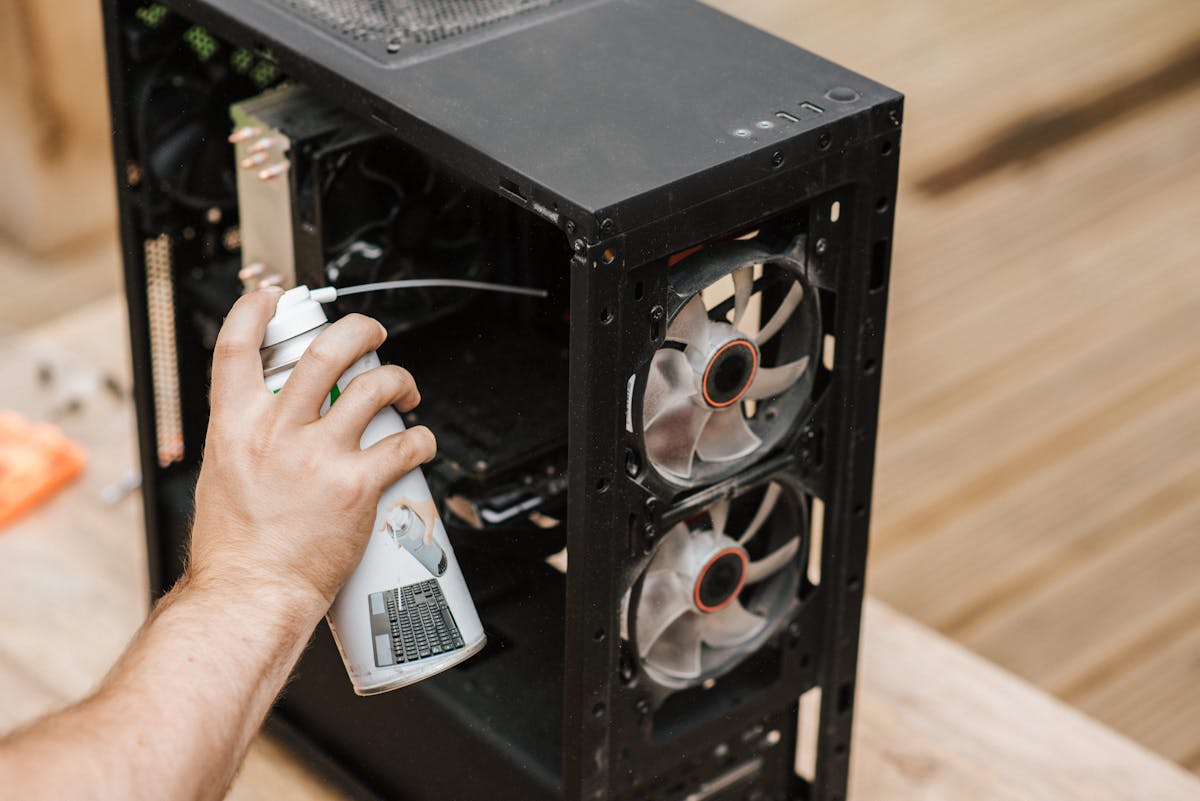
Physical cleaning is the single highest-impact maintenance task for PC hardware longevity. It is also the most skipped.
How Often to Clean: Environment Adjusts the Calendar
The "every 6 months" recommendation appears in most guides and is approximately correct for one specific environment. Real offices span a wide range:
| Environment | Recommended Cleaning Interval |
|---|---|
| Sealed office, climate-controlled, AC filtered | Every 5–6 months |
| Standard office, carpeted floors | Every 3–4 months |
| Tower PC placed on floor (vs. desk) | Every 2–3 months |
| Open-plan office with foot traffic | Every 3 months |
| Creative studio (photography, physical media) | Every 6–8 weeks |
| Workshop, production floor, or near machinery | Every 4–8 weeks |
| High-performance gaming environment | Every 3–4 months |
The determining factor is particulate concentration in the intake airflow, not just calendar time. A machine in a carpeted open-plan office accumulates dust 2–3x faster than one in a filtered server room. Tower PCs on floors sit in the highest-concentration dust layer.
What a Quarterly Clean Includes
Compressed air and tools needed: Canned compressed air or an electric air blower, isopropyl alcohol (90%+) for contact cleaning, antistatic brush for heatsink fins, lint-free cloths. Work in a well-ventilated area or outdoors; the particulates you expel are considerable.
Cleaning sequence: Power off and unplug. Open case. Blow out heatsink fins first (they trap the most material), then GPU heatsink and fan blades, then case fans, then PSU intake filter if accessible, then all vents and intake grilles. Use short bursts to avoid spinning fans at high RPM (which can damage bearings). Wipe accessible surfaces with an antistatic brush.
After cleaning: temperature verification. This step is omitted from most guides and should not be. Run a CPU stress test for 15 minutes (HWiNFO64 + Cinebench R23) and compare peak temperatures against your pre-clean baseline. A successful cleaning typically recovers 5–15°C. If temperatures barely changed, the restriction is elsewhere: a failing fan, a heatsink mounting issue, or degraded thermal paste. Document both pre and post temperatures as your new baseline for the next cleaning cycle.
If you would rather not open the machines yourself — or a fleet has fallen behind on its cleaning schedule — GGFix offers fixed-price PC cleaning and thermal-paste service in Copenhagen, with the before/after temperature benchmark included. For machines with multiple case fans and complex airflow setups, our PC airflow optimization guide covers fan placement, positive versus negative pressure configurations, and how intake filter positioning affects dust accumulation rates.
Annual Deep Maintenance
These tasks extend hardware life by 1–2 years and prevent the failure modes that kill machines between scheduled cleanings.
Thermal Paste Replacement
Thermal paste is the interface material between the CPU heat spreader (IHS) and the cooler base plate. Its job is to fill microscopic air gaps that would otherwise act as thermal insulators. Standard pastes begin degrading at 2–5 years; generic stock-cooler compounds fail sooner. The degradation mechanism is thermal cycling — thousands of heat and cool cycles dry out and crack the compound, increasing thermal resistance.
Replacement interval by use case:
- Standard office workstation: every 3–4 years
- High-load workstation (CAD, rendering, video production): every 2–3 years
- Overclocked or high-frequency-use machine: every 1–2 years
The practical trigger: if a machine's CPU temperature under identical load has risen 8–10°C compared to its post-installation baseline, and a fresh cleaning did not recover that delta, thermal paste is the likely cause. Neither Intel nor AMD publish a hard replacement interval in their consumer documentation; the 3-year guidance comes from thermal compound manufacturers and practitioner consensus.
Expect a 5–15°C temperature recovery after replacement. Severely dried paste that has cracked away from contact surfaces can cause 20°C+ jumps. For a full walkthrough including application technique and product selection, see our thermal paste replacement guide.
CMOS Battery
The CR2032 coin cell on the motherboard maintains BIOS settings and the real-time clock when the system is unplugged. HP's official documentation states an estimated lifespan of approximately three years when the PSU power switch is off, and longer when the machine remains plugged in (standby power tops up the battery). In practice, batteries in plugged-in office machines commonly last 5–7 years.
Symptoms of a dead CMOS battery: the system clock resets to a default date on every boot, BIOS settings (boot order, fan curves, XMP memory profiles) reset after every power cycle, and some machines display a "CMOS Checksum Error" message at POST.
For fleet machines at the 5-year mark, proactive batch replacement during the annual deep maintenance cycle costs 15–25 DKK per machine and eliminates an entire category of unexplained IT tickets. Accurate system clocks matter for log timestamps, SSL certificate validation, and Active Directory authentication.
PSU Inspection
Power supplies degrade through electrolytic capacitor aging. Capacitance drops over time and equivalent series resistance (ESR) rises, causing output voltage to become unstable under load. The Arrhenius equation — standard in capacitor reliability engineering — states that every 10°C decrease in operating temperature roughly doubles capacitor life. A PSU running hot ages its own components fastest.
Expected lifespan by tier: budget units 3–5 years, mid-range (80+ Bronze/Silver) 5–8 years, quality units (80+ Gold and above) 8–12 years.
Annual inspection: listen for high-pitched coil whine that wasn't present at purchase (capacitor or coil resonance under load), check for bulging or leaking capacitors visible through the PSU grill, and note any instability under sustained load (system reboots during heavy rendering or gaming that don't occur at idle).
Fan Bearing Audit
Fan bearing lifespan varies significantly by type. Sleeve bearings (common in budget fans and older stock coolers) are rated at approximately 20,000 hours MTBF — roughly 2.3 years of continuous operation. Ball bearings reach 50,000 hours (~5.7 years). Fluid dynamic bearings (FDB), used in quality aftermarket coolers, are rated at 100,000–350,000 hours.
These are manufacturer-projected MTBF figures, not measured-to-failure data. The practical fleet guideline: any fan in a business-critical machine that is 5+ years old and has not been replaced deserves inspection. Signs of bearing wear: audible grinding or rattling at startup that clears after the fan warms up, RPM readings that are 15–20% below the machine's historical baseline under the same thermal load, or intermittent zero-RPM readings from a fan that should be spinning.
Hardware monitoring that logs fan RPM over time makes this trivial: a fan declining from 1,800 RPM to 1,100 RPM over four months is visible in trend data weeks before it fails. Manual annual inspection catches bearing noise; continuous monitoring catches the trend.
BIOS and Firmware Updates
Check the motherboard manufacturer's support page annually for BIOS updates. Prioritize updates that address: CPU microcode vulnerabilities (Spectre/Meltdown variants, Reptar, Downfall), NVMe SSD compatibility improvements, memory training fixes for DDR5 kits, and stability patches for specific hardware combinations.
For OEM machines (Dell OptiPlex, HP EliteDesk, Lenovo ThinkCentre), use the manufacturer's support tool — Dell SupportAssist, HP Support Assistant, Lenovo System Update. These tools scan installed hardware and recommend firmware updates for all components including NICs, storage controllers, and embedded controllers.
Note: BIOS updates carry a small risk of failure if power is interrupted mid-flash. Never update BIOS on a laptop running on battery. For desktop fleet machines, schedule updates during a maintenance window with known stable power.
Maintenance Schedules by Environment
One schedule does not fit all environments. This table gives IT managers and MSPs the cadence adjustments for different operating contexts.
| Task | Home User | Standard Office | Workshop / Studio | MSP Fleet |
|---|---|---|---|---|
| Physical dust clean | Every 5–6 months | Every 3–4 months | Every 4–8 weeks | Sensor-triggered |
| SMART check | Every 3 months | Monthly (automated) | Monthly | Continuous |
| Temperature baseline | Annually | Quarterly | Monthly | Continuous |
| Thermal paste | Every 4–5 years | Every 3–4 years | Every 2–3 years | Flag when temps rise |
| CMOS battery | As needed | Proactive at 5 years | Proactive at 4 years | Batch at 5yr |
| Fan inspection | Annual | Annual | Every 6 months | RPM trend monitoring |
| Hardware refresh | As needed | 4–5 year rule | 3–4 year rule | 3-5-7 rule |
The "sensor-triggered" entries in the MSP column represent the monitoring-augmented maintenance model: instead of visiting every machine on a fixed schedule, sensor data surfaces which machines need attention now. This is covered in the final section.
PC Maintenance for Business Fleets
Maintaining 50 or 500 machines is not the same problem as maintaining one. IT managers and MSPs need a structured approach that scales without requiring a proportional increase in technician hours.
Asset Tiering
Not all machines warrant the same maintenance investment. Categorize assets into three tiers:
Tier A — Mission-critical: Primary workstations for revenue-generating roles, servers, point-of-sale terminals, machines used in client-facing operations. These get the tightest maintenance intervals, priority in the cleaning schedule, and immediate response to any monitoring alert.
Tier B — Standard business: General office workstations, secondary machines, machines used for non-time-sensitive tasks. Standard schedule — monthly software review, quarterly physical check, annual deep maintenance.
Tier C — Low-use or secondary: Meeting room machines, shared terminals, lightly used equipment. Quarterly check minimum, annual deep maintenance, longer physical cleaning interval.
The 3-5-7 Hardware Refresh Rule
Fleet lifecycle planning prevents reactive replacement under pressure:
- Laptops: refresh every 3–4 years
- Desktops and workstations: refresh every 4–5 years
- Servers: refresh every 5–7 years
The practical decision threshold: when the annual repair and downtime cost for a machine exceeds 50% of its replacement cost, retire it. A desktop that has required two RAM replacements and a new PSU in a year is not worth keeping. A machine that monitoring data shows running consistently above thermal thresholds despite cleaning and paste replacement is a replacement candidate regardless of age.
Documentation as a Maintenance Tool
Fleet maintenance without documentation is not a maintenance program — it is a series of individual incidents. Every machine should have a maintenance log: last cleaning date, last thermal paste replacement, last CMOS battery replacement, current temperature baseline, any SMART anomalies flagged and their resolution. This log is the asset's health history and is essential for SLA compliance, warranty claims, and hardware replacement planning.
For MSPs, this documentation also protects against client disputes: a hardware health baseline taken on day one of an engagement documents the condition of the fleet before you were responsible for it. Our complete PC fleet management guide covers the full workflow for managing this documentation at scale.
How Hardware Monitoring Replaces Calendar Guessing
The fundamental problem with calendar-based maintenance is that it is environment-blind. A schedule that says "clean every 3 months" sends a technician to a sealed, air-conditioned office machine that doesn't need cleaning, and misses the workshop machine 10 feet away that accumulated two months of dust in three weeks.
Sensor data solves this. A hardware monitoring agent reading CPU temperature, fan RPM, and SMART attributes every 60 seconds produces a continuous record of each machine's actual condition. The maintenance trigger shifts from "the calendar says it's time" to "this machine's data says it needs attention."
In practice, this means:
- Cleaning trigger: CPU temperature under standard load has risen 8–10°C compared to the 90-day baseline. The machine is flagged for physical inspection regardless of when it was last cleaned.
- Fan replacement trigger: Fan RPM is trending down 10–15% per month. The bearing is wearing. Schedule replacement before it seizes.
- Thermal paste trigger: Post-cleaning temperatures remain elevated vs. historical post-clean baseline. Paste is no longer performing. Schedule replacement at next maintenance window.
- Drive action trigger: SMART attribute 5 moves from 0 to non-zero. Immediate action, regardless of scheduled monthly SMART review.
For IT teams managing more than 20 machines, this exception-based model dramatically reduces maintenance labor. Instead of auditing every machine monthly, technicians review the alert queue and act on machines that signal they need attention. Machines that are running cleanly generate no work.
GGFix monitors all of these sensor channels continuously — CPU and GPU temperature, fan RPM per header, SMART raw attributes, VRM temperature, motherboard voltages — and surfaces anomalies through automated alerts. At 89 DKK per machine per month (approximately 12 EUR), the cost is less than one hour of technician time per year per machine. For the alert thresholds that matter most, our hardware monitoring alert configuration guide covers the specific values that indicate pre-failure conditions.
Frequently Asked Questions
How often should you clean your PC?
For most office environments, every 3–6 months. The real variable is environment: a machine in a climate-controlled office needs cleaning every 5–6 months; a machine in a carpeted open-plan office needs it every 3–4 months; workshop machines in dusty production environments need cleaning every 4–8 weeks. Tower PCs placed on floors accumulate dust 2–3x faster than those on desks. If you have hardware monitoring showing CPU temperatures, rising temps under identical workloads are a more reliable cleaning trigger than any fixed calendar date.
What happens if you never clean your PC?
Dust accumulates in heatsink fins and fan blades, blocking airflow and raising component temperatures by 10–20°C. At sustained high temperatures, CPUs and GPUs throttle — reducing clock speeds to shed heat, which causes measurably slower performance on any sustained workload. Long-term heat exposure accelerates electromigration in CPU silicon, degrades thermal paste faster, increases fan bearing wear, and shortens PSU capacitor life. A machine that is never cleaned runs hotter, wears out faster, and performs worse under load than one maintained on a regular schedule.
How long does PC maintenance take?
A quarterly dust cleaning takes 20–45 minutes per machine depending on case design and dust accumulation level. Monthly software maintenance (patching, SMART check, Event Viewer review) takes 10–15 minutes per machine, or much less when automated by a monitoring agent. Annual deep maintenance — thermal paste replacement, CMOS battery, PSU inspection, full SMART test, BIOS update — takes 1–2 hours per machine. For a 50-machine fleet, scheduling maintenance in batches (quarterly on-site visits) is significantly more efficient than ad-hoc visits.
What is included in a professional PC maintenance service?
A professional PC maintenance service typically includes physical dust cleaning of all fans, heatsinks, and vents; thermal paste replacement on the CPU and optionally the GPU; hardware inspection of PSU condition, cable integrity, and fan performance; software maintenance covering patch status, SMART drive health, and startup item review; and a temperature benchmark before and after cleaning to confirm the work was effective. Express cleaning services (no disassembly) run from 500–700 DKK. Deep clean with thermal paste replacement runs 900–1,100 DKK. Emergency callout for a failure that preventive maintenance would have avoided costs substantially more.
How do I know when my PC needs maintenance?
Seven warning signs: fans running louder or longer than usual under the same workload; system feeling slower during tasks that used to be quick; CPU or GPU temperatures measurably higher than historical baseline; unexpected shutdowns during demanding tasks; SMART check showing any non-zero value in reallocated sectors, pending sectors, or uncorrectable sectors; BIOS settings or system clock resetting after power cycles (CMOS battery); or visible dust accumulation at intake vents. Hardware monitoring software tracks CPU temperature, fan RPM, and SMART attributes continuously and alerts you when any of these signals appear — rather than waiting for you to notice.
Should you defrag an SSD?
No. SSDs do not benefit from defragmentation and running a traditional defrag on an SSD causes unnecessary write cycles that consume endurance without any performance benefit. Windows 10 and 11 automatically run TRIM on SSDs through the built-in Storage Optimizer, which is the correct maintenance operation for flash storage. If you see Storage Optimizer running an "optimization" on an SSD, that is TRIM — it is correct and expected. If a third-party tool is running full defragmentation on your SSD, disable it.
Stop checking machines manually. Watch all of them at once.
GGFix gives you a single dashboard for your entire fleet — sensors, processes, and decoded BSODs across every machine — with AI-powered alerts that push to Telegram or your PSA webhook.
- 3-day free trial — no credit card, 1 machine included
- Installs silently as a Windows Service (2 minutes)
- 50+ sensors + top 25 processes monitored every minute
- Auto-decodes BSODs and Event IDs 41 / 1001 / 219 / WHEA
- AI names the exact app that caused any crash or spike
- Telegram or email alerts in under 10 seconds
| Scenario | Typical cost (USD) |
|---|---|
| Render farm down during production deadline | $1,500 – $7,000 |
| IT consultant (reactive emergency response) | $250 – $600/day |
| Hardware failure across 5 machines (avg) | $1,200 – $4,500 |
| Emergency after-hours technician callouts | $200 – $600 |
| GGFix monitoring (per machine / month) | $20 |
| GGFix monitoring (per machine / year — 2 months free) | $200 |
Early warning is the cheapest insurance you can buy. GGFix catches problems when the fix is still cheap — and names the exact app, sensor, or BSOD code responsible.
On-site PC & laptop repair · Copenhagen
In Copenhagen with this exact problem? GGFix fixes it hands-on — often cheaper than replacing the machine.
Fixed prices from 399 DKK for on-site PC and laptop repair, all brands, on-site or drop-off in Ishøj — with an honest diagnosis before you commit to anything.
See on-site PC and laptop repair pricesggfix
Writing about hardware monitoring, fleet management, and keeping machines alive. Powered by GGFix.
Related Articles
GPU Artifacts: What They Look Like and What Causes Them
GPU artifacts range from fixable driver issues to signs of permanent VRAM damage. Here is how to identify which type you have, what temperatures trigger them, and whether your graphics card is recoverable.
NVIDIA RTX 4060–5090: Temperature Limits by Model
RTX 4090 and RTX 5090 have different temperature limits. The hotspot temperature runs 15-25°C above the core temperature every card reports. Most monitoring setups only watch the core — which means most monitoring misses the actual failure threshold. Here are the exact numbers for every RTX card.
Intel vs AMD: Thermal Limits Compared (2024-2026)
Intel CPUs throttle before their limit. AMD CPUs run right at their limit by design. If you are monitoring hardware, these are completely different thermal behaviors — and treating them the same way leads to false alarms on AMD machines and missed warnings on Intel ones.
[ free 3-day trial · no credit card ]
Know before it breaks.
GGFix installs in 2 minutes and starts watching your hardware immediately — CPU temps, GPU load, disk health, fan speeds, and 50+ sensors. AI tells you what's wrong before it causes damage.