PC Fleet Management Guide: Monitor and Manage Multiple Machines
One offline machine during a deadline costs more than a year of monitoring.
With a fleet you can't physically check every machine every day, and most RMMs show 'online' right up until the moment a workstation blue-screens from thermal shutdown. GGFix watches the hardware layer — sensors, processes, BSODs decoded into plain English — and pushes alerts to whoever is on-call. Whether you have 3 machines or 300.
Start 3-Day Free TrialNo card requiredManaging one PC is simple. Managing 50 without systems in place is a slow-motion disaster — reactive, exhausting, and expensive. This guide covers the complete workflow for PC fleet management in 2026: how to gain visibility across every machine, automate alerts before users call, and shift from constant firefighting to planned, predictable maintenance.
Whether you're an MSP managing 200 client machines or an internal IT manager responsible for a 30-person office, the same principles apply. Visibility first. Automation second. Reaction last. For a broader overview of hardware monitoring principles, see our complete hardware monitoring guide.
What PC Fleet Management Actually Means
Fleet management is the practice of maintaining hardware health, performance, and lifecycle across multiple machines from a central point. In 2026, it covers:
- Hardware health monitoring — CPU, GPU, RAM, SSD temperatures and load in real time
- Predictive maintenance — spotting failure patterns before users notice anything wrong
- Alert routing — the right notification reaching the right person at the right time
- Lifecycle tracking — knowing which machines are aging out and planning replacements
- Reporting — proving to clients or management that monitoring delivers measurable value
The single biggest shift in modern fleet management is the move from periodic checks to continuous monitoring. A technician checking 50 machines manually once a week will always be behind. An automated system checking every machine every 60 seconds catches problems in minutes instead of days.
The Scale Problem
Most IT teams underestimate how quickly manual monitoring breaks down at scale. According to Gartner research on IT operations, organizations with automated monitoring resolve incidents 3x faster than those relying on manual checks:
| Fleet Size | Manual Check Frequency | Time per Machine | Weekly Overhead |
|---|---|---|---|
| 10 machines | Weekly | 10 min | 1.7 hours |
| 50 machines | Weekly | 10 min | 8.3 hours |
| 100 machines | Weekly | 10 min | 16.7 hours |
| 200 machines | Weekly | 10 min | 33.3 hours |
At 200 machines, manual monitoring consumes nearly a full-time employee. And weekly checks still miss the SSD that started failing on a Tuesday and killed itself by Thursday.
Building the Foundation: Centralized Visibility
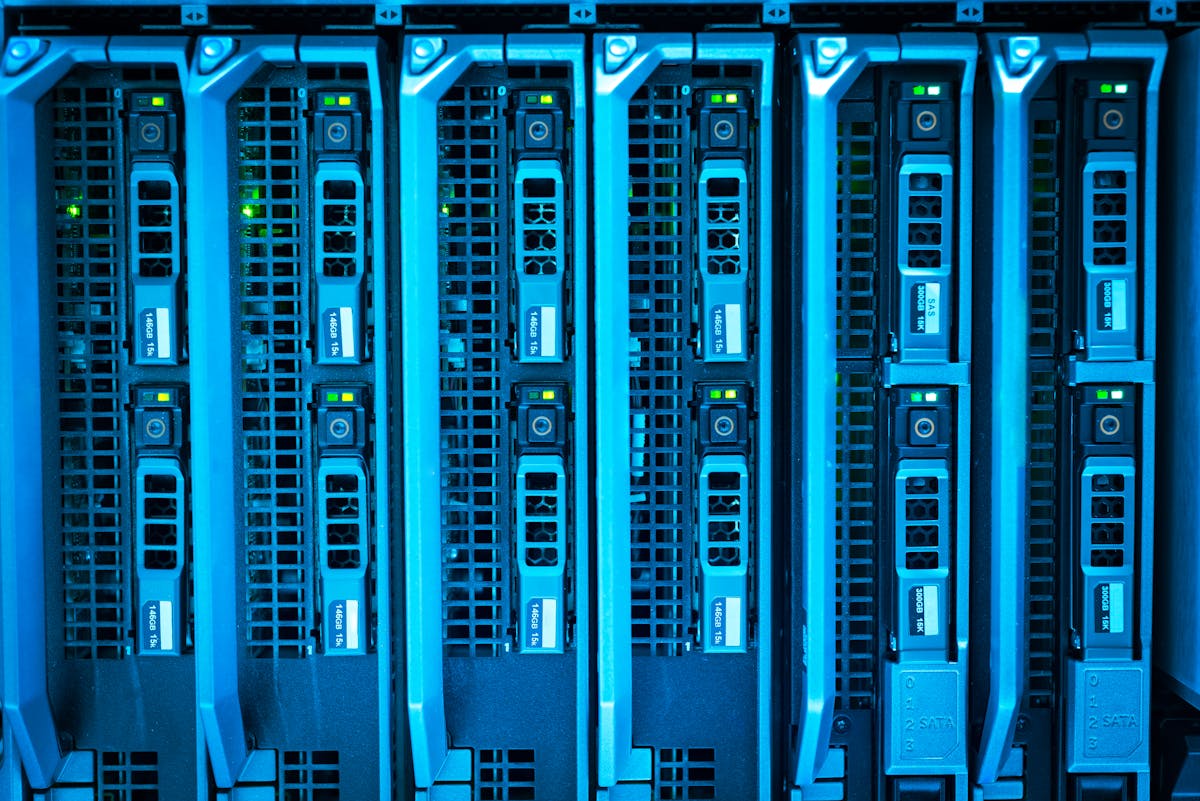
Before you can manage a fleet, you need to see it. Every machine needs to be reporting data to a single point, in real time, without requiring anything from the end user.
The architecture that scales:
- A lightweight agent installed on each Windows machine (runs as a background service, invisible to the user)
- A cloud backend that receives, stores, and analyzes the telemetry
- A central dashboard where you see every machine's health at a glance
- Alert channels — Telegram, Slack, email — for when something needs attention
This is fundamentally different from remote desktop tools like TeamViewer or AnyDesk. Those give you remote control when you already know there's a problem. Fleet monitoring gives you the data that tells you a problem is developing before anyone calls.
For a practical setup walkthrough, see our guide on setting up remote hardware monitoring for multiple PCs.
What Data Actually Matters at Fleet Scale
Not all sensor data is equally useful. At fleet scale, you want metrics that correlate with failure, not just metrics that exist:
High signal (monitor always):
- CPU temperature under load (TjMax breach = imminent throttling or shutdown)
- GPU core temperature (approaching 90°C is a red flag on most consumer cards)
- SSD health percentage and temperature (NVMe throttles hard above 70°C)
- Fan RPM (a fan bearing failing shows up as RPM dropping before it stops entirely)
- RAM errors (ECC flags or instability patterns under load)
Medium signal (useful for trends):
- CPU and GPU utilization patterns over time
- VRM temperature (often 10-15°C hotter than CPU — relevant on budget motherboards)
- System uptime and crash frequency
Low signal (nice to have, not fleet-critical):
- Exact clock speeds
- Per-core temperature variance
- Individual voltage rails
Our hardware monitoring alert thresholds guide covers the exact temperature boundaries for each component type.
The Fleet Management Workflow That Scales
After monitoring 500+ machines across offices, gaming venues, and creative studios, the workflow that consistently works at scale follows this pattern:
Step 1: Deploy the Agent Silently
Agent deployment should take under 5 minutes per site. A good monitoring agent installs as a Windows service, starts automatically on boot, and requires zero user interaction. If your monitoring solution requires training end users or manual configuration per machine, it will not scale.
For MSPs, the deployment story matters. You need an agent you can push via your existing RMM (or a simple PowerShell script) across a client's entire site in one operation. See our MSP hardware monitoring guide for the specific RMM integration workflow. If you're adding a new client to your stack, see our guide on how to deploy monitoring agents during client onboarding — it covers the 5 fastest deployment methods including GPO, IP range scan, PowerShell, MDM, and manual install.
Step 2: Establish Baselines
The first 72 hours after deploying monitoring are about establishing baselines, not firing alerts. Every machine has a different thermal profile: a workstation under a desk with poor airflow runs hotter than an identical model in a ventilated rack. Alert thresholds calibrated to hardware specs alone will generate false positives constantly.
Good fleet monitoring tools learn machine-specific baselines and alert on deviation from normal rather than on raw temperature values. A machine that normally runs at 78°C CPU load temp alerting at 85°C is signal. A machine that normally runs at 85°C alerting at the same threshold is noise.
Step 3: Route Alerts to the Right People
Not every alert needs the same response. Define escalation tiers before you deploy:
- Tier 1 (informational): SSD health dropped below 80%, fan RPM trending down — log it, note it in the weekly digest
- Tier 2 (same-day response): CPU temperature reaching 90°C repeatedly, SSD approaching 70°C — assign to the responsible technician
- Tier 3 (immediate): Machine exceeding TjMax thresholds, thermal shutdown events, complete drive failure — wake someone up
Telegram works extremely well for Tier 2 and 3 alerts because it's immediate and persistent. Email works for Tier 1 digests. Slack or Teams webhooks work for integrating alerts into existing team workflows.
Step 4: Implement a Weekly Review Cycle
Real-time alerts catch acute failures. Weekly reviews catch the slow-burning problems that don't trigger any single alert threshold but show a clear deterioration trend over weeks.
In a weekly fleet review, look for:
- Machines where average CPU temperature has increased 5°C or more over 30 days (thermal paste degrading, dust accumulation)
- SSDs where health percentage has dropped more than 5 points in a month
- Fan RPM that's dropped more than 10% from the machine's established baseline
- Any machine that has had 3 or more thermal events in the past 7 days
An automated weekly digest — emailed to the responsible technician every Monday morning — turns this from a manual audit into a 10-minute review. Our post on PC fleet management and predictive maintenance in 2026 covers the specific patterns that predict failure 2-4 weeks in advance.
Step 5: Close the Loop with Lifecycle Planning
Fleet monitoring data is the most accurate source of truth for hardware lifecycle decisions. A machine that's been running 15% hotter than its fleet peers for 6 months and has had 3 thermal events is a replacement candidate — not a machine you keep patching with thermal paste.
Track by machine age + thermal history, not just age alone. A 4-year-old workstation in a climate-controlled edit suite may outperform a 2-year-old machine under a desk next to a radiator.
MSP-Specific Fleet Management
For managed service providers, fleet management has an additional dimension: the client relationship. Monitoring isn't just about keeping machines healthy — it's about making that health visible and reportable to clients who are paying for peace of mind.
The Proactive vs. Reactive Billing Argument
MSPs who deploy hardware monitoring consistently report fewer emergency calls, shorter resolution times, and higher client retention. The math is direct:
- Average cost of an emergency on-site visit: 2,500-4,000 DKK (parts, labor, downtime, client disruption)
- Average cost of preventing that failure with monitoring: 89 DKK/machine/month
- Break-even: 1 prevented failure per year pays for 2+ years of monitoring per machine
When you present this framing to clients, hardware monitoring sells itself. You're not asking them to pay for software — you're asking them to pay 89 DKK/month to avoid a 3,000 DKK call.
Client Reporting That Builds Trust
The monthly hardware health report is your most powerful retention tool. A one-page summary showing:
- Fleet health score across all machines
- Alerts fired and resolved this month
- Any machines flagged for attention
- Upcoming maintenance recommendations (thermal paste, dust cleaning, replacement)
...makes the value of your monitoring service tangible. Clients who see this report rarely cancel. Those who don't see it often wonder what they're paying for.
Multi-Client Isolation
If you're managing multiple clients from the same dashboard, machine-level tenant isolation is non-negotiable. Client A's hardware data must be completely invisible to anyone managing Client B. This isn't just a privacy requirement — it's a professional standard.
The practical implementation: each client gets a separate fleet namespace, separate alert routing, and separate reports. A technician assigned to Client A can see only Client A's machines.
Common Fleet Management Failures (and How to Avoid Them)
Failure 1: Alert fatigue Setting thresholds too low generates constant alerts that technicians start ignoring. Within 2 weeks, everyone has muted the alert channel and the monitoring system is effectively useless. Solution: start with conservative thresholds, let baselines establish, tune aggressively downward over the first month.
Failure 2: No escalation path An alert that fires at 2 AM and sits in a Slack channel until 9 AM is not monitoring — it's logging. Define who gets woken up for Tier 3 events, and make sure that person's contact is current.
Failure 3: Monitoring the wrong things Fleets that monitor CPU utilization religiously but ignore SSD health miss the most common failure mode. Modern SSDs fail quietly — no noise, no obvious signs — until they don't work. By the time a user notices slowness, the drive may be weeks from complete failure. Monitor disk health every time.
Failure 4: No documentation Every machine in your fleet should have a record: install date, hardware specs, thermal baseline, maintenance history. When a machine starts acting up, this history tells you whether it's a new problem or a pattern. Monitoring tools that auto-generate this documentation are worth the investment.
Failure 5: Deploying monitoring reactively Waiting until after a machine fails to deploy monitoring on the remaining machines is the most expensive mistake in fleet management. The machines you haven't monitored yet are the ones you don't know are failing.
Fleet Management Tools: What to Look For
A complete fleet management stack in 2026 needs:
| Capability | Why It Matters |
|---|---|
| Real-time sensor monitoring | Catch failures within minutes, not during next scheduled check |
| AI-powered anomaly detection | Distinguish signal from noise automatically — no manual threshold tuning |
| Automated alert routing | Right person notified immediately, not after someone checks the dashboard |
| Weekly/monthly automated reports | Makes monitoring value visible to clients and management |
| 5-minute agent deployment | If setup is complex, adoption will be incomplete |
| Multi-client isolation | Non-negotiable for MSPs |
| Historical trend data | Weekly reviews require weeks of history to be useful |
| API access | Integration with your existing ticketing, RMM, or PSA tools |
For a comparison of specific Windows monitoring tools and where each fits in the stack, see our Windows hardware monitoring tools comparison.
GGFix for Fleet Management
GGFix is built for exactly this use case: IT teams and MSPs who need real hardware monitoring at fleet scale without enterprise pricing or enterprise complexity.
The agent installs as a Windows service in under 5 minutes. It reads CPU, GPU, SSD, RAM, fan, and VRM sensors every 60 seconds via LibreHardwareMonitor and uploads aggregated telemetry every 5 minutes. Claude AI analyzes the patterns — not just raw thresholds, but trends and anomalies — and fires alerts via Telegram, Slack, or email when something needs attention.
The dashboard shows every machine in your fleet, color-coded by health status. Machines needing attention float to the top. The weekly AI digest summarizes fleet health every Monday. Monthly reports go to clients automatically.
Pricing: 89 DKK/machine/month (monthly) or 79 DKK/machine/month billed yearly — approximately EUR 12 per machine. Free 3-day trial, up to 3 machines, no credit card required.
For fleets where the cost of one unexpected failure exceeds 1,000 DKK, monitoring pays for itself before the quarter ends.
Cluster Posts in This Series
This guide is the foundation. Each post below covers a specific aspect of fleet management in depth:
- Remote Hardware Monitoring for MSPs: RMM Integration Guide — how to integrate hardware monitoring into your existing MSP toolchain
- Client Onboarding for MSPs: Deploy Monitoring in 5 Minutes — the 5 fastest methods to get monitoring running on a new client's machines from day one
- PC Fleet Management and Predictive Maintenance in 2026 — the specific failure patterns AI catches before users notice
- How to Set Up Remote Hardware Monitoring for Multiple PCs — the technical setup guide, step by step
- Hardware Monitoring Alert Thresholds: What Should Trigger a Warning — exact temperature and performance thresholds for every component
- The Hidden Costs of Not Monitoring Your Hardware — the business case in numbers
- How AI Is Changing Hardware Monitoring in 2026 — why pattern recognition beats static thresholds
Frequently Asked Questions
Q: What is PC fleet management?
PC fleet management is the practice of monitoring, maintaining, and controlling hardware health across multiple computers from a centralized system. It includes real-time sensor monitoring, automated alerting, preventive maintenance scheduling, and hardware lifecycle planning — all managed without physical access to each machine.
Q: How many machines can one IT technician realistically monitor manually?
In practice, manual monitoring breaks down above 20-25 machines. At 50 machines, a weekly manual check cycle consumes 8+ hours of technician time and still misses failures that develop mid-week. Automated monitoring with real-time alerts allows one technician to effectively oversee 200-500 machines with the same response quality as manual oversight of 20.
Q: What is the difference between fleet management and RMM tools?
RMM (Remote Monitoring and Management) tools like ConnectWise, Datto, and NinjaOne focus on software patching, remote control, and endpoint management. Hardware-level fleet monitoring is a complementary layer that reads physical sensor data — temperatures, fan RPMs, SSD health — that most RMM tools do not track at the depth required for predictive maintenance.
Q: How do I justify hardware monitoring costs to a client or CFO?
Frame it as failure prevention, not software spend. Average cost of an unplanned workstation failure (emergency visit, replacement hardware, data recovery, downtime): 3,000-8,000 DKK. Cost of monitoring that machine for a year: 948-1,068 DKK. One prevented failure per machine per year delivers 3-8x ROI before counting productivity losses. Our ROI analysis for hardware monitoring has the full breakdown.
Q: How quickly can I deploy monitoring across a 50-machine fleet?
With GGFix, a 50-machine deployment takes 2-4 hours: generate enrollment tokens in the dashboard, push the agent via your existing RMM or a PowerShell script, and machines start reporting within minutes of agent installation. No per-machine configuration required — the AI sets intelligent baselines automatically.
Q: What data does a fleet monitoring agent send to the cloud?
A well-designed agent sends aggregated sensor readings — temperatures, utilization percentages, fan speeds, drive health — not personal files, user activity, or screen content. GGFix uploads aggregated 5-minute telemetry snapshots, not raw keystroke or usage data. The agent binary is open to inspection and the data schema is fully documented.
Stop checking machines manually. Watch all of them at once.
GGFix gives you a single dashboard for your entire fleet — sensors, processes, and decoded BSODs across every machine — with AI-powered alerts that push to Telegram or your PSA webhook.
- 3-day free trial — no credit card, 1 machine included
- Installs silently as a Windows Service (2 minutes)
- 50+ sensors + top 25 processes monitored every minute
- Auto-decodes BSODs and Event IDs 41 / 1001 / 219 / WHEA
- AI names the exact app that caused any crash or spike
- Telegram or email alerts in under 10 seconds
| Scenario | Typical cost (USD) |
|---|---|
| Render farm down during production deadline | $1,500 – $7,000 |
| IT consultant (reactive emergency response) | $250 – $600/day |
| Hardware failure across 5 machines (avg) | $1,200 – $4,500 |
| Emergency after-hours technician callouts | $200 – $600 |
| GGFix monitoring (per machine / month) | $20 |
| GGFix monitoring (per machine / year — 2 months free) | $200 |
Early warning is the cheapest insurance you can buy. GGFix catches problems when the fix is still cheap — and names the exact app, sensor, or BSOD code responsible.
On-site PC & laptop repair · Copenhagen
In Copenhagen with this exact problem? GGFix fixes it hands-on — often cheaper than replacing the machine.
Fixed prices from 399 DKK for on-site PC and laptop repair, all brands, on-site or drop-off in Ishøj — with an honest diagnosis before you commit to anything.
See on-site PC and laptop repair pricesGGFix Technical Team
Writing about hardware monitoring, fleet management, and keeping machines alive. Powered by GGFix.
[ free 3-day trial · no credit card ]
Know before it breaks.
GGFix installs in 2 minutes and starts watching your hardware immediately — CPU temps, GPU load, disk health, fan speeds, and 50+ sensors. AI tells you what's wrong before it causes damage.