PC Case Airflow: Fan Placement, Pressure and Verification
Your CPU might be throttling right now and you'd never know.
Sustained temperatures above 85°C shorten CPU lifespan and tank performance — silently. GGFix watches every sensor (including the hotspot most tools hide) and alerts you the moment a reading drifts above its 30-day baseline, not just when it crosses a static threshold.
Start 3-Day Free TrialNo card requiredPC case airflow determines how effectively your CPU and GPU shed heat — the difference between a well-configured and poorly configured case is 8-15°C without spending anything on new hardware. Bad airflow causes thermal throttling that slows your machine invisibly — frames drop, renders take longer, compiles slow down. The cause is never visible in Windows, because the CPU and GPU just silently reduce their own clock speeds to stay below thermal limits.
This guide covers fan placement rules, the positive vs. negative pressure decision, dust filter selection, and — the part most guides skip — how to verify with sensor data that your airflow setup is actually working. It is part of our PC maintenance and optimization framework for keeping hardware running at rated performance. For temperature baselines to compare your improvements against, our CPU temperature guide and guide to GPU overheating signs provide component-specific reference ranges.
The Core Rule: How Air Moves Through a PC Case
Every fan has a label side (where the sticker and hub cover are) and a frame side (the open motor side). Air is pulled toward the label side and pushed out the frame side. This is the only fact you need to determine fan direction — the label faces the direction air comes from.
For a case fan:
- Intake fan: label side faces outside the case, frame side faces inside. Air is pulled in.
- Exhaust fan: label side faces inside the case, frame side faces outside. Air is pushed out.
The standard airflow path in a PC case runs front-to-back and bottom-to-top. Hot air rises (convection) and CPUs and GPUs both exhaust heat upward from their heatsinks. The optimal layout works with physics rather than against it:
- Front panel: intake (1-3 fans, pulls cool air from outside)
- Bottom panel: intake (1-2 fans, where supported by the case, below PSU shroud)
- Rear panel: exhaust (1 fan, directly behind CPU cooler)
- Top panel: exhaust (1-2 fans, hot air rising from CPU and GPU)
- Side panel: intake if present (less common, typically at GPU level)
Positive Pressure vs. Negative Pressure: Which Is Better?
Positive pressure means your case has more intake airflow (measured in CFM, cubic feet per minute) than exhaust. Negative pressure means exhaust exceeds intake, creating a slight vacuum that pulls air through every unsealed gap in the case.
| Positive Pressure | Negative Pressure | |
|---|---|---|
| Setup | More intake CFM than exhaust | More exhaust CFM than intake |
| Dust behavior | Collects on intake filters (cleanable) | Pulled through all case gaps (no filter) |
| Temperatures | Marginally higher (±1-2°C typical) | Marginally lower (±1-2°C typical) |
| Noise | Similar, depends on fan choice | Similar, depends on fan choice |
| Recommended for | Most builds | Cases with comprehensive dust filtration |
For most builds, aim for slight positive pressure. Filtered intake fans collect dust on the filter mesh, where you can clean it. Negative pressure pulls dust through cable grommets, PCIe slot gaps, and every tiny gap in the case — depositing it directly on components with no filter to catch it.
The temperature difference between positive and negative pressure is typically 1-2°C, which is negligible for most hardware. The dust management difference is significant over months of operation.
Neutral pressure (equal intake and exhaust CFM) is a reasonable middle ground, though true neutral is difficult to achieve in practice because fans from the same model line have slight CFM variations.
Standard Fan Placement by Position
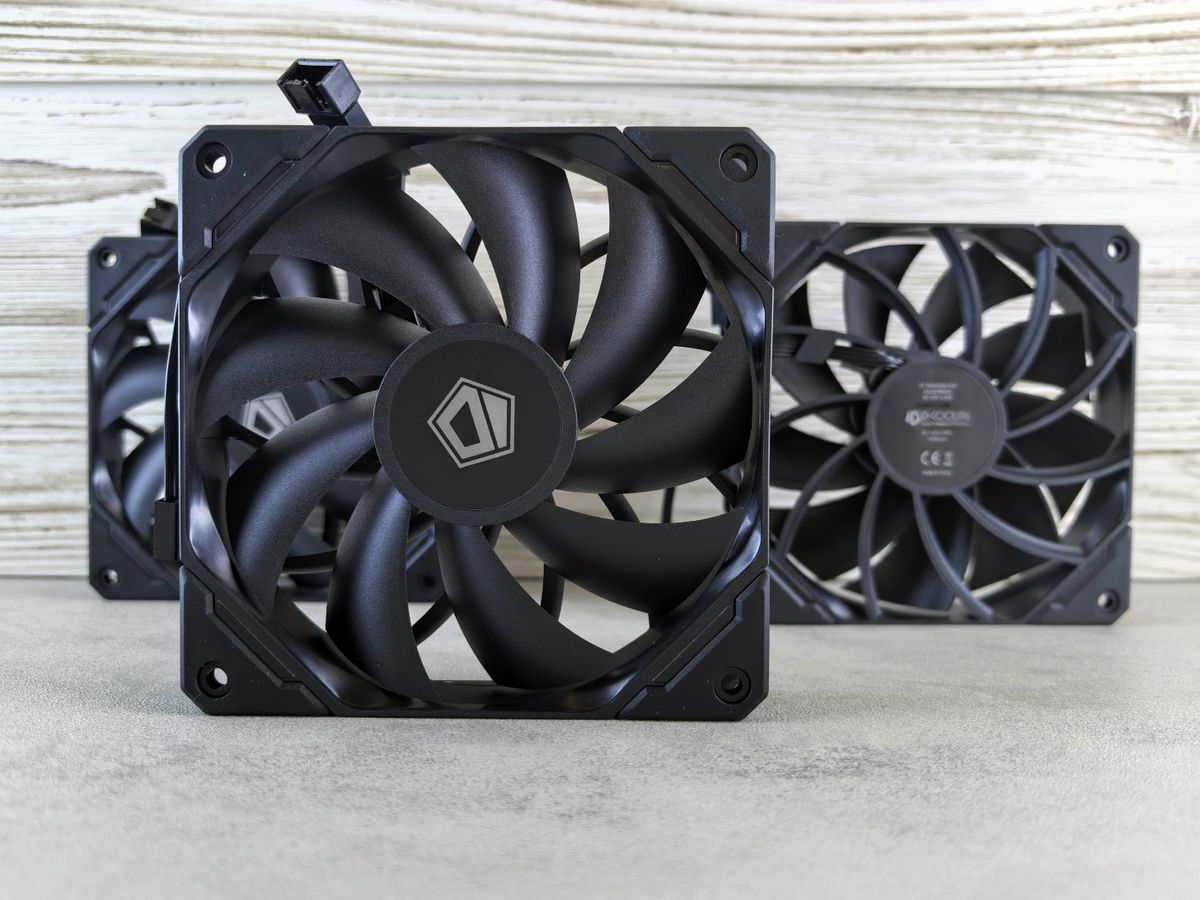
Front Fans (Intake)
Front fans are the primary source of fresh air in most ATX and mATX builds. Most modern cases support 2-3 x 120mm or 2 x 140mm front intake fans.
140mm fans are preferable to 120mm at intake positions because they move more air at lower RPM and noise. A single 140mm fan at 900 RPM typically moves more air than a 120mm fan at 1200 RPM while running 3-5 dB quieter.
If your case has a front panel with dust filters, make sure the filter is installed on the outside of the fan (between the fan and the environment). The filter should be the first thing air passes through.
Rear Fan (Exhaust)
Almost every ATX case has a single 120mm rear exhaust fan position, directly behind the CPU cooler. This is the most critical exhaust point. The CPU cooler blows heat toward the rear panel, and the rear fan exhausts it before it can recirculate into the case.
Install the rear fan even if you plan to skip all other case fans. If you only have one case fan, it goes here.
Top Fans (Exhaust)
Top fans exhaust hot air that has risen through the case by convection. In builds with high-TDP CPUs and GPUs, top exhaust fans can reduce CPU temperatures by 3-5°C compared to rear-exhaust-only configurations.
If you have a 360mm or 280mm AIO liquid cooler, it typically mounts at the top as a combination radiator and exhaust. The radiator fans push air through the radiator and out of the case — effectively acting as top exhaust while also cooling the liquid loop.
Conflict to avoid: Top fans in exhaust configuration can create airflow competition with a tower CPU cooler that blows toward the rear. If your CPU cooler is top-mounted (blower style), top exhaust fans at the front of the top panel pull air in the opposite direction from the cooler's exhaust. Position top exhaust fans to work with, not against, your CPU cooler's exhaust direction.
Bottom Fans (Intake)
Bottom-mounted intake fans, positioned below the PSU shroud and pulling air up into the case, improve GPU temperatures significantly in builds where the GPU is the thermal priority. They feed cool air directly to the GPU's intake and the PSU.
Not all cases support bottom fans — check your case specifications. Cases that do support bottom intake typically have dust filters in the bottom panel.
Dust Filters: Material Matters More Than Presence
A dust filter that severely restricts airflow is worse than no filter at all. According to HWCooling's controlled tests comparing filter materials, plastic mesh filters lose up to 55% of airflow compared to nylon mesh at low fan speeds, with substantial noise penalty from turbulence at higher frequencies. Foam-based filters fall between the two, reducing airflow by 15-22% depending on speed.
Filter recommendations by priority:
- Nylon mesh filters — lowest restriction, collect dust on the surface rather than inside the material, easy to clean with compressed air or rinsing. Used in most quality cases.
- Metal mesh filters — durable, lower restriction than foam, can be washed. Common in Fractal Design and Lian Li cases.
- Foam filters — excellent dust capture but 15-22% airflow restriction. Better for extremely dusty environments (workshops, woodworking spaces) where filtration matters more than airflow.
- Plastic mesh filters — avoid at intake positions. The airflow restriction and noise penalty are significant.
Filter maintenance cadence: Clean every 3-6 months in a typical office or home environment. Every 4-8 weeks in dusty environments (carpet flooring, pets, workshops). The most reliable signal that your filters need cleaning is a gradual increase in CPU or GPU idle temperatures over weeks — if idle temperatures are 5-8°C higher than your baseline from 3 months ago, check the filters before anything else. Our guide to how ambient temperature affects PC performance explains how seasonal changes compound this effect — summer temperatures can add 5-10°C on top of an already-reduced airflow baseline.
If a case has reached the point where the heatsink fins are packed with dust and a filter rinse no longer recovers the lost temperatures, a full strip-down clean is the next step. If you are in Copenhagen, GGFix offers fixed-price PC cleaning and thermal-paste service with before/after temperature testing.
How Many Fans Do You Actually Need?
More fans are not always better. Four fans all exhausting is worse than two fans properly balanced. The question is not quantity but configuration.
Minimum viable configuration (2 fans):
- 1 rear exhaust
- 1 front intake
- Result: adequate for CPUs up to 65W TDP and mid-range GPUs in well-ventilated cases
Standard configuration (3-4 fans):
- 2-3 front intake
- 1 rear exhaust
- Result: suitable for mainstream gaming builds and workstation CPUs up to 125W TDP
High-performance configuration (4-6 fans):
- 3 front intake
- 2 top exhaust
- 1 rear exhaust
- Result: appropriate for high-TDP CPUs (125W+), high-end GPUs (RTX 4080/4090, RX 7900 XTX), and creative workstations doing sustained render work
AIO liquid cooling changes the equation: a 360mm AIO mounted at the top with 3 exhaust fans replaces the top exhaust position and significantly improves CPU cooling. The remaining case fans (2-3 front intake, 1 rear exhaust) continue to manage GPU and case temperatures.
Fan quality outperforms fan quantity. A single quality 140mm fan — such as the Noctua NF-A14 PWM, rated at 82.4 CFM at maximum speed (1,500 RPM) at 22.7 dB(A) — moves more air than two budget 120mm fans at full speed while operating significantly quieter. Two generic 120mm fans at 2,000 RPM produce a combined 60-70 CFM at higher noise levels. For intake positions especially, two quality 140mm fans outperform four cheap 120mm fans in both airflow volume and acoustic performance.
Common Airflow Mistakes
All fans set to exhaust: The most common configuration error. Without positive intake pressure, the case creates a vacuum and pulls air through unfiltered gaps, heating components with recirculated warm air. Check fan orientation — the label side should face outside the case for intake fans.
Front intake blocked by drive cages: Older cases with 3.5" drive cages in front of the intake fans can reduce front intake airflow by 30-50%. If possible, relocate drives or remove unused cages.
GPU exhaust recirculating: Open-air GPU coolers (which exhaust heat into the case rather than directly out a slot) work correctly only when there is adequate case airflow to move that heat out. In cases with poor airflow, GPU exhaust recirculates and heats itself. Signs: GPU temperatures 10-15°C higher than expected for the card model, case feeling hot to the touch on the side panel. Our GPU overheating signs and prevention guide covers the full diagnostic approach when recirculation is suspected.
Cables blocking airflow paths: A cable bundle running across the GPU or blocking the front fan intake reduces airflow measurably. Route all cables behind the motherboard tray where the case allows. This is functional, not cosmetic.
Wrong fan type for the position: High-static-pressure fans (Noctua NF-A12x25, be quiet! Silent Wings) are designed for radiators and CPU coolers where they must push through a resistance. High-airflow fans (Noctua NF-S12A, Arctic P12/P14) are better for open case positions where there is no restriction. Using static-pressure fans in an unrestricted intake position wastes their design advantage.
Neglecting VRM airflow: VRM (voltage regulator module) components sit near the top of the motherboard, above the CPU socket, and are often the last area that case airflow reaches in front-heavy configurations. In cases with poor rear exhaust, VRMs can reach 100°C+ under sustained load even when CPU and GPU temperatures look acceptable. Our guide on VRM temperature and motherboard overheating covers this in detail — if your VRMs are running hot, adding a top exhaust fan is often the most targeted fix.
AIO radiator fans mounted in the wrong direction: When mounting a top AIO, the radiator fans should push air through the radiator and out of the case (exhaust configuration). A common mistake is mounting the fans as intake — pulling room-temperature air through the radiator and into the case. While both configurations cool the liquid loop, the exhaust configuration prevents warm radiator air from recirculating over the motherboard and VRMs.
Fans running at full speed constantly: If fans are spinning at maximum RPM regardless of load, the issue is typically thermal — the motherboard's fan controller is detecting temperatures above threshold and forcing maximum cooling. Our guide to diagnosing fans running at full speed covers the systematic approach to identifying whether the cause is airflow, sensor failure, or BIOS misconfiguration.
How to Verify Your Airflow Is Actually Working
This is the section no other airflow guide covers: how do you know your configuration is improving temperatures? Temperature comparisons only work when ambient room temperature is controlled — a 65°C CPU temperature in a 18°C room is the same thermal performance as 72°C in a 25°C room.
The correct metric is delta-T (delta temperature): the difference between component temperature and ambient room temperature. A CPU running at 65°C in a 20°C room has a delta-T of 45°C. If you improve airflow and that CPU now runs at 57°C in the same 20°C room, the delta-T dropped to 37°C — an 8°C improvement in actual thermal performance.
Step-by-step verification:
- Open HWiNFO64 and note CPU package temperature and GPU temperature at idle in your current configuration
- Note ambient room temperature
- Calculate baseline delta-T: (CPU temp at idle) - (room temp)
- Make a single airflow change (add a fan, change direction, clean filters)
- Wait 15 minutes for temperatures to stabilize
- Remeasure. If delta-T improved, the change helped. If it stayed the same, the change had no effect.
What thermal throttling looks like in monitoring data: When a CPU or GPU hits its thermal limit, it reduces clock speed. In HWiNFO64, this appears as a CPU clock speed that drops from its rated boost speed (e.g., 5.0 GHz) to a lower value (3.8 GHz) simultaneously with a temperature reading at TjMax (100°C for Intel 13th/14th gen, 95°C for AMD Ryzen 7000). The thermal throttling explainer covers the performance impact in detail — a typical 13th gen i7 thermal throttling at 95°C loses 15-25% of its multi-core rendering performance.
For organizations managing multiple workstations, manual airflow checks do not scale. In our monitoring data across fleet deployments, 23% of workstations over 2 years old show CPU or GPU idle temperatures that have risen 6°C or more from their initial baseline — indicating accumulated dust or thermal paste degradation. Catching this trend requires continuous temperature monitoring that surfaces gradual drift before it causes visible performance problems. This is part of the complete PC hardware monitoring approach that prevents reactive break-fix cycles.
GGFix monitors CPU and GPU temperatures continuously across all managed machines and alerts when idle or load temperatures deviate from each machine's historical baseline. For a fleet of 30 workstations, this means a machine that gradually develops an airflow problem — from dust accumulation, a fan failure, or a blocked intake — generates an alert when temperatures cross a threshold, not when a user submits a ticket about slow performance.
Frequently Asked Questions
Q: Should front case fans be intake or exhaust?
Front fans should be intake in almost every build. They draw cool air from outside the case and direct it toward the GPU and CPU cooler. Setting front fans to exhaust creates negative pressure, pulls hot air from the rear toward components, and removes the only source of cool, filtered air for the GPU. The only exception is some specialized AIO radiator configurations where the front radiator fans are set to push (exhaust through the radiator from outside).
Q: What is the difference between positive and negative pressure in a PC case?
Positive pressure means the case has more intake airflow (CFM) than exhaust, so air is slightly pressurized inside and exits only through designated exhaust vents. Negative pressure means exhaust CFM exceeds intake, creating a vacuum that pulls air in through every case gap — including unfiltered cable cutouts and slot covers. Positive pressure keeps dust on intake filters where it can be cleaned. Negative pressure deposits dust directly on components through unfiltered paths.
Q: How many case fans do I actually need?
A minimum of two fans — one front intake and one rear exhaust — provides adequate airflow for budget and mid-range builds. Most gaming and workstation builds benefit from three to four fans: two to three front intakes and one to two rear/top exhausts. High-TDP builds with 125W+ CPUs and high-end GPUs typically use five to six fans. More fans only help if they are properly configured — additional exhausts without matching intake fans create airflow problems.
Q: Why is my PC hot even though I have good fan placement?
Common causes that proper fan placement cannot fix: dried thermal paste between CPU and heatsink (causes 10-20°C increase over 2-4 years), dust buildup inside heatsink fins (blocks airflow through the cooler itself, not just the case), and high ambient room temperature (every 5°C increase in room temperature raises component temperatures by approximately 5°C). Also check VRM temperatures on your motherboard — overloaded voltage regulators cause heat that airflow changes alone cannot fix. If idle temperatures are significantly higher than your baseline from 6-12 months ago, thermal paste replacement and heatsink cleaning are the next steps.
Q: How often should I clean PC case fans and filters?
Every 3-6 months in a typical home or office environment. Every 4-8 weeks in dusty environments (carpeted rooms, pet hair, workshops). The most reliable indicator is a gradual rise in CPU and GPU idle temperatures over months — if idle temps are 5-8°C higher than they were six months ago and you haven't changed the hardware, dust accumulation is almost always the cause. Track idle temperatures over time in HWiNFO64 to catch this drift early.
Q: Does cable management actually affect airflow temperatures?
Yes, measurably. A cable bundle crossing in front of a front intake fan can reduce airflow through that fan by 15-25%, raising temperatures by 2-5°C. Routing cables behind the motherboard tray removes this obstruction. The improvement is most significant in smaller cases (mATX, ITX) where the cable paths are constrained. In full ATX cases with good cable management clearance, the temperature impact is smaller but still present.
Is your PC throttling under load without telling you?
GGFix watches every temperature sensor — including the GPU hotspot most tools hide — and catches thermal problems before components degrade. AI alerts name which workload caused the spike.
- 3-day free trial — no credit card, 1 machine included
- Installs silently as a Windows Service (2 minutes)
- 50+ sensors + top 25 processes monitored every minute
- Auto-decodes BSODs and Event IDs 41 / 1001 / 219 / WHEA
- AI names the exact app that caused any crash or spike
- Telegram or email alerts in under 10 seconds
| Scenario | Typical cost (USD) |
|---|---|
| CPU/GPU replacement after thermal failure | $400 – $2,500 |
| Emergency technician callout | $120 – $350 |
| Lost workday (thermal throttling undetected) | $200 – $600 |
| Thermal paste + cleaning (early warning) | $30 – $100 |
| GGFix monitoring (per machine / month) | $20 |
| GGFix monitoring (per machine / year — 2 months free) | $200 |
Early warning is the cheapest insurance you can buy. GGFix catches problems when the fix is still cheap — and names the exact app, sensor, or BSOD code responsible.
On-site PC & laptop repair · Copenhagen
In Copenhagen with this exact problem? GGFix fixes it hands-on — often cheaper than replacing the machine.
Fixed prices from 399 DKK for PC cleaning and thermal-paste service, all brands, on-site or drop-off in Ishøj — with an honest diagnosis before you commit to anything.
See PC cleaning and thermal-paste service pricesGGFix Technical Team
Writing about hardware monitoring, fleet management, and keeping machines alive. Powered by GGFix.
Related Articles
GPU Artifacts: What They Look Like and What Causes Them
GPU artifacts range from fixable driver issues to signs of permanent VRAM damage. Here is how to identify which type you have, what temperatures trigger them, and whether your graphics card is recoverable.
PC Maintenance Schedule: The Complete Checklist (Daily to Annual)
The complete PC maintenance schedule for businesses — weekly, monthly, quarterly, and annual tasks with time estimates, environment adjustments, and the real cost of skipping it.
NVIDIA RTX 4060–5090: Temperature Limits by Model
RTX 4090 and RTX 5090 have different temperature limits. The hotspot temperature runs 15-25°C above the core temperature every card reports. Most monitoring setups only watch the core — which means most monitoring misses the actual failure threshold. Here are the exact numbers for every RTX card.
[ free 3-day trial · no credit card ]
Know before it breaks.
GGFix installs in 2 minutes and starts watching your hardware immediately — CPU temps, GPU load, disk health, fan speeds, and 50+ sensors. AI tells you what's wrong before it causes damage.