5 Signs Your GPU Is Overheating (And How to Fix It)
Your CPU might be throttling right now and you'd never know.
Sustained temperatures above 85°C shorten CPU lifespan and tank performance — silently. GGFix watches every sensor (including the hotspot most tools hide) and alerts you the moment a reading drifts above its 30-day baseline, not just when it crosses a static threshold.
Start 3-Day Free TrialNo card requiredGPUs are the most expensive component in most workstations and gaming PCs. A single NVIDIA RTX 5090 retails for over $2,000 — more than many complete builds. Yet most users have zero visibility into GPU temperatures until the card fails. Understanding GPU thermals is a core part of effective hardware monitoring — and one of the fastest ways to prevent expensive damage.
After 8 years of repairing PCs in Copenhagen and monitoring 500+ workstations across creators, gamers, and small IT fleets globally, GPU overheating is the single most common cause of catastrophic hardware failure we see. The warning signs follow the same pattern every time. Here are the 5 signs that a GPU is heading toward thermal failure — and what you can do about each one.
For the full hotspot-vs-edge temperature reference table covering RTX 50 / 40 / 30 and Radeon RX 9000 / 7000 limits, see our dedicated GPU hotspot temperature guide. This post stays focused on the five behavioural signs that surface before any temperature reading hits an alarming number.
1. Hotspot Temperature Exceeds 95°C Under Load
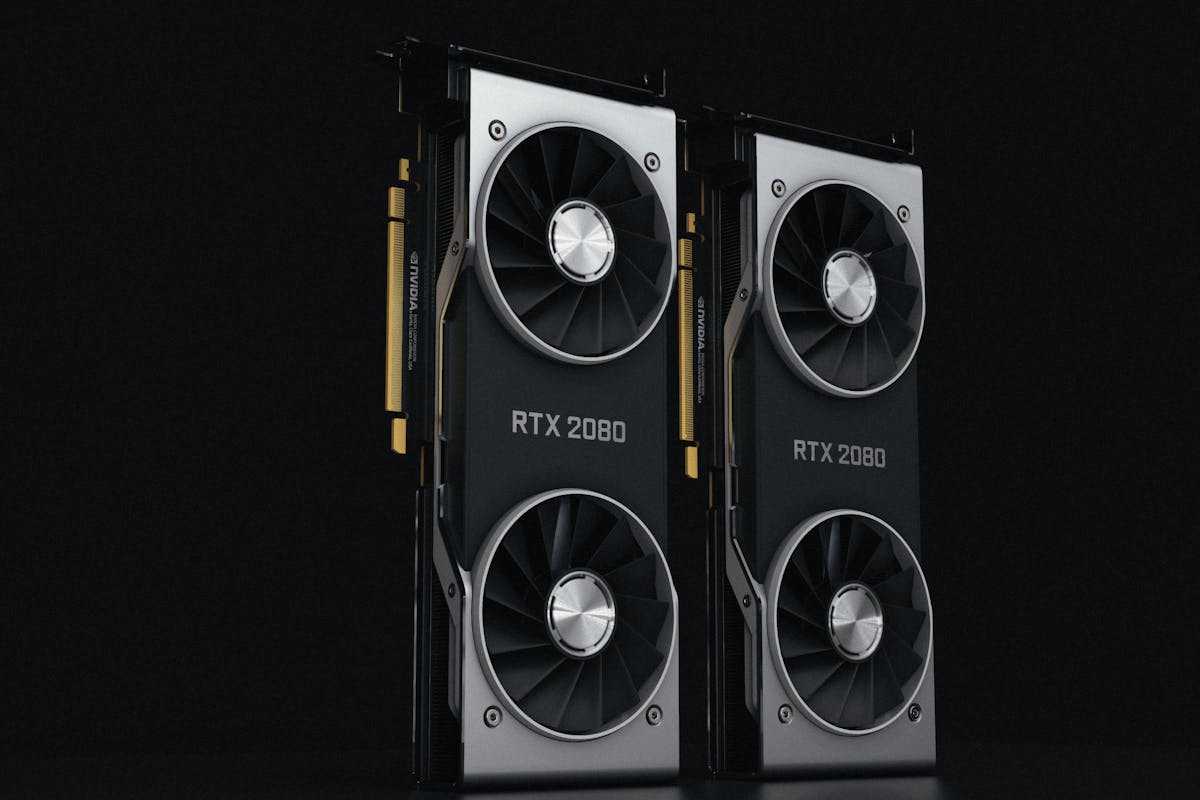
Every modern GPU has two temperature readings: the edge temperature (what most monitoring tools show by default) and the hotspot temperature (the actual hottest point on the die). The hotspot can be 20–30°C higher than the edge. A GPU showing 78°C edge might have a 105°C hotspot — well into the danger zone. On RTX 50-series cards under sustained load (rendering, AI inference, AAA gaming at 4K) we have seen hotspots crack 110°C on cards that show "only" 84°C in the standard reading.
What to watch for:
- Hotspot consistently above 95°C during normal workloads
- Gap between edge and hotspot growing over time (indicates degrading thermal paste or pad migration)
- Thermal throttling kicking in during tasks that used to run fine
- Hotspot variance increasing run-to-run (early warning that the cooler mounting is loosening)
The fix: Monitor both temperatures continuously. If the hotspot-to-edge delta exceeds 25°C, the card needs repasting. On RTX 4090/5090 and RX 7900/9070-class cards, the higher TDP means delta widens faster than on previous generations — plan to repaste at the 2-year mark, not the old 3-year rule of thumb.
2. Fan Speeds Stuck at 100% During Idle
When fans run at maximum RPM even when the system is idle, it usually means one of two things:
- The thermal paste has dried out and lost conductivity
- A fan has partially failed, so the controller compensates by running the remaining fans harder
Both are early warnings. A card running fans at 100% idle today is a card that fails under load next month. The same principle applies to CPU cooling degradation — fans working harder for the same result means something is wrong.
This pattern is especially common on RTX 30-series cards now reaching the 4-year mark. The factory thermal paste on Ampere-era reference designs is mid-tier at best and dries out aggressively in warm climates and dust-heavy environments.
3. VRAM Usage Creeping Toward Maximum
Modern AI, rendering, and 4K gaming workloads eat VRAM fast. When VRAM usage stays above 90%, the GPU memory runs hotter, and the card starts using slower system RAM as overflow — causing both thermal stress and performance collapse.
The RTX 50-series partly addresses this with GDDR7 (significantly improved thermal characteristics over GDDR6X), but the higher VRAM capacity also enables heavier workloads that drive sustained occupancy. Track VRAM usage trends over days, not just snapshots. A workload that used 8 GB last week but uses 11 GB this week has a memory leak that will crash the system. This is especially critical in creative studio environments where rendering pushes VRAM to its limits for hours.
4. Power Draw Exceeds TDP Rating
A GPU drawing more power than its rated TDP is working harder than designed. This happens when:
- Drivers are misconfigured
- Background processes are using GPU compute
- The card is compensating for degraded performance by clocking higher
A workstation GPU pulling 350 W on a 320 W TDP card is building heat faster than the cooler can dissipate. On RTX 50-series cards using the 16-pin 12V-2x6 (12VHPWR) connector, sustained over-TDP draw also stresses the connector itself — a known failure mode that has caused several documented connector burns over the past two years. Tom's Hardware publishes detailed TDP and power consumption benchmarks for reference.
5. Clock Speeds Dropping Under Consistent Load
When a GPU's core clock drops during a workload that should maintain steady clocks, the card is thermal throttling. It's protecting itself by reducing performance — which means temperatures are already too high.
This is the last warning before hardware damage. If you see this pattern, the machine needs immediate attention. Thermal throttling affects SSDs too — read our guide on SSD thermal throttling to understand how heat impacts every component in the system.
How to Fix GPU Overheating: Step by Step
If you've spotted any of these signs, here's the fix order — from simplest to most involved:
- Clean dust from fans and heatsink — compressed air or an electric blower. This alone fixes about 40% of the overheating cases we see in our repair shop.
- Improve case airflow — add intake fans at the front, exhaust at the rear and top. Make sure the GPU has at least 2 slots of clearance below it. RTX 50/RX 9000-class cards need front-to-back airflow that older cards could get away without.
- Replace thermal paste — if the card is over 2 years old, the factory thermal paste has likely degraded. Repasting with quality compound (Thermal Grizzly Kryonaut, Noctua NT-H1, PTM7950 phase-change pad) typically drops temperatures 8–15°C. PTM7950 specifically is the best long-term option for high-TDP cards — it does not dry out the way paste does.
- Set a custom fan curve — MSI Afterburner or similar tools let you run fans more aggressively. Trading noise for longevity is worth it on production machines.
- Set up continuous monitoring — manual checks miss overnight spikes and gradual trends. An agent-based solution like GGFix monitors GPU edge temp, hotspot, fan speed, VRAM, power draw, and clocks every minute — and fires Telegram or email alerts before temperatures reach critical levels. At $20 per machine per month ($200/year, two months free), it costs less than a single GPU repair, let alone a card replacement.
Repasting a graphics card means removing the cooler shroud, which is fiddly and voids some warranties. If you are in Copenhagen and would rather not open the card yourself, GGFix offers fixed-price graphics card repair and repaste with before/after thermal testing.
Frequently Asked Questions
Q: What temperature is too hot for a GPU?
For specific manufacturer limits and the full hotspot-vs-edge breakdown across RTX 50 / 40 / 30 and Radeon RX 9000 / 7000 cards, see our GPU hotspot temperature guide. The short version: most modern GPUs start thermal throttling at 83–90°C edge temperature, and hotspot temperatures above 105°C indicate immediate risk of hardware damage.
Q: Are RTX 50-series GPUs more prone to overheating than older cards?
Not inherently — the per-die thermal limits are similar to RTX 40-series — but the higher TDPs (up to 575 W on the RTX 5090) put more total heat into the case. A case that handled an RTX 3080 with no airflow problems may struggle with an RTX 5080 or 5090 unless intake and exhaust fans are upgraded. The 16-pin 12V-2x6 connector also requires careful seating; a partially seated connector causes voltage sag under sustained load that registers as instability before it shows as heat.
Q: How often should I check GPU temperatures?
Manual checks miss intermittent issues. A GPU might spike to dangerous temperatures during overnight renders and cool down before anyone checks in the morning. Continuous automated monitoring catches problems 24/7 and alerts you before temperatures reach dangerous levels. In our fleet data, most thermal incidents happen outside business hours. GGFix monitors GPU edge temperature, hotspot, fan RPM, power draw, and clock speeds every 60 seconds and fires alerts via Telegram, email, or Slack the moment any reading crosses a threshold — so a 3 AM thermal spike gets caught before anyone arrives in the morning.
Q: Can GPU overheating damage other components?
Yes. A GPU running at extreme temperatures raises the ambient case temperature, which affects the CPU, SSDs, and VRM modules. In severe cases, a failing GPU can pull excessive power from the PSU, potentially damaging the entire system. On RTX 40/50-series cards using the 12VHPWR/12V-2x6 connector, a thermal connector failure can also burn the cable and the PSU socket simultaneously.
Q: How do I fix GPU overheating without replacing the card?
Start by cleaning dust from the fans and heatsink. If temperatures are still high, replace the thermal paste between the GPU die and the cooler (repasting); on high-TDP cards, consider PTM7950 phase-change pad instead of conventional paste for longer-lasting results. Improve case airflow by adding intake fans. As a last resort, set a custom fan curve using MSI Afterburner or similar software to run fans more aggressively, or undervolt the card slightly to reduce power draw without significant performance loss.
Q: How long does a GPU last under sustained load?
With proper cooling and monitoring, modern GPUs last 5–7 years even under heavy workloads. The main failure points are fan bearings (2–4 years typical lifespan), thermal paste degradation (2–3 years on conventional paste, longer on PTM7950), VRAM degradation from sustained high temperatures, and on RTX 40/50-series the 16-pin connector if it was not seated correctly at install. Monitoring fan RPM, hotspot delta, and power draw trends catches these issues months before failure.
Is your PC throttling under load without telling you?
GGFix watches every temperature sensor — including the GPU hotspot most tools hide — and catches thermal problems before components degrade. AI alerts name which workload caused the spike.
- 3-day free trial — no credit card, 1 machine included
- Installs silently as a Windows Service (2 minutes)
- 50+ sensors + top 25 processes monitored every minute
- Auto-decodes BSODs and Event IDs 41 / 1001 / 219 / WHEA
- AI names the exact app that caused any crash or spike
- Telegram or email alerts in under 10 seconds
| Scenario | Typical cost (USD) |
|---|---|
| CPU/GPU replacement after thermal failure | $400 – $2,500 |
| Emergency technician callout | $120 – $350 |
| Lost workday (thermal throttling undetected) | $200 – $600 |
| Thermal paste + cleaning (early warning) | $30 – $100 |
| GGFix monitoring (per machine / month) | $20 |
| GGFix monitoring (per machine / year — 2 months free) | $200 |
Early warning is the cheapest insurance you can buy. GGFix catches problems when the fix is still cheap — and names the exact app, sensor, or BSOD code responsible.
On-site PC & laptop repair · Copenhagen
In Copenhagen with this exact problem? GGFix fixes it hands-on — often cheaper than replacing the machine.
Fixed prices from 399 DKK for graphics card repair, all brands, on-site or drop-off in Ishøj — with an honest diagnosis before you commit to anything.
See graphics card repair pricesGGFix Technical Team
Writing about hardware monitoring, fleet management, and keeping machines alive. Powered by GGFix.
Related Articles
GPU Artifacts: What They Look Like and What Causes Them
GPU artifacts range from fixable driver issues to signs of permanent VRAM damage. Here is how to identify which type you have, what temperatures trigger them, and whether your graphics card is recoverable.
PC Maintenance Schedule: The Complete Checklist (Daily to Annual)
The complete PC maintenance schedule for businesses — weekly, monthly, quarterly, and annual tasks with time estimates, environment adjustments, and the real cost of skipping it.
NVIDIA RTX 4060–5090: Temperature Limits by Model
RTX 4090 and RTX 5090 have different temperature limits. The hotspot temperature runs 15-25°C above the core temperature every card reports. Most monitoring setups only watch the core — which means most monitoring misses the actual failure threshold. Here are the exact numbers for every RTX card.
[ free 3-day trial · no credit card ]
Know before it breaks.
GGFix installs in 2 minutes and starts watching your hardware immediately — CPU temps, GPU load, disk health, fan speeds, and 50+ sensors. AI tells you what's wrong before it causes damage.