Fan Running at Full Speed: Diagnosis and Solutions

Your CPU might be throttling right now and you'd never know.
Sustained temperatures above 85°C shorten CPU lifespan and tank performance — silently. GGFix watches every sensor (including the hotspot most tools hide) and alerts you the moment a reading drifts above its 30-day baseline, not just when it crosses a static threshold.
Start 3-Day Free TrialNo card requiredA PC fan running at full speed constantly is not a cooling feature working correctly — it's a symptom. Something is wrong with your hardware, your thermal paste, your sensors, or your fan control. Here's how to diagnose which one and fix it without guessing.
Fans run at full speed for one of four reasons: the hardware genuinely needs the cooling, a temperature sensor has failed, fan control software has lost control, or a fan header is wired to always-on power. Each requires a completely different fix. Treating the wrong cause wastes time and may mask an ongoing problem.
Step 1: Check Actual Temperatures First
Before touching anything, find out whether the fan is running at full speed because it needs to. Open HWiNFO64 (free) or a similar hardware monitor and check:
- CPU temperature: Should be under 45°C at idle, under 85°C under load
- GPU temperature: Should be under 40°C at idle (many GPUs stop their fans entirely below 55°C at idle)
- Motherboard / chipset temperature: Should be under 50°C at idle
- VRM temperature: Should be under 60°C at idle
If any temperature is genuinely high — CPU above 70°C at idle, GPU above 60°C at idle — the fans are doing their job. The problem is why the hardware is running hot, not the fans themselves. Jump to Cause 1 below.
If temperatures are normal but fans are still screaming, the fan control system has a problem. Jump to Cause 2 or 3.
Cause 1: Hardware Is Actually Overheating
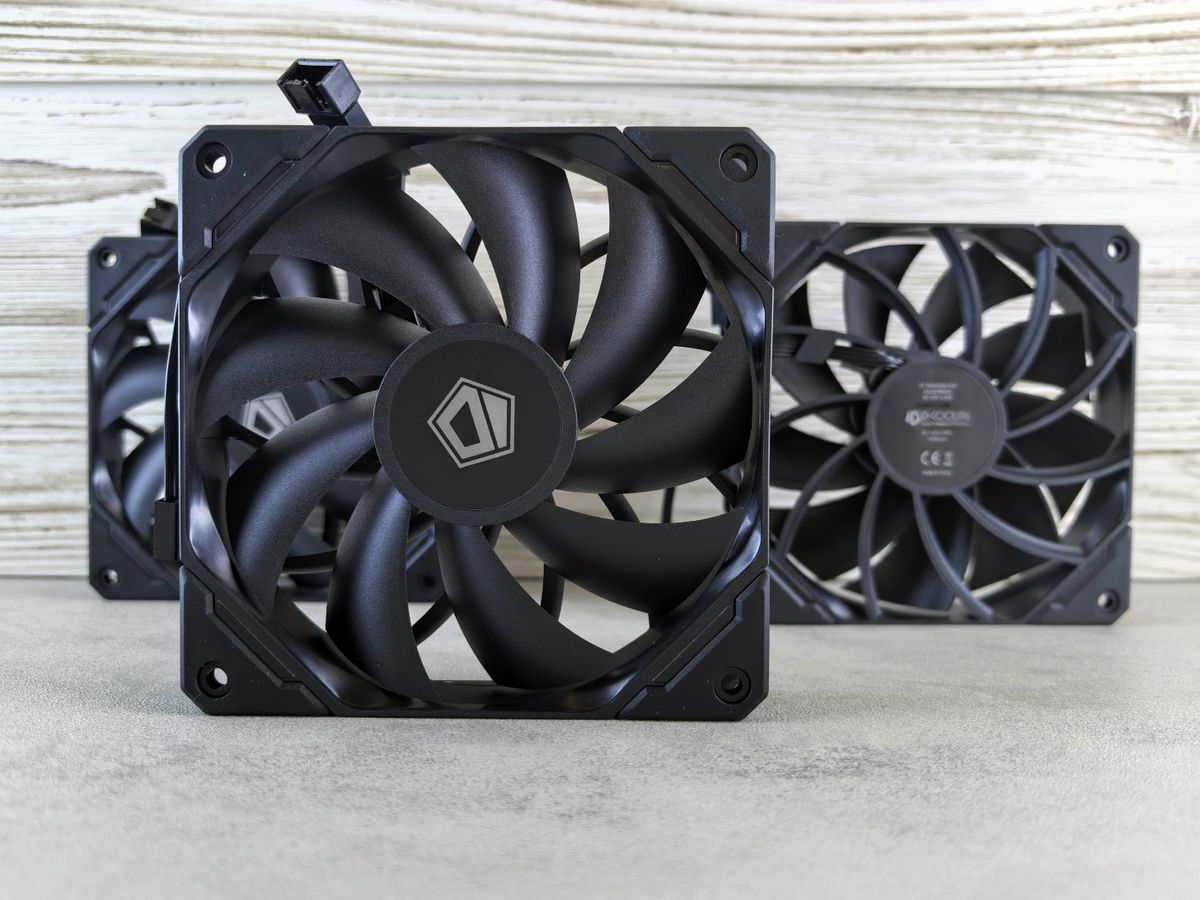
Fan curves are designed to ramp up aggressively at certain temperature thresholds. If your CPU is at 85°C at idle, the fans will blast at full speed because that's correct behavior — the CPU is too hot and needs cooling urgently.
Most common reasons for genuine overheating at idle:
Dried thermal paste: Thermal paste between CPU/GPU and heatsink degrades over 2-4 years. Dried or cracked paste has dramatically reduced thermal conductivity — a 20-30°C temperature increase is typical with badly degraded paste. This is the single most common cause of "my PC started running hot and loud after a few years."
Blocked airflow: Dust accumulation in heatsink fins, intake fans, or exhaust fans reduces airflow significantly. A heatsink fully clogged with dust can raise CPU temperatures by 15-25°C. If you haven't cleaned the inside of your case in 6-12 months, this is the likely cause.
Fan failure: If one of your case fans or the CPU cooler fan has failed, airflow is compromised. Other fans compensate by spinning faster. Check fan RPM readings in HWiNFO64 — any fan showing 0 RPM that should be spinning is failed.
Fix: Clean the case thoroughly (compressed air, exterior vents, heatsink fins). Replace thermal paste on CPU and GPU. If a fan is failed, replace it. Our CPU temperature guide covers normal temperature ranges and what to do when they're exceeded.
If you are in Copenhagen, GGFix offers a fixed-price PC cleaning and thermal-paste service that handles the dust removal and paste replacement for you.
Cause 2: Temperature Sensor Failure or Bad Reading
Fan control systems read temperature sensors to decide fan speed. If a sensor returns a garbage value — showing 127°C when the CPU is at 35°C, for example — the fan controller interprets this as an emergency and runs fans at 100%.
How to identify a bad sensor: In HWiNFO64, look for any temperature reading that seems implausible: 127°C, -40°C, 200°C, or a value that doesn't change at all when the hardware is under load. These are hallmarks of a failed sensor or a sensor with no physical hardware behind it (some motherboards report empty sensor slots as garbage values).
Common bad sensor scenarios:
- Motherboard reports a "System" or "PCH" temperature at 127°C (maxed-out sensor value)
- Fan curve is tied to a sensor that's failed, causing permanent full-speed operation
- BIOS/UEFI fan control is set to respond to a non-existent or secondary sensor
Fix: Enter BIOS/UEFI and navigate to the fan control section. Identify which sensor controls the fan that's running at full speed. If that sensor shows an abnormal value, reassign the fan curve to a working sensor (typically the CPU temperature sensor, which is almost never faulty on modern hardware).
Cause 3: Fan Control Software Conflict
Multiple fan control programs running simultaneously cause conflicts. If you have Corsair iCUE, ASUS Armory Crate, MSI Dragon Center, or any other manufacturer software running alongside HWiNFO64, Fan Control app, or SpeedFan, they may be issuing conflicting commands to the same fan headers.
The result is often fans that spike to 100% briefly, or fans that ignore control entirely and run at maximum.
How to identify: Close all fan control software, reboot. Do the fans normalize? If yes, software conflict is the cause. Reintroduce software one at a time to find the conflict.
Fix: Use a single fan control application. For most users, BIOS fan curves are sufficient — set them once, forget them. For more granular control, Fan Control (open source, Windows) is the most reliable third-party option. Whatever you use, disable or uninstall competing applications entirely.
Cause 4: Fan Header Wired to Full-Power (Non-PWM)
Case fans connect to the motherboard via 3-pin or 4-pin connectors. 4-pin PWM (Pulse Width Modulation) connectors allow the motherboard to control fan speed. 3-pin DC fans can also be speed-controlled on most modern motherboards, but only within a narrower range.
If a fan is connected to a molex adapter (the old 4-pin power connector from the PSU) rather than a motherboard fan header, it receives a constant 12V and runs at 100% always. There is no speed control possible in this configuration.
How to identify: In HWiNFO64, check if the loud fan appears in the fan RPM list with a stable, high reading and no variation when temperatures change. If the fan RPM doesn't change at all regardless of CPU load, it may be connected directly to PSU power rather than a controllable header.
Fix: Route the fan to a motherboard fan header instead of direct PSU power. If your motherboard lacks available headers, add a fan hub that connects to a single PWM header and distributes speed control to multiple fans.
GPU Fans Specifically: Why They Run Loud
GPU fans behave differently from case fans. Most modern NVIDIA and AMD GPUs use a zero-RPM mode at idle — fans stop entirely below 55°C (NVIDIA) or 60°C (AMD). If your GPU fans are running at full speed at idle, the GPU is either:
- Actually hot — check GPU temperature in HWiNFO64. If it's above 60°C at idle, something is wrong with GPU cooling (dried thermal paste, blocked heatsink, failed fan)
- Zero-RPM mode disabled — some overclock utilities disable zero-RPM mode. Check MSI Afterburner or ASUS GPU Tweak II if installed
- A fan is failing — a bearing starting to fail causes the GPU to run the other fans harder to compensate. You'll often hear a grinding or rattling sound from the failing bearing.
GPU fan replacement is possible (search your GPU model + "fan replacement") but it's technical work. If the GPU is under warranty, contact the manufacturer.
Laptop Fans: A Special Case
Laptop thermal design has almost zero margin. A laptop fan running at full speed almost always means either:
- The laptop is genuinely under thermal stress (rendering, compiling, sustained gaming)
- Dust has accumulated in the heatsink fins or exhaust vents
- Thermal paste on the CPU die has dried out
Laptop thermal paste degrades faster than desktop paste because laptop heatsinks apply less mounting pressure (by design, to avoid cracking thin CPU packages). Temperature increases of 20-35°C from dried laptop thermal paste are common after 3-4 years. The laptop thermal throttling guide covers laptop-specific thermal maintenance in detail.
For IT managers overseeing laptops in a fleet: dust cleaning and thermal paste replacement on a 2-3 year schedule prevents the fan noise, performance degradation, and unexpected throttling that come from neglected laptop cooling.
Monitoring Fan Health Before the Problem Starts
Fans fail gradually. Before a fan dies entirely, bearing wear causes subtle changes: slightly elevated noise, small RPM decreases under the same thermal load, occasional RPM drops. These changes are detectable months before the fan fails.
GGFix monitors fan RPM on every connected fan header every 60 seconds. When a fan's RPM drops below a baseline threshold, or when fan RPM is zero on a header that should have a spinning fan, an alert fires. In a fleet context, this catches fan bearing failure before it causes thermal problems — not after the machine has been running 10°C hotter than normal for a week because the fan was degraded.
For MSPs managing client machines, fan health monitoring eliminates an entire category of "machine runs hot / machine is loud" support tickets by catching the cause before the symptom appears. Combined with temperature monitoring across the full hardware stack, fan RPM monitoring gives you complete thermal visibility.
Frequently Asked Questions
Q: Is it bad to let my PC fans run at full speed all the time?
Yes, for two reasons. First, if fans are running at full speed due to a sensor fault or software issue rather than genuine heat, you're getting noise without benefit. Second, fan bearings wear faster at higher speeds — a fan running at 100% constantly will fail in 2-4 years, while a fan running at 40-60% may last 6-8+ years. Fan speed should respond to thermal load, not be permanently pinned high.
Q: My fan speeds up when I plug in a USB device. Why?
Some motherboards route USB power through the same sensing circuits as system voltage monitoring. A brief voltage fluctuation when a USB device connects can read as a temperature spike and trigger a momentary fan speed increase. This is usually harmless. If the fan stays fast after the USB device is connected, check whether the USB device is a powered hub or device that's loading the PSU enough to affect voltage readings.
Q: Can I run a PC without case fans if the CPU and GPU have their own coolers?
Short answer: yes for low-power builds, no for high-performance systems. A CPU and GPU with their own fans still need case airflow to move the hot air out of the case. Without case airflow, air temperatures inside the case rise, and CPU/GPU fans work harder to compensate. For a home theater PC or light office machine, fanless cases can work. For gaming or workstation use, case fans are necessary for stable thermals.
Q: How do I know what RPM my fans should be running at?
Fan specs list RPM range (e.g., 500-2000 RPM for a typical 120mm case fan). At idle, case fans should run near the bottom of their range — 500-800 RPM for quality fans. At full load, they'll hit 1500-2000 RPM. CPU cooler fans on a well-cooled system should run at 800-1200 RPM at idle. If your fans are running above 1500 RPM at idle, investigate temperatures.
Q: After cleaning my PC, the fans are still loud. What next?
If cleaning didn't fix it, replace the thermal paste. If thermal paste replacement doesn't reduce temperatures to normal idle ranges, check fan control settings in BIOS. If temperatures are normal but fans are still loud, the fan curve in BIOS is too aggressive — reduce the target temperature where fans reach maximum speed.
Is your PC throttling under load without telling you?
GGFix watches every temperature sensor — including the GPU hotspot most tools hide — and catches thermal problems before components degrade. AI alerts name which workload caused the spike.
- 3-day free trial — no credit card, 1 machine included
- Installs silently as a Windows Service (2 minutes)
- 50+ sensors + top 25 processes monitored every minute
- Auto-decodes BSODs and Event IDs 41 / 1001 / 219 / WHEA
- AI names the exact app that caused any crash or spike
- Telegram or email alerts in under 10 seconds
| Scenario | Typical cost (USD) |
|---|---|
| CPU/GPU replacement after thermal failure | $400 – $2,500 |
| Emergency technician callout | $120 – $350 |
| Lost workday (thermal throttling undetected) | $200 – $600 |
| Thermal paste + cleaning (early warning) | $30 – $100 |
| GGFix monitoring (per machine / month) | $20 |
| GGFix monitoring (per machine / year — 2 months free) | $200 |
Early warning is the cheapest insurance you can buy. GGFix catches problems when the fix is still cheap — and names the exact app, sensor, or BSOD code responsible.
On-site PC & laptop repair · Copenhagen
In Copenhagen with this exact problem? GGFix fixes it hands-on — often cheaper than replacing the machine.
Fixed prices from 399 DKK for PC cleaning and thermal-paste service, all brands, on-site or drop-off in Ishøj — with an honest diagnosis before you commit to anything.
See PC cleaning and thermal-paste service pricesGGFix Technical Team
Writing about hardware monitoring, fleet management, and keeping machines alive. Powered by GGFix.
Related Articles
GPU Artifacts: What They Look Like and What Causes Them
GPU artifacts range from fixable driver issues to signs of permanent VRAM damage. Here is how to identify which type you have, what temperatures trigger them, and whether your graphics card is recoverable.
PC Maintenance Schedule: The Complete Checklist (Daily to Annual)
The complete PC maintenance schedule for businesses — weekly, monthly, quarterly, and annual tasks with time estimates, environment adjustments, and the real cost of skipping it.
NVIDIA RTX 4060–5090: Temperature Limits by Model
RTX 4090 and RTX 5090 have different temperature limits. The hotspot temperature runs 15-25°C above the core temperature every card reports. Most monitoring setups only watch the core — which means most monitoring misses the actual failure threshold. Here are the exact numbers for every RTX card.
[ free 3-day trial · no credit card ]
Know before it breaks.
GGFix installs in 2 minutes and starts watching your hardware immediately — CPU temps, GPU load, disk health, fan speeds, and 50+ sensors. AI tells you what's wrong before it causes damage.