PCIe Gen 5 Thermal Challenges: NVMe, GPUs, and What to Monitor

Your drive could be failing right now — silently.
NVMe and SSD failures rarely announce themselves. SMART data degrades for weeks before the crash. GGFix reads these signals 24/7 and alerts you while there's still time to back up and replace.
Start 3-Day Free TrialNo card requiredPCIe Gen 5 doubles the bandwidth of Gen 4 (128 GB/s vs 64 GB/s on a x16 slot), and the thermal consequences are proportional. PCIe Gen 5 NVMe drives — the first to use the x4 Gen 5 interface — run controller temperatures 15–20°C higher than Gen 4 equivalents. NVIDIA's RTX 5090, the first consumer GPU to fully utilize PCIe Gen 5 x16, has a reference TDP of 575W — a 27% increase over the RTX 4090's 450W. The thermal management challenges of Gen 5 hardware are real and require monitoring to manage effectively.
For the broader thermal management context, see our GPU overheating signs and prevention guide and our SSD thermal throttling guide.
PCIe Gen 5 NVMe: The Immediate Thermal Problem
The first widely available PCIe Gen 5 NVMe drives — including the Crucial T705, Corsair MP700 Pro, WD Black SN850X (Gen 5 revision), and Samsung 990 Pro successor — achieve sequential read speeds of 12,400–14,900 MB/s. This performance comes with a significant thermal cost at the controller.
Measured temperatures under sustained load:
- Crucial T705 (Phison E26 controller): 67–75°C controller temperature during sustained reads
- Corsair MP700 Pro: 70–78°C without heatsink
- Comparison: Samsung 980 Pro (PCIe Gen 4): 52–62°C controller temperature under equivalent conditions
These Gen 5 temperatures are 15–25°C above Gen 4 baselines. The NVMe specification's thermal throttle point is 70°C — meaning Gen 5 drives without heatsinks can throttle during normal operation, particularly in M.2 slots with restricted airflow.
The M.2 Slot Location Problem
Modern motherboards place M.2 slots in locations that compound Gen 5 thermal issues:
Below the GPU: The primary M.2 slot on most Z790/Z890/X670E motherboards sits directly below the primary PCIe x16 slot. A running GPU (especially an RTX 4090/5090 with 450–575W TDP) heats the air in this region significantly. An NVMe drive in this slot under GPU exhaust heat starts at 40–45°C ambient rather than 30–35°C, reducing the thermal headroom before throttling begins.
Under armor/heatsink covers: Many motherboards have M.2 covers ("M.2 armor") intended to protect the drive. Without a high-conductivity thermal pad between the drive controller and the armor plate, these covers trap heat rather than dissipating it.
In the "chipset" zone: Secondary M.2 slots near the chipset have less airflow than slots near the CPU. These slots are better for lower-heat Gen 4 drives than for Gen 5 drives.
Solutions and Monitoring
For Gen 5 NVMe drives:
-
Use the manufacturer's heatsink: Crucial's T705 includes a heatsink that reduces controller temps to 52–60°C under load — within safe range. Always use the included heatsink or purchase an aftermarket M.2 heatsink. For Copenhagen builds, our gaming PC repair service can fit M.2 heatsinks, re-seat the GPU, and reassess case airflow for Gen 5 thermal loads.
-
Choose slot placement carefully: If possible, use an M.2 slot away from GPU exhaust. Some motherboards have M.2 slots in the lower PCIe area or on riser cards that have better ambient airflow.
-
Monitor NVMe temperature continuously: GGFix monitors all NVMe drives and alerts when temperature exceeds configurable thresholds. For Gen 5 drives, set alert threshold at 68°C — this provides warning before the 70°C throttle point is reached.
-
Watch for throttling signatures in sequential transfer performance: Throttled Gen 5 drives fall from ~14,000 MB/s to ~3,000–4,000 MB/s — a significant performance cliff. If large file operations are unexpectedly slow, check NVMe temperature.
For a complete guide to NVMe heatsinks and slot selection, see our M.2 NVMe heatsink guide.
PCIe Gen 5 GPUs: The 575W Thermal Reality
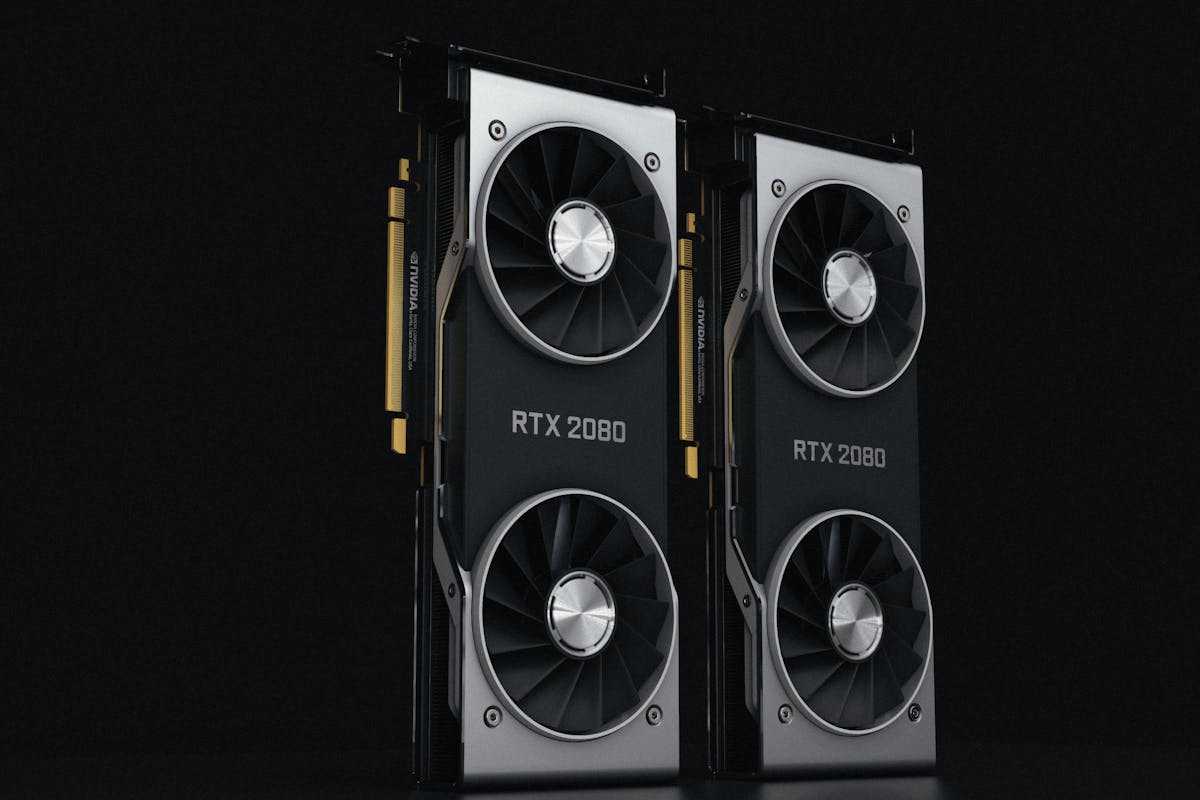
NVIDIA's RTX 5090 (Blackwell architecture) has a reference TDP of 575W. This is not a theoretical maximum — under GPU stress testing or sustained creative workloads, the RTX 5090 regularly operates at 500–575W. For comparison:
| GPU | TDP | Architecture | Release |
|---|---|---|---|
| RTX 5090 | 575W | Blackwell | Jan 2025 |
| RTX 4090 | 450W | Ada Lovelace | Oct 2022 |
| RTX 3090 Ti | 450W | Ampere | Mar 2022 |
| RTX 3090 | 350W | Ampere | Sep 2020 |
575W is a substantial thermal load. A single RTX 5090 in a case generates heat equivalent to a small space heater operating at partial power. The implications:
Case airflow: A case sized for 350–450W GPU TDP may have insufficient airflow for 575W. GPU temperatures under sustained load that previously peaked at 78°C with an RTX 4090 may now reach 84°C+ with an RTX 5090 in the same chassis with the same cooling configuration.
PSU requirements: The RTX 5090 requires a 1,000W+ PSU for a system that includes a modern CPU. A 850W PSU that was adequate for an RTX 4090 system is undersized for an RTX 5090 system. An undersized PSU running at 90%+ load for extended periods is both a reliability risk and a heat source. Monitor +12V rail stability.
12VHPWR connector: The 16-pin 12VHPWR (12V High Power) connector used by Ampere and later NVIDIA GPUs carries up to 600W. There were documented cases of connector melting on RTX 4090 cards (particularly with aftermarket third-party cable adapters) due to incomplete connector engagement. The RTX 5090 uses the updated 12V-2x6 connector specification, which is designed to be more reliable. However, cable routing that creates stress on the connector should be avoided. Physical inspection remains important.
GPU Temperature Monitoring for Gen 5 Hardware
For RTX 5090 and other high-TDP Gen 5 GPUs:
- Core temperature: Alert at 85°C (same threshold as previous generations)
- VRAM temperature: Blackwell uses GDDR7 memory with lower operating temperatures than GDDR6X. Alert at 95°C
- Hotspot temperature: Alert at 95°C — hotspot on Blackwell GPUs is controlled more tightly than on Ampere's GDDR6X
- GPU power draw: Monitor against TDP. Sustained power draw above TDP indicates a power limit override or measurement artifact; sustained operation well below TDP during apparent full-load may indicate throttling
PCIe Gen 5 Bandwidth and CPU Thermals
PCIe Gen 5's higher signaling speed (32 GT/s vs 16 GT/s for Gen 4) requires more active management in the CPU's PCIe controller. Intel's LGA1851 platform (Core Ultra 200 series) and AMD's AM5 platform (Ryzen 7000/9000 series) with PCIe 5.0 support show slightly elevated CPU power consumption when fully loading Gen 5 devices compared to Gen 4 — though this effect is modest (1–3W) and rarely meaningful in practice.
The more significant thermal interaction: systems with a Gen 5 NVMe and a high-TDP Gen 5 GPU in close physical proximity create mutual thermal interference. The GPU heats the area around the M.2 slot; the hot M.2 slot contributes to the ambient temperature around the GPU VRM area. In extreme configurations, this cluster of heat-generating components can create a localized hot zone that elevates temperatures for all nearby components beyond what individual thermal profiles would predict.
Monitoring Gen 5 Systems
For systems with PCIe Gen 5 hardware, GGFix monitoring configuration:
- NVMe temperature alert: 68°C (below throttle threshold). For Gen 4 drives in the same system, 65°C
- GPU core temperature alert: 85°C
- GPU hotspot alert: 95°C
- +12V rail alert: Outside 11.4–12.6V range (indicating PSU stress)
- Trend monitoring: Watch for NVMe or GPU temperatures trending upward over weeks — indicates dust accumulation in heatsink fins
For a complete thermal management guide, see our PC temperature guide and our thermal throttling explained guide.
Frequently Asked Questions
Do I need a new case for an RTX 5090?
Not necessarily, but airflow should be assessed. If your current case has 3+ case fans in a well-configured intake/exhaust setup and was comfortable running an RTX 4090, it will likely manage an RTX 5090 with slightly higher temperatures. If your case has marginal airflow (1 rear exhaust, no dedicated intake fans), the 575W TDP will push GPU temperatures above comfortable ranges. Add intake fans before the GPU, not additional exhaust.
Why do PCIe Gen 5 NVMe drives throttle when Gen 4 drives did not?
Gen 5 NVMe drives push their controllers significantly harder to achieve 12,000–14,900 MB/s sequential speeds. The Phison E26 and similar Gen 5 controllers operate their processing cores at higher frequencies with higher voltage than Gen 4 controllers. This generates more heat per unit of data transferred. Without adequate cooling (heatsink + airflow), the controller hits its thermal limit during sustained transfers.
Is it worth buying PCIe Gen 5 NVMe if it throttles?
For most use cases, throttled Gen 5 performance (approximately 3,000–4,000 MB/s) is the same as good Gen 4 performance. The 12,000+ MB/s speeds are only relevant for specific workloads involving very large sequential transfers (large video file operations, OS imaging, large dataset processing). For typical office, gaming, and even most creative use, Gen 4 NVMe is sufficient and runs cooler with fewer complications.
How do I know if my Gen 5 NVMe drive is throttling?
The most direct indicator is NVMe temperature — if it is consistently above 68–70°C during use, throttling is likely occurring. GGFix monitors NVMe temperature continuously and alerts when thresholds are exceeded. Alternatively, running a benchmark (CrystalDiskMark) immediately after a sustained file transfer will show if sequential read performance has dropped to the throttled range (3,000–4,000 MB/s).
What PSU is required for an RTX 5090 system?
NVIDIA recommends a minimum 1,000W PSU for a system with an RTX 5090. For high-end CPU + RTX 5090 builds (Core i9-14900K, Core Ultra 9 285K, or Ryzen 9 9950X), a 1,200W PSU provides comfortable headroom. Running a 575W GPU + 125–250W CPU on a 1,000W PSU leaves minimal margin and may cause +12V rail instability under simultaneous CPU + GPU peak load.
Is your drive showing early failure signs right now?
GGFix reads SMART data continuously and alerts you weeks before data loss — with the specific attribute (reallocated sectors, wear level, health %) named in plain English.
- 3-day free trial — no credit card, 1 machine included
- Installs silently as a Windows Service (2 minutes)
- 50+ sensors + top 25 processes monitored every minute
- Auto-decodes BSODs and Event IDs 41 / 1001 / 219 / WHEA
- AI names the exact app that caused any crash or spike
- Telegram or email alerts in under 10 seconds
| Scenario | Typical cost (USD) |
|---|---|
| Professional data recovery (failed drive) | $500 – $2,500 |
| Emergency workstation replacement | $1,500 – $4,000 |
| Lost project / missed deadline (1 person) | $300 – $1,500 |
| Drive replacement (when warned early) | $80 – $300 |
| GGFix monitoring (per machine / month) | $20 |
| GGFix monitoring (per machine / year — 2 months free) | $200 |
Early warning is the cheapest insurance you can buy. GGFix catches problems when the fix is still cheap — and names the exact app, sensor, or BSOD code responsible.
On-site PC & laptop repair · Copenhagen
In Copenhagen with this exact problem? GGFix fixes it hands-on — often cheaper than replacing the machine.
Fixed prices from 399 DKK for graphics card repair, all brands, on-site or drop-off in Ishøj — with an honest diagnosis before you commit to anything.
See graphics card repair pricesWriting about hardware monitoring, fleet management, and keeping machines alive. Powered by GGFix.
Related Articles
GPU Artifacts: What They Look Like and What Causes Them
GPU artifacts range from fixable driver issues to signs of permanent VRAM damage. Here is how to identify which type you have, what temperatures trigger them, and whether your graphics card is recoverable.
PC Maintenance Schedule: The Complete Checklist (Daily to Annual)
The complete PC maintenance schedule for businesses — weekly, monthly, quarterly, and annual tasks with time estimates, environment adjustments, and the real cost of skipping it.
NVIDIA RTX 4060–5090: Temperature Limits by Model
RTX 4090 and RTX 5090 have different temperature limits. The hotspot temperature runs 15-25°C above the core temperature every card reports. Most monitoring setups only watch the core — which means most monitoring misses the actual failure threshold. Here are the exact numbers for every RTX card.
[ free 3-day trial · no credit card ]
Know before it breaks.
GGFix installs in 2 minutes and starts watching your hardware immediately — CPU temps, GPU load, disk health, fan speeds, and 50+ sensors. AI tells you what's wrong before it causes damage.