M.2 NVMe Heatsink Guide: Does Your SSD Actually Need One?

Your drive could be failing right now — silently.
NVMe and SSD failures rarely announce themselves. SMART data degrades for weeks before the crash. GGFix reads these signals 24/7 and alerts you while there's still time to back up and replace.
Start 3-Day Free TrialNo card requiredNVMe SSDs run hot and throttle hard when they do. Whether you need a heatsink depends on your drive, your workload, and your case airflow — not just the slot position. Here's how to decide, what to buy, and how to verify it's actually working.
M.2 NVMe drives throttle at 70-75°C on most models. At those temperatures, a drive doing 3,500 MB/s drops to 1,500 MB/s or less. For most office workloads, you'll never notice. For sustained file transfers, video production, or any task that keeps the drive active for more than 30-60 seconds, you will.
Why NVMe Drives Run Hot
The physics are straightforward: a PCIe Gen 4 or Gen 5 NVMe SSD dissipates 4-8W of heat in a footprint roughly the size of a stick of gum. That's a high power density by any measure. For comparison, a standard 2.5" SATA SSD dissipates 0.1-0.5W under load. The performance gap between NVMe and SATA exists precisely because NVMe pushes significantly more power through much denser silicon.
PCIe Gen 5 NVMe drives (like the Samsung 990 Pro Gen 5, Crucial T705, or Corsair MP700) are the hottest consumer drives currently available, regularly hitting 75-80°C under sustained load without a heatsink. Gen 4 drives run somewhat cooler but still reach 65-75°C under sustained write workloads. Gen 3 drives are the coolest of the three, typically staying under 60°C with adequate airflow.
Does Your Drive Need a Heatsink?
Answer these questions:
What workload does this machine run?
- Light office work, web browsing, email: No heatsink needed. Drive will rarely sustain temperatures above 55°C.
- Gaming (frequent large level loads, shader compilation): Borderline. Some games push sustained drive activity for 30-60 seconds during loading. A heatsink is cheap insurance.
- Video editing, 3D rendering, large file transfers: Yes. These workloads sustain drive activity for minutes at a time, pushing temperatures into throttling range without a heatsink.
- Server, database, or developer workloads with constant disk I/O: Yes, and consider a Gen 4 or Gen 5 drive rated for higher sustained workloads.
Where is the M.2 slot located?
- Under the GPU: Poor airflow. A heatsink is strongly recommended.
- Near the top of the board, with case airflow passing over it: Better. A heatsink still helps but is less critical.
- Motherboard comes with integrated M.2 heatsink: You likely don't need an aftermarket one, but verify it's properly seated (thermal pad making contact with the NAND chips).
Is this a Gen 5 drive? Gen 5 NVMe drives need a heatsink. No exceptions. The Samsung 990 Pro Gen 5 ships with its own heatsink for this reason. Running a Gen 5 drive without cooling in any real workload results in immediate and sustained throttling.
Temperature Ranges and What They Mean
| Temperature | Status | Behavior |
|---|---|---|
| Below 50°C | Ideal | Full rated performance, no throttling |
| 50-65°C | Normal | No throttling, typical under sustained load |
| 65-70°C | Warm | Approaching throttle threshold, monitor |
| 70-75°C | Hot | Throttling begins on most drives |
| Above 75°C | Critical | Significant throttling, reduce workload or add cooling |
These thresholds vary by drive. Samsung drives typically throttle at 70°C. WD Black drives at 70°C. Seagate FireCuda drives at 70°C. Some enterprise-grade drives have higher throttle points (75-80°C). Check your drive's datasheet for the exact "Throttle Start Temperature" (TST) value.
Motherboard Heatsinks: Are They Enough?
Most mid-range and high-end motherboards ship with M.2 heatsinks. Their effectiveness varies significantly:
Good integrated heatsinks: Thick aluminum plates with thermal pads that cover both the controller chip and the NAND packages. These reduce temperatures by 8-15°C under sustained load. Adequate for Gen 3 and most Gen 4 workloads.
Poor integrated heatsinks: Thin decorative shields with a single thermal pad touching only the controller chip, leaving NAND packages uncontacted. These reduce temperatures by 2-5°C at best. You can identify them by their light weight (good heatsinks have some mass to them) and minimal thermal pad coverage.
How to verify yours is working: Remove the heatsink and check the thermal pads. They should be slightly compressed and conforming to the chip surfaces below. If the pads look pristine and uncrushed after months of use, they're not making proper contact. Replace them with quality thermal pads (0.5mm or 1mm thick, matching the gap to the chip surface).
Aftermarket Heatsink Options
For drives that need more cooling than the integrated heatsink provides, or for slots without integrated cooling:
Simple clip-on heatsinks (EKWB M.2 NVMe Heatsink, Sabrent M.2 Heatsink): Passive aluminum with thermal pads, clips onto the drive. These reduce temperatures by 10-20°C under sustained load. Cost: $10-20. This is the correct solution for 90% of use cases.
Active heatsinks with fans (Graugear, Cooler Master): Small heatsink with a tiny fan that pushes air over the fins. Reduce temperatures by 20-30°C. Relevant for Gen 5 drives in cases with poor airflow, or for drives under heavy sustained server-like workloads. Cost: $20-40.
Full-cover heatsinks: Replace the drive's stock thermal pad setup with a heatsink that covers the entire PCB. Most effective option but requires the drive to not be seated under a GPU or other obstruction. Cost: $15-30.
What not to buy: Heatsinks with cheap thermal pads that don't conform well, or heatsinks that only cover the controller and ignore the NAND chips. The NAND chips generate the most heat during sustained write operations.
Installation and Thermal Pad Selection
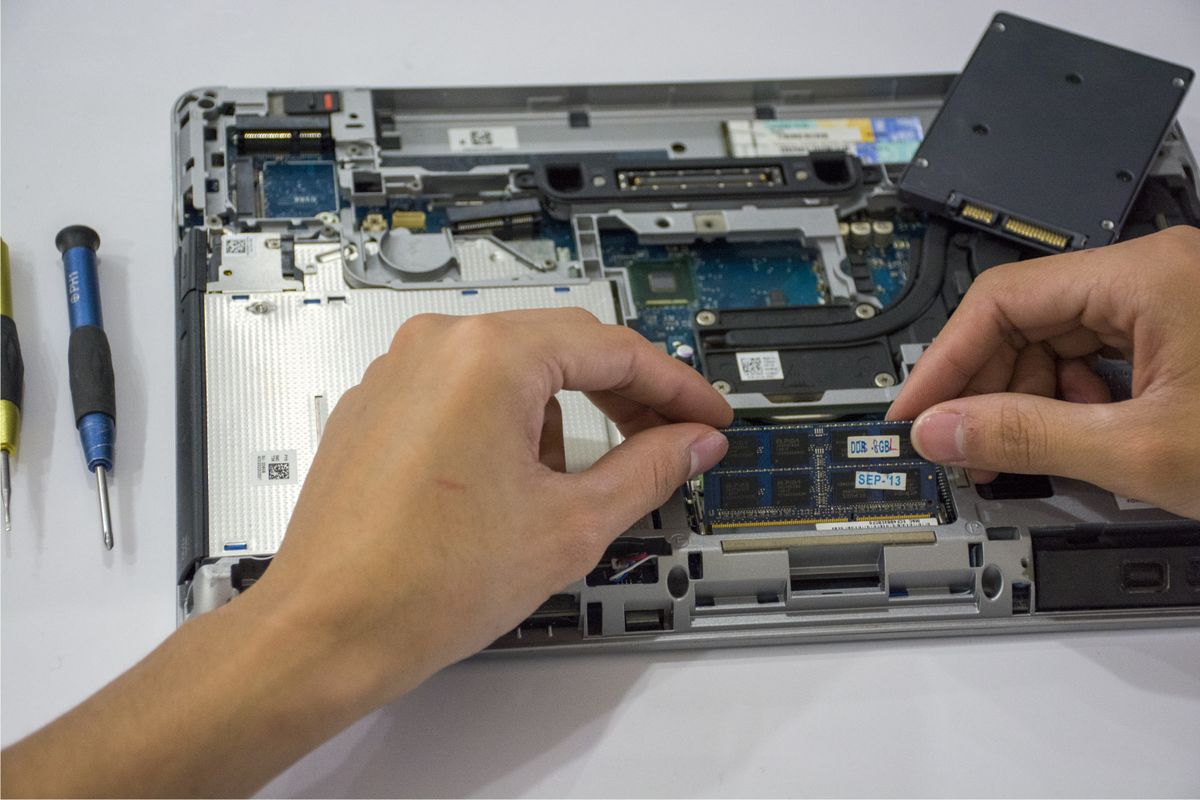
Installing an aftermarket M.2 heatsink:
- Power off and disconnect the PC
- Remove any existing integrated heatsink (usually 1-2 screws)
- If replacing thermal pads, remove the old pads and clean residue with isopropyl alcohol
- Apply new thermal pads — measure the gap between the chip surface and heatsink base before ordering (common thicknesses: 0.5mm, 1mm, 1.5mm, 2mm)
- Thermal pad should cover all NAND chips, not just the controller
- Seat the heatsink, secure it, verify it's applying light pressure to all chip surfaces
- Monitor temperatures on first boot under sustained load to confirm the installation worked
Thermal pad selection: Gelid Solutions, Thermal Grizzly, and Thermalright all make quality pads. Look for thermal conductivity of 12 W/m·K or higher. Cheap pads (3-6 W/m·K) exist but perform significantly worse.
If you are in Copenhagen and would rather not disassemble your PC to fit a heatsink or swap a throttling drive, GGFix offers fixed-price SSD upgrades and installation.
Verifying Your Cooling Is Working
After installing a heatsink (or if you're checking whether your existing cooling is adequate), run a sustained workload and monitor drive temperature. The easiest approach:
- Open CrystalDiskInfo or HWiNFO64 to watch drive temperature in real time
- Start a large file copy or transfer (10-20GB from another fast drive or RAM disk)
- Watch temperature during the transfer
- Repeat 2-3 times to see sustained temperature after the drive has been active for several minutes
If temperature stays below 65°C, your cooling is adequate. If it hits 70°C or above during sustained transfers, add a heatsink or improve case airflow.
For production machines and workstations, manual spot-checks aren't enough. A workload that runs at 2 AM on an unattended machine won't be visible in a manual check the next morning. The SSD thermal throttling guide covers the performance impact of throttling in detail, and why continuous monitoring catches throttling events that manual checks miss.
GGFix monitors NVMe temperature continuously alongside CPU and GPU temperatures, with configurable alerts when drive temperature exceeds thresholds. For fleets of workstations or office PCs, this means the first sustained throttling event generates an alert — even if it happens at 3 AM during an automated backup job.
Case Airflow and NVMe Temperatures
A heatsink on a drive with no airflow past it is limited in what it can do. Passive heatsinks work by dissipating heat from the drive surface into surrounding air. If that air is stagnant and already warm from GPU and CPU exhaust, the heatsink's effectiveness drops significantly.
For drives in slots under the GPU (common on ATX motherboards): add a case fan with intake positioned to pull cool air across the GPU and toward the drives. Even modest airflow improvement reduces NVMe temperatures by 5-10°C.
For drives in the top M.2 slot (above the GPU on most boards): case airflow from front intake fans usually passes over this slot. Verify your front fans are set to intake and the rear/top fans are set to exhaust.
Frequently Asked Questions
Q: My motherboard has an M.2 heatsink built in. Do I still need to add thermal pads?
Not if the heatsink already includes thermal pads and they're making proper contact. But some motherboards ship M.2 heatsinks without pre-applied thermal pads, expecting you to add them separately. Check your motherboard manual — if it says "install thermal pad before attaching heatsink" and you skipped that step, the heatsink is doing almost nothing. Remove it, install the appropriate thickness thermal pad, and reinstall.
Q: Can I use thermal paste instead of thermal pads on an M.2 drive?
No. Thermal paste is designed for flat, uniform surfaces (CPU and GPU dies). M.2 NAND chips vary in height by 0.1-0.3mm across the PCB, and they're not uniformly sized. Thermal paste won't bridge gaps consistently. Thermal pads are compressible and designed to conform to these irregular surfaces. Use pads.
Q: Does adding a heatsink void my SSD warranty?
Typically no, as long as you don't damage the drive during installation. Samsung, WD, Seagate, and Crucial all sell or bundle heatsinks for their drives, which implies heatsink use is expected and supported. If in doubt, check your drive's warranty documentation. Applying a heatsink without removing any labels or stickers over warranty seals is generally safe.
Q: My NVMe drive is rated for 7,000 MB/s but only hitting 3,500 MB/s. Is this a heatsink problem?
Possibly. Run a sustained sequential write benchmark (like CrystalDiskMark with 8GB test size) while watching drive temperature. If temperature climbs to 70°C and speed drops mid-benchmark, throttling is confirmed. If speed is consistently 3,500 MB/s without temperature issues, you may be hitting PCIe lane limitations (some slots run at PCIe x2 rather than x4), or the benchmark test size is triggering SLC cache overflow (drives slow down when SLC cache is exhausted).
Q: How often should I replace thermal pads on my M.2 drive?
Every 2-3 years, or whenever you notice temperature increases compared to baseline. Thermal pads can compress and lose conductivity over time, similar to thermal paste. If your drive was running at 55°C two years ago and now hits 68°C under the same workload with the same heatsink, degraded thermal pads are a likely cause.
Is your drive showing early failure signs right now?
GGFix reads SMART data continuously and alerts you weeks before data loss — with the specific attribute (reallocated sectors, wear level, health %) named in plain English.
- 3-day free trial — no credit card, 1 machine included
- Installs silently as a Windows Service (2 minutes)
- 50+ sensors + top 25 processes monitored every minute
- Auto-decodes BSODs and Event IDs 41 / 1001 / 219 / WHEA
- AI names the exact app that caused any crash or spike
- Telegram or email alerts in under 10 seconds
| Scenario | Typical cost (USD) |
|---|---|
| Professional data recovery (failed drive) | $500 – $2,500 |
| Emergency workstation replacement | $1,500 – $4,000 |
| Lost project / missed deadline (1 person) | $300 – $1,500 |
| Drive replacement (when warned early) | $80 – $300 |
| GGFix monitoring (per machine / month) | $20 |
| GGFix monitoring (per machine / year — 2 months free) | $200 |
Early warning is the cheapest insurance you can buy. GGFix catches problems when the fix is still cheap — and names the exact app, sensor, or BSOD code responsible.
On-site PC & laptop repair · Copenhagen
In Copenhagen with this exact problem? GGFix fixes it hands-on — often cheaper than replacing the machine.
Fixed prices from 399 DKK for SSD upgrades and data migration, all brands, on-site or drop-off in Ishøj — with an honest diagnosis before you commit to anything.
See SSD upgrades and data migration pricesGGFix Technical Team
Writing about hardware monitoring, fleet management, and keeping machines alive. Powered by GGFix.
[ free 3-day trial · no credit card ]
Know before it breaks.
GGFix installs in 2 minutes and starts watching your hardware immediately — CPU temps, GPU load, disk health, fan speeds, and 50+ sensors. AI tells you what's wrong before it causes damage.