Best Hardware Monitoring Software for Windows in 2026

One offline machine during a deadline costs more than a year of monitoring.
With a fleet you can't physically check every machine every day, and most RMMs show 'online' right up until the moment a workstation blue-screens from thermal shutdown. GGFix watches the hardware layer — sensors, processes, BSODs decoded into plain English — and pushes alerts to whoever is on-call. Whether you have 3 machines or 300.
Start 3-Day Free TrialNo card requiredHardware monitoring software for Windows falls into two completely different categories that most roundups never separate: tools for checking your own PC, and tools for managing a fleet — or for catching the which app caused this crash questions that no temperature reading alone can answer. Free consumer tools like HWiNFO64 and AIDA64 are excellent at the first job. They are inadequate at the second. This guide covers both — the best free tools for individual machines, the real limitations that appear at scale, and what IT teams, MSPs, and serious creators actually need when managing 10 to 200+ Windows PCs. For broader context on what to monitor and why, see our complete guide to PC hardware monitoring.
What Hardware Monitoring Software Actually Does
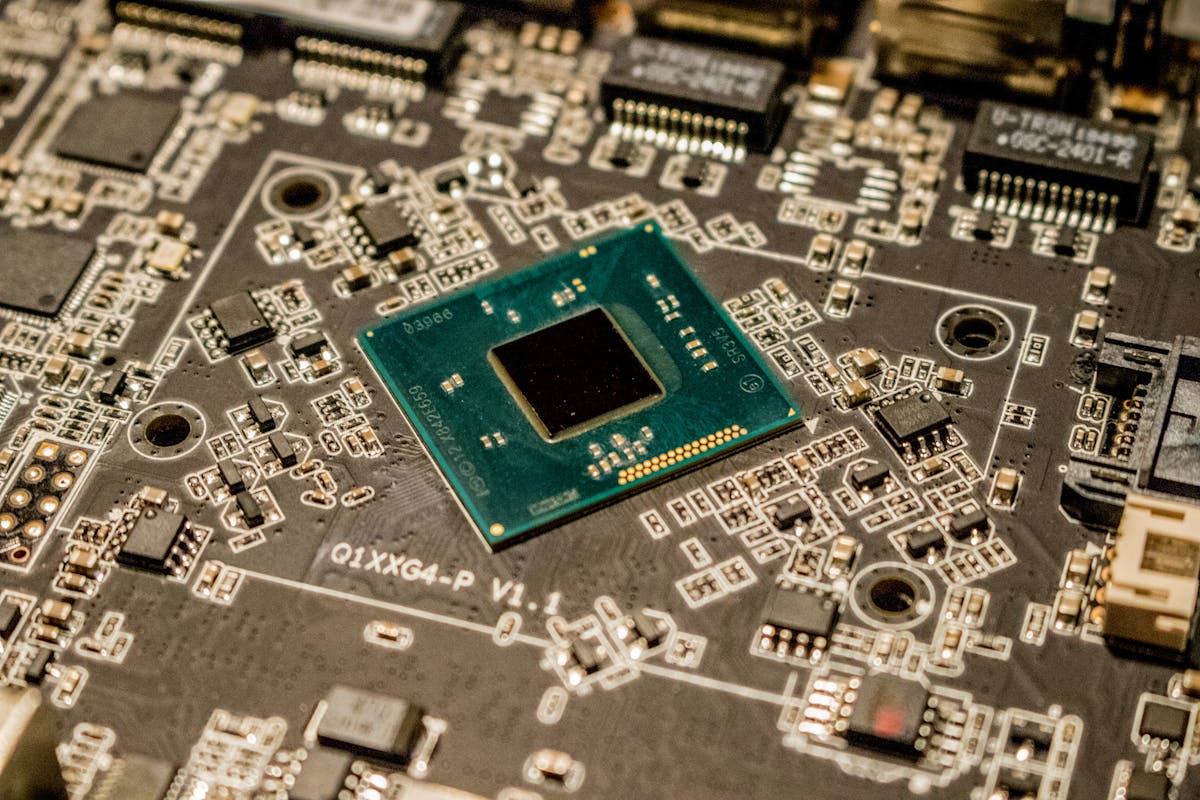
Hardware monitoring software reads data from the physical sensors embedded in your PC's components and presents that data in a readable format. Every modern CPU, GPU, motherboard, and NVMe drive contains temperature sensors, voltage rails, fan speed controllers, and load monitors. The software reads these via standardized interfaces (WMI, ACPI, vendor-specific drivers) and displays them in real time.
The core metrics every monitoring tool covers:
- Temperatures — CPU package and per-core, GPU edge and hotspot, VRM, motherboard, NVMe drive
- Fan speeds — RPM for CPU cooler, case fans, GPU fans
- Voltages — CPU core voltage, memory voltage, system rails
- Load/utilization — CPU per-core load, GPU load, memory usage
- Clock speeds — current boost frequency vs. rated frequency (detects throttling)
- Drive health — SMART attributes, reallocated sectors, temperature
What separates a good monitoring tool from a poor one is sensor accuracy, hardware compatibility (supporting the latest Intel/AMD/NVIDIA generations), update cadence, and — increasingly — whether it does anything beyond displaying numbers. Reading sensors is table stakes in 2026. Knowing which app caused a thermal spike, decoding a BSOD's stop code into plain language, or catching a memory leak before the system freezes are all separate problems entirely.
The Best Free Hardware Monitoring Tools for Windows
1. HWiNFO64 — Best Overall Sensor Depth
HWiNFO64 is the gold standard for sensor data on Windows. It reads more sensors than any other free tool — hundreds of individual data points from CPU, GPU, motherboard, RAM, and storage. Recent versions added full support for Intel Core Ultra 200 series and NVIDIA RTX 5000 series.
Best for: Deep diagnostic work, identifying specific sensor values, stress testing with precise data logging.
Limitations: HWiNFO64 is local-only. The Remote Sensor Monitor feature has a 5-machine limit in the free version with 12-hour session caps. There is no centralized fleet dashboard, no cloud component, no push alerts, no historical data retention beyond the current session, and no per-process intelligence — it shows you that the GPU spiked, never that Cyberpunk2077.exe caused the spike. It also requires the application window to be open to receive any local alerts — miss the window, miss the problem.
HWiNFO has announced upcoming changes to commercial licensing, meaning IT teams using it informally for business monitoring may soon require a paid commercial license.
Pricing: Free for personal use. Commercial licensing available (contact required for pricing).
2. AIDA64 — Most Polished Diagnostics + Benchmarks
AIDA64 (FinalWire) is the most polished consumer-grade Windows hardware tool, combining sensor monitoring, hardware inventory, benchmarks, and stress testing in one application. The interface is significantly more approachable than HWiNFO64, and the included CPU and FPU stress tests are well-designed.
Best for: Users who want a full system inventory and benchmark suite alongside sensor monitoring, willing to pay for the polish.
Limitations: AIDA64 is paid software (no genuinely free tier — only a 30-day trial). It is single-machine by design, with no fleet dashboard, no remote alerting, no historical trends beyond the active session, and no per-process or memory-leak intelligence. The Network Audit edition adds inventory across machines but not real-time hardware monitoring. As with HWiNFO64, it tells you the what but never the why for a crash.
Pricing: Extreme edition $39.95 (one-time, single machine). Business and Engineer editions higher.
3. LibreHardwareMonitor — Best for Developers and Automation
LibreHardwareMonitor is the actively maintained open-source fork of the abandoned Open Hardware Monitor project. With 260+ contributors and regular releases, it supports current-generation hardware: Intel 14th Gen, AMD Ryzen 9000, NVIDIA RTX 40/50 series.
Best for: Developers who want to embed sensor reading into their own tools. LibreHardwareMonitor is a .NET library first, a UI second — which is exactly why GGFix uses it as the embedded sensor engine inside the Windows agent.
Limitations: As a standalone tool, it has no alerting, no fleet management, no historical data, no cloud access. It is a component, not a complete solution.
Pricing: Free, open source (MPL 2.0 on GitHub).
4. Open Hardware Monitor — Use LibreHardwareMonitor Instead
Open Hardware Monitor was the original community project that LibreHardwareMonitor forked from. The last binary release was in 2016 and it does not support any modern CPU or GPU generation. It will appear in some search results but should not be installed on current hardware. Use LibreHardwareMonitor instead.
5. HWMonitor (CPUID) — Familiar but With Accuracy Issues
HWMonitor from CPUID (the team behind CPU-Z) is widely installed because of the CPU-Z ecosystem. Simple interface with min/average/max tracking per session.
Limitations: Known accuracy problems with specific chipsets — some sensors report incorrect values. HWMonitor Pro adds logging and peer-to-peer remote monitoring between two machines, but this is fundamentally different from a fleet dashboard. At ~€19 one-time, it is cheap but the peer-to-peer remote feature does not scale.
Pricing: Free (limited). HWMonitor Pro ~€19 one-time.
6. MSI Afterburner — Development Has Stalled
MSI Afterburner has been the standard for GPU overclocking and monitoring overlays for over a decade. Best-in-class in-game OSD and fan curve control — but development has effectively stalled. The lead developer publicly stated the project is abandoned after MSI stopped payments. RTX 40/50 series support is incomplete.
Best for: Existing installs on gaming PCs where the GPU is the only concern. Do not deploy on new machines or rely on for business monitoring.
Pricing: Free.
7. Speccy (Piriform/Gen Digital) — System Snapshot, Not Monitoring
Speccy provides a clear system overview: CPU model, temperatures, RAM capacity, drive health, GPU model. Useful for quickly identifying hardware specs on an unfamiliar machine.
Limitations: Speccy is not a monitoring tool in any meaningful sense. Sensor refresh rate is too slow for real-time use, GPU temperatures are inaccurate on many configurations, and there is no logging, no alerting, and no session-persistent data. It takes a snapshot — it does not monitor.
Pricing: Free. Speccy Professional ~$24.99/year.
8. GPU-Z (TechPowerUp) — GPU Specialist
GPU-Z is the definitive tool for GPU specifications and real-time sensor data. Maintains a comprehensive GPU database supporting every major GPU from the last 15 years. VRAM temperatures, shader clocks, memory bandwidth, power draw — all accurate, all current.
Best for: Deep GPU diagnostics when you need accurate specifications and real-time GPU sensor data specifically.
Pricing: Free.
AIDA64 vs HWiNFO64 vs Speccy vs Open Hardware Monitor vs GGFix
The top three names that come up when users ask "best hardware monitor for Windows" are AIDA64, HWiNFO64, and Speccy — with Open Hardware Monitor lingering in older guides. All four solve a slightly different version of the same problem: show me the sensors on this one machine, right now, while I am sitting here looking.
GGFix solves a different problem: tell me what is happening on every machine I care about, all the time, even when nobody is watching — and explain it in plain language when something goes wrong, including which app caused it. Here is how the five compare across the criteria that actually matter beyond raw sensor depth.
| Capability | AIDA64 | HWiNFO64 | Speccy | Open HW Monitor | GGFix |
|---|---|---|---|---|---|
| Reads CPU/GPU/motherboard sensors | Yes | Yes (most depth) | Limited | Outdated | Yes (via embedded LibreHardwareMonitor) |
| Supports current-gen hardware (RTX 50, Ryzen 9000) | Yes | Yes | Partial | No (abandoned 2016) | Yes |
| Runs as background agent (no UI required) | No | No | No | No | Yes (Windows Service) |
| Centralised fleet dashboard | No | No | No | No | Yes |
| Push alerts (Telegram, email, Slack) | No | Local only | No | No | Yes (<10 s delivery) |
| Historical sensor data (30+ days) | Session only | Session only | No | No | Yes |
| Per-process intelligence (which app caused the spike) | No | No | No | No | Yes (top 25 every minute) |
| Memory leak detection (per-process working-set tracking) | No | No | No | No | Yes |
| Auto-decoded BSODs (Event ID 41/1001/219 → plain language) | No | No | No | No | Yes |
| AI explanations ('Chrome tab #14 caused this') | No | No | No | No | Yes |
| Pricing model | $39.95 one-time per seat | Free personal / paid commercial | Free / $24.99/yr | Free (abandoned) | $20/month or $200/year per machine, 3-day free trial |
The top four tools are diagnostic instruments designed for one user, sitting at one machine, watching a window. They are not architected for sleep — they cannot tell you that GPU temperatures spiked at 03
last Tuesday, that Outlook.exe leaked 2 GB of RAM during yesterday's stand-up, or that BugcheckCode 0x1A from the BSOD last weekend means failing RAM and not a driver bug. None of them include process-level history. None of them parse the Windows Event Log on your behalf. None of them push to your phone.This is not a knock on the tools — they are excellent at what they were built for. It is a market gap. The gap GGFix is built to fill.
Where Free Tools Break Down: The Fleet Problem
A single technician with one PC has every tool they need from the list above, all for free or nearly so. The problem appears the moment that number becomes more than one machine.
Consider a real scenario: you manage 30 Windows PCs across an office. Three of those machines are overheating overnight during scheduled tasks. With consumer tools, you would need to:
- Walk to each machine individually
- Open the monitoring application
- Read the current sensor values
- Wait and observe — manually, in real time
- Repeat for all 30 machines
- Find nothing, because the overheating occurs at 2 AM and you are not there
This is not a failure of the tools — it is an architectural limitation. Consumer hardware monitoring tools are designed for one person, sitting at one machine, watching a window. Understanding the difference between real-time monitoring and periodic checks is the core issue: consumer tools give you a snapshot, not surveillance.
What breaks down specifically:
- No remote visibility — cannot check machine temperatures without being physically at the machine.
- No persistent alerting — if a temperature crosses a threshold at 3 AM, nothing happens unless someone is watching the screen.
- No historical data — session-only data means you cannot see that idle temperature has climbed 8°C over the past three months — the clearest possible signal that thermal paste is failing or airflow is blocked.
- No fleet view — no way to compare machine A to machine B to machine C simultaneously.
- No process intelligence — free tools show you the temperature graph but never the process responsible. When the GPU spikes to 95°C, was it the game, a background updater, a cryptominer, or a leaking app? Consumer tools cannot answer this. The memory leak detection on Windows guide covers why per-process history is the missing layer.
- No AI analysis — consumer tools report raw sensor values. They cannot identify that a fan's gradual RPM decline over 14 months is a bearing failure signature, or that a CPU's rising idle temperature is tracking toward throttling.
In 8 years of managing hardware fleets in Copenhagen, this is the gap we see most often. Small businesses and MSPs managing 10 to 50 machines make do with consumer tools because enterprise RMMs feel like overkill — and the cost certainly is.
Hardware Monitoring Software for IT Teams and MSPs
When free consumer tools stop working for your fleet, the market offers two options: expensive enterprise infrastructure monitoring (PRTG, Datadog, Zabbix, Nagios, NinjaOne, N-Able) or purpose-built fleet hardware monitoring.
PRTG Network Monitor (Paessler)
PRTG is a comprehensive infrastructure monitoring platform covering servers, network devices, cloud services, and applications. It can monitor Windows hardware sensors via WMI and SNMP.
The problem for hardware monitoring specifically: PRTG switched to subscription-only pricing with mandatory multi-year commitments. PRTG 500 (approximately 50 devices) costs ~$2,159/year. Setup requires significant configuration — PRTG is not designed to surface hardware sensor data from Windows workstations out of the box. Requires custom sensors and WMI polling configuration. No AI analysis of sensor trends, no per-process intelligence, no auto-decoded BSODs. If all you need is hardware health across a Windows PC fleet, PRTG is expensive, complex, and over-engineered.
Datadog / NinjaOne / N-Able / Zabbix / Nagios
All viable for general IT observability and RMM, but none focus on hardware sensor data on Windows endpoints. Datadog is excellent for cloud infrastructure, Datadog or NinjaOne both start in the tens of dollars per machine per month, and Zabbix/Nagios require dedicated database administration and infrastructure. None of them tell you which app caused a thermal spike or auto-decode a BSOD.
Purpose-Built Fleet Hardware Monitoring
The gap between "free consumer tool" and "enterprise RMM at $2,000+/year with a 3-year lock-in" is where most SMBs, MSPs, creators, and gaming-cafe operators actually sit. This is the segment hardware monitoring for MSPs is built for.
The criteria for a tool that actually fits this segment:
- Silent agent deployment — installs as a Windows Service, survives reboots, requires no logged-in user. Deployable via PowerShell in under 5 minutes.
- Real sensor data — not just uptime and CPU utilization, but actual hardware sensor readings: temperatures, fan RPM, VRM health, NVMe SMART attributes.
- Per-process intelligence — top 25 processes by CPU and RAM, captured every minute, so you can see which app caused the spike or leak.
- Auto-decoded BSODs and Event Log — BugcheckCode hex conversion, faulting module identification, and plain-language explanations for Event IDs 41, 1001, 219, and the WHEA family.
- Centralized dashboard — see all machines simultaneously. Compare, filter, sort by health score.
- Automated alerting — email, Slack, Telegram alerts that fire when a sensor reading or process pattern trends into dangerous territory — without anyone watching a screen.
- Historical data — 30–90 days of sensor history to identify gradual degradation. The difference between 40°C and 62°C idle CPU temperatures over 6 months is dried thermal paste — visible in the trend line.
- AI anomaly detection — a temperature reading in isolation is just a number. The same reading in context of the machine's 60-day history, correlated with fan RPM trends, tells you if the machine is degrading.
- Per-machine pricing that scales — not a sensor-count model that penalizes thoroughness, and not a per-technician seat license that prices out small teams.
GGFix is built for exactly this gap. A lightweight .NET 8 agent installs silently, reads all hardware sensors every 60 seconds via embedded LibreHardwareMonitor, captures the top 25 processes by memory and CPU on every tick, and uploads aggregated telemetry every 5 minutes. Claude AI analyzes patterns across your fleet, decodes Windows Event Log entries into plain language, and pushes Telegram or email alerts when something deviates from a machine's established baseline — not just when a static threshold is crossed. Fleet view, historical charts, weekly AI digests, auto-decoded BSODs, and per-process leak detection. At $20 per machine per month ($200/year, two months free), a 10-machine fleet costs less per month than a single hour of emergency hardware repair. 3-day free trial with 3 machines included, no credit card required.
How to Choose: A Decision Framework
| Fleet Size | Recommended Approach |
|---|---|
| 1 machine (personal, casual) | HWiNFO64 — free, most accurate sensor depth |
| 1 machine (creator, gamer, small studio) | HWiNFO64 + GGFix (catches the which app caused this moment HWiNFO64 cannot) |
| 1–3 machines (home office) | HWiNFO64 + GPU-Z + a single-machine GGFix trial |
| 4–9 machines (small business) | Consumer tools are feasible but risky — one undetected failure at this scale hurts. GGFix at $20/mo each |
| 10–49 machines (SMB / IT team) | Fleet monitoring is essential. Consumer tools cannot provide remote visibility, per-process intelligence, or automated alerts |
| 50–200+ machines (MSP, gaming cafe, render farm) | Fleet monitoring with reporting, multi-client support, and SLA documentation |
The inflection point in our monitoring data is consistently around 7–8 machines. Below that, manual checking with consumer tools is feasible. Above it, the first undetected failure typically costs more than a full year of monitoring subscriptions. The real cost of not monitoring your hardware compounds quickly at fleet scale.
Frequently Asked Questions
Q: What is the best free hardware monitoring software for Windows?
HWiNFO64 is the best free tool for sensor depth and accuracy — it reads more hardware sensors than any other free option and supports all current-generation Intel and AMD processors and NVIDIA/AMD GPUs. For GPU-specific data, GPU-Z by TechPowerUp is the most accurate and up-to-date. LibreHardwareMonitor is the best choice if you want to script or automate sensor reading via a .NET library. None of these tools track per-process history, decode BSODs, or run as a background service — for those layers a paid agent like GGFix is required.
Q: AIDA64 vs HWiNFO64 — which one should I use?
For pure sensor depth and free use, HWiNFO64 wins — it reads more sensors and is free for personal use. AIDA64 is more polished, includes integrated benchmarks and stress tests, and has a more approachable UI, but it costs $39.95 per seat one-time. Both are single-machine, snapshot-style tools without alerting, fleet view, or per-process intelligence — the choice between them is mostly about whether you want the polish or the depth, not about meaningfully different feature sets at scale.
Q: Is Open Hardware Monitor still maintained?
No. Open Hardware Monitor's last binary release was in 2016 and it does not support any modern CPU or GPU generation. The actively maintained fork is LibreHardwareMonitor (260+ contributors, regularly updated for new Intel, AMD, and NVIDIA hardware). Use LibreHardwareMonitor instead.
Q: Is MSI Afterburner still being developed?
As of 2026, development has effectively stalled. The lead developer publicly described the project as abandoned following payment complications with MSI. RTX 40/50 series GPU support is incomplete. It remains functional on existing installations but should not be relied upon for new deployments or business monitoring.
Q: Can I monitor multiple PCs remotely with free hardware monitoring software?
Not effectively. Free tools like HWiNFO64, AIDA64, LibreHardwareMonitor, and HWMonitor are all local-only — they require you to be physically at the machine, or to open a remote desktop session first and then open the monitoring application manually. For genuine remote hardware monitoring of multiple Windows machines without physical presence, you need a fleet monitoring agent that runs as a background service and pushes data to a centralized cloud dashboard.
Q: Which monitoring tool tells me which app caused a hardware spike?
None of the consumer free or paid tools (HWiNFO64, AIDA64, Speccy, Open/Libre Hardware Monitor, MSI Afterburner) capture per-process history alongside sensor history. They show you that a temperature, voltage, or fan RPM crossed a threshold, but never which application was responsible. To answer 'which app caused this' you need a monitoring agent that records the top 25 processes by CPU and RAM every minute — GGFix does this by default and uses AI to name the responsible app in plain language inside the alert.
Q: Does Windows have any built-in hardware temperature monitoring?
Windows Task Manager and Resource Monitor show CPU utilization, RAM usage, and disk activity, but they do not expose hardware sensor data. Windows does not natively show CPU package temperatures, GPU temperatures, fan speeds, or NVMe SSD temperatures. Third-party software is required for full sensor visibility.
Q: What hardware monitoring software is best for businesses managing 20+ PCs?
Consumer tools are the wrong architecture for this job — they require manual interaction, local access, and produce no automated alerts or reports. IT teams managing 20 or more Windows machines need a solution with a silent background agent, centralized fleet dashboard, automated alerting, historical sensor data for trend analysis, per-process intelligence, and AI-powered anomaly detection. GGFix is built specifically for this use case at $20 per machine per month ($200/year, 3-day free trial).
Stop checking machines manually. Watch all of them at once.
GGFix gives you a single dashboard for your entire fleet — sensors, processes, and decoded BSODs across every machine — with AI-powered alerts that push to Telegram or your PSA webhook.
- 3-day free trial — no credit card, 1 machine included
- Installs silently as a Windows Service (2 minutes)
- 50+ sensors + top 25 processes monitored every minute
- Auto-decodes BSODs and Event IDs 41 / 1001 / 219 / WHEA
- AI names the exact app that caused any crash or spike
- Telegram or email alerts in under 10 seconds
| Scenario | Typical cost (USD) |
|---|---|
| Render farm down during production deadline | $1,500 – $7,000 |
| IT consultant (reactive emergency response) | $250 – $600/day |
| Hardware failure across 5 machines (avg) | $1,200 – $4,500 |
| Emergency after-hours technician callouts | $200 – $600 |
| GGFix monitoring (per machine / month) | $20 |
| GGFix monitoring (per machine / year — 2 months free) | $200 |
Early warning is the cheapest insurance you can buy. GGFix catches problems when the fix is still cheap — and names the exact app, sensor, or BSOD code responsible.
On-site PC & laptop repair · Copenhagen
In Copenhagen with this exact problem? GGFix fixes it hands-on — often cheaper than replacing the machine.
Fixed prices from 399 DKK for on-site PC and laptop repair, all brands, on-site or drop-off in Ishøj — with an honest diagnosis before you commit to anything.
See on-site PC and laptop repair pricesGGFix Technical Team
Writing about hardware monitoring, fleet management, and keeping machines alive. Powered by GGFix.
Related Articles
PSU Failure Signs: When Your Power Supply Is Dying
A dying PSU is the most misdiagnosed component in PC repair. Voltage instability, load-specific crashes, and USB dropouts are the real warning signs — here is what the ATX spec requires, how long quality units actually last, and which diagnostic tools work.
The Real Cost of Hardware Failure: A Business Impact Analysis
Hardware failure costs 5-10x the price of the broken component when you count downtime, lost productivity, data recovery, and emergency labor. This analysis breaks down the real numbers for small and mid-sized businesses.
PC Troubleshooting Guide: Diagnose and Fix Hardware Problems
The complete starting point for diagnosing PC hardware problems. Covers every major symptom and component failure, with step-by-step diagnostic approaches and links to in-depth guides.
[ free 3-day trial · no credit card ]
Know before it breaks.
GGFix installs in 2 minutes and starts watching your hardware immediately — CPU temps, GPU load, disk health, fan speeds, and 50+ sensors. AI tells you what's wrong before it causes damage.