Overheating Workstations: The Hidden Studio Cost
Your CPU might be throttling right now and you'd never know.
Sustained temperatures above 85°C shorten CPU lifespan and tank performance — silently. GGFix watches every sensor (including the hotspot most tools hide) and alerts you the moment a reading drifts above its 30-day baseline, not just when it crosses a static threshold.
Start 3-Day Free TrialNo card requiredCreative studios are the hardest environment for PC hardware. Unlike office PCs that idle most of the day, creative workstations run at sustained full load for hours during renders, exports, and AI processing. This makes hardware monitoring more critical here than in any other environment.
After servicing creative studios in Copenhagen for 8 years — from small motion graphics shops to large post-production houses — we've seen the same pattern repeat. A studio invests $30,000-$50,000 in workstations and then monitors zero of them. The sustained load generates sustained heat, and sustained heat destroys components.
The Numbers Studios Don't Track
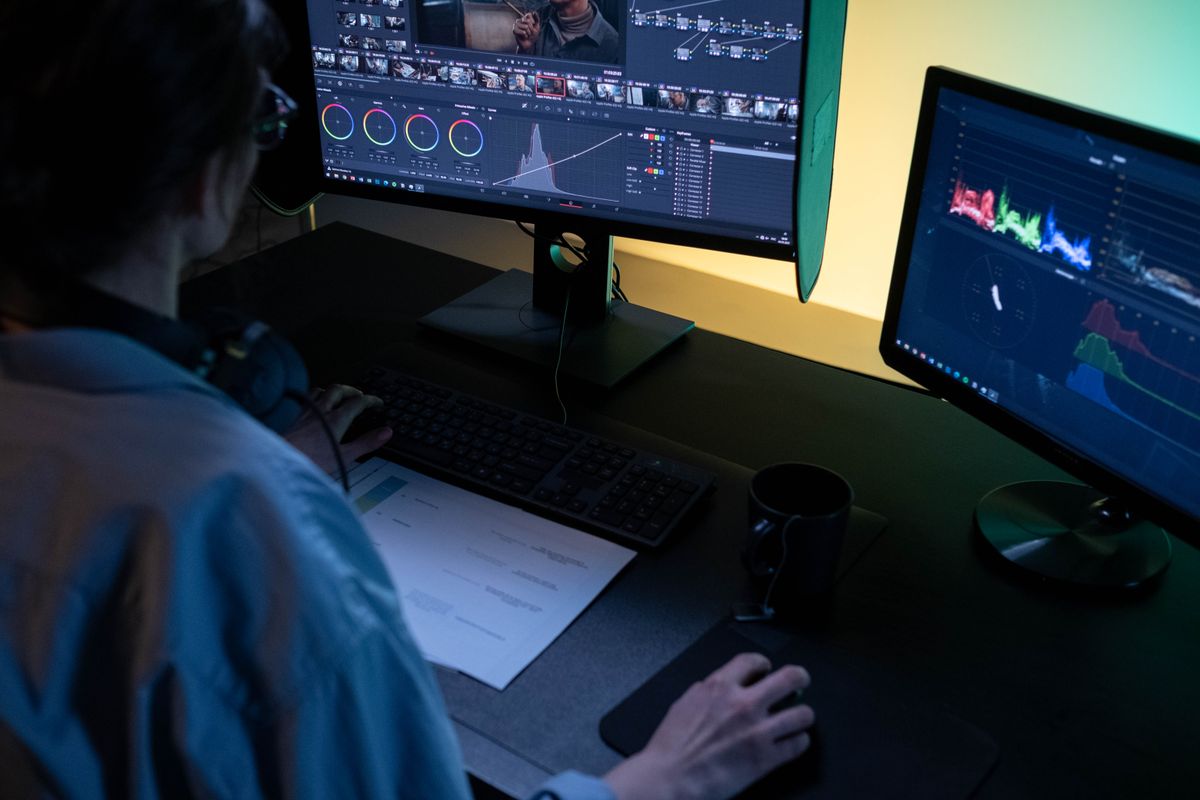
A typical creative workstation running Blender, After Effects, or DaVinci Resolve:
- CPU temperature during render: 75-90°C for hours (see our CPU temperature guide for safe ranges)
- GPU temperature during render: 80-95°C for hours
- GPU hotspot during render: 95-110°C
- VRAM usage: 80-100% for large scenes
- Power draw: 500-700W total system
These are extreme conditions sustained over long periods. Consumer and even prosumer cooling solutions weren't designed for this.
The Real Cost of a Single Failure
When a GPU dies during a render:
| Cost item | Typical amount |
|---|---|
| Replacement GPU (RTX 4080/4090) | $1,600-$2,400 |
| Emergency express shipping | $65-$130 |
| Technician labor (diagnosis + install) | $200-$400 |
| Lost work (corrupted render) | 2-8 hours of artist time |
| Missed deadline penalty | Variable, potentially huge |
| Total per incident | $2,000-$4,000+ |
In our experience, studios with 10-20 machines experience 1-3 hardware failures per year. That's $2,000-$12,000 per year in preventable damage. Knowing the 5 signs of GPU overheating can help you catch problems before they reach this point.
Why Standard Monitoring Doesn't Work for Studios
Generic IT monitoring tools (Nagios, PRTG, RMM suites) are designed for servers and office PCs. They check:
- Is the machine online? Yes/No
- Is the disk full? Yes/No
- Is CPU usage high? Yes/No
For a creative studio, CPU usage at 100% is normal — it means a render is running. These tools can't distinguish between "healthy full load" and "about to thermal throttle." This is the same blind spot MSPs face when relying on RMM tools alone.
What studios need is sensor-level monitoring that understands:
- The difference between 85°C during a render (fine) and 85°C at idle (not fine)
- GPU hotspot temperatures, not just edge temperatures
- VRAM pressure trends over time
- Fan failure before the temperature spikes
How to Prevent Overheating in Creative Workstations
- Clean every machine quarterly — Creative environments (fabric, paper, hair, dust from set materials) clog heatsinks faster than offices. Schedule compressed air cleaning every 3 months.
- Replace thermal paste every 2 years — Under sustained rendering loads, paste degrades faster. Budget 30 minutes per machine.
- Add supplemental cooling — Extra case fans, M.2 heatsinks, and GPU support brackets that improve airflow. A $30 fan can protect a $2,000 GPU.
- Keep ambient temperature below 25°C — ASHRAE recommends 18-27°C for IT equipment. Studios with hot lighting or poor HVAC regularly exceed this.
- Set up continuous monitoring — Manual checks miss overnight render spikes and weekend failures. An agent-based solution like GGFix reads real sensor data and learns each machine's normal patterns. An overnight render at 82°C for 6 hours? Normal — no alert. An idle machine at 65°C when it was 40°C last Monday? Warning — something changed. At ~$12/machine/month, a year of fleet monitoring costs less than a single GPU repair.
If a studio workstation is already crashing mid-render or running far hotter than the figures above, the cooling system likely needs hands-on work. If you are in Copenhagen, GGFix offers fixed-price workstation repair and thermal servicing so a render box is back in production the same week.
Don't forget that SSD temperatures also climb during sustained renders — a throttled scratch disk can double your export times.
Frequently Asked Questions
Q: What temperatures are normal during 3D rendering?
During sustained rendering, CPU temperatures of 75-85°C and GPU edge temperatures of 80-90°C are typical and safe. GPU hotspot temperatures up to 95°C are within acceptable range for most cards. Anything above these levels under normal rendering workloads indicates a cooling problem. See NVIDIA's thermal design guidelines for specific card limits.
Q: How much does workstation downtime really cost a creative studio?
Beyond the hardware replacement cost ($1,600-$4,000 per GPU), factor in artist idle time ($65-$130/hour), lost or corrupted render work (hours of re-rendering), and potential deadline penalties. A single unexpected failure during a client project can easily exceed $6,500 in total impact. In our monitoring data across creative studio fleets, GGFix catches the pre-failure temperature trend — a workstation running 8°C hotter than its 30-day baseline under the same render workload — an average of 12-18 days before failure, which is enough time to schedule maintenance without disrupting a single deadline.
Q: Is it safe to run workstations at full load 24/7 for rendering?
Hardware is designed to run at rated specifications, but sustained full load accelerates thermal paste degradation, fan bearing wear, and capacitor aging. With proper cooling and continuous monitoring, 24/7 rendering is manageable — but you need visibility into component health to catch degradation early.
Q: Should creative studios use workstation-grade or consumer GPUs?
Workstation GPUs (NVIDIA RTX A-series) are validated for sustained workloads, have ECC VRAM, and typically have better cooling solutions. Consumer GPUs (GeForce RTX) offer more raw performance per dollar but may throttle sooner under sustained load. Either way, temperature monitoring is essential to protect the investment.
Q: How often should creative studios service their workstations?
Based on our experience servicing creative studios: clean heatsinks and fans every 3 months, replace thermal paste every 18-24 months, and check cable management and airflow quarterly. Studios running overnight renders should increase thermal paste replacement frequency to every 12-18 months. Continuous monitoring eliminates guesswork by showing exactly which machines need attention and when.
Is your PC throttling under load without telling you?
GGFix watches every temperature sensor — including the GPU hotspot most tools hide — and catches thermal problems before components degrade. AI alerts name which workload caused the spike.
- 3-day free trial — no credit card, 1 machine included
- Installs silently as a Windows Service (2 minutes)
- 50+ sensors + top 25 processes monitored every minute
- Auto-decodes BSODs and Event IDs 41 / 1001 / 219 / WHEA
- AI names the exact app that caused any crash or spike
- Telegram or email alerts in under 10 seconds
| Scenario | Typical cost (USD) |
|---|---|
| CPU/GPU replacement after thermal failure | $400 – $2,500 |
| Emergency technician callout | $120 – $350 |
| Lost workday (thermal throttling undetected) | $200 – $600 |
| Thermal paste + cleaning (early warning) | $30 – $100 |
| GGFix monitoring (per machine / month) | $20 |
| GGFix monitoring (per machine / year — 2 months free) | $200 |
Early warning is the cheapest insurance you can buy. GGFix catches problems when the fix is still cheap — and names the exact app, sensor, or BSOD code responsible.
On-site PC & laptop repair · Copenhagen
In Copenhagen with this exact problem? GGFix fixes it hands-on — often cheaper than replacing the machine.
Fixed prices from 399 DKK for PC cleaning and thermal-paste service, all brands, on-site or drop-off in Ishøj — with an honest diagnosis before you commit to anything.
See PC cleaning and thermal-paste service pricesGGFix Technical Team
Writing about hardware monitoring, fleet management, and keeping machines alive. Powered by GGFix.
[ free 3-day trial · no credit card ]
Know before it breaks.
GGFix installs in 2 minutes and starts watching your hardware immediately — CPU temps, GPU load, disk health, fan speeds, and 50+ sensors. AI tells you what's wrong before it causes damage.