AMD Radeon RX 7000/9000 Temperature Guide: Normal vs. Dangerous

Your CPU might be throttling right now and you'd never know.
Sustained temperatures above 85°C shorten CPU lifespan and tank performance — silently. GGFix watches every sensor (including the hotspot most tools hide) and alerts you the moment a reading drifts above its 30-day baseline, not just when it crosses a static threshold.
Start 3-Day Free TrialNo card requiredAMD GPUs run hotter than NVIDIA — by design. An RX 7900 XTX at 95°C hotspot is completely normal operating temperature. An RTX 4090 at 95°C is a problem. If you're reading AMD temperatures with NVIDIA expectations, you'll either panic unnecessarily or miss actual thermal issues.
This guide covers AMD's unique dual-temperature system, normal operating ranges for RX 7000 and RX 9000 series GPUs, and how to identify when temperatures are actually outside safe limits. For a direct comparison of AMD and NVIDIA thermal philosophies, see our GPU hotspot vs. edge temperature breakdown.
AMD's Dual-Temperature System: Edge vs. Hotspot
AMD measures and reports two GPU temperatures simultaneously:
GPU Temperature (Edge): The temperature of the GPU die edge, measured at the coolest point of the chip. This is the number that GPU-Z and older monitoring tools typically show as "GPU Temp." It looks deceptively cool — often 10-20°C lower than the hotspot.
GPU Hotspot (Junction): The temperature of the hottest point on the GPU die — typically the area with the densest shader cluster activity. This is AMD's equivalent of NVIDIA's "Junction Temperature" and is the more meaningful thermal health indicator.
AMD's thermal limits are set based on hotspot temperature. When monitoring software shows your Radeon at 85°C, the question is: which temperature? If it's the edge temperature, the hotspot is likely 95-105°C — which may or may not be a concern depending on the model.
In HWiNFO64: Look for "GPU Temperature" (edge) and "GPU Hot Spot Temperature" or "GPU Junction Temperature" (hotspot). You need both values to understand your GPU's actual thermal state.
Why AMD Runs Hotter Than NVIDIA
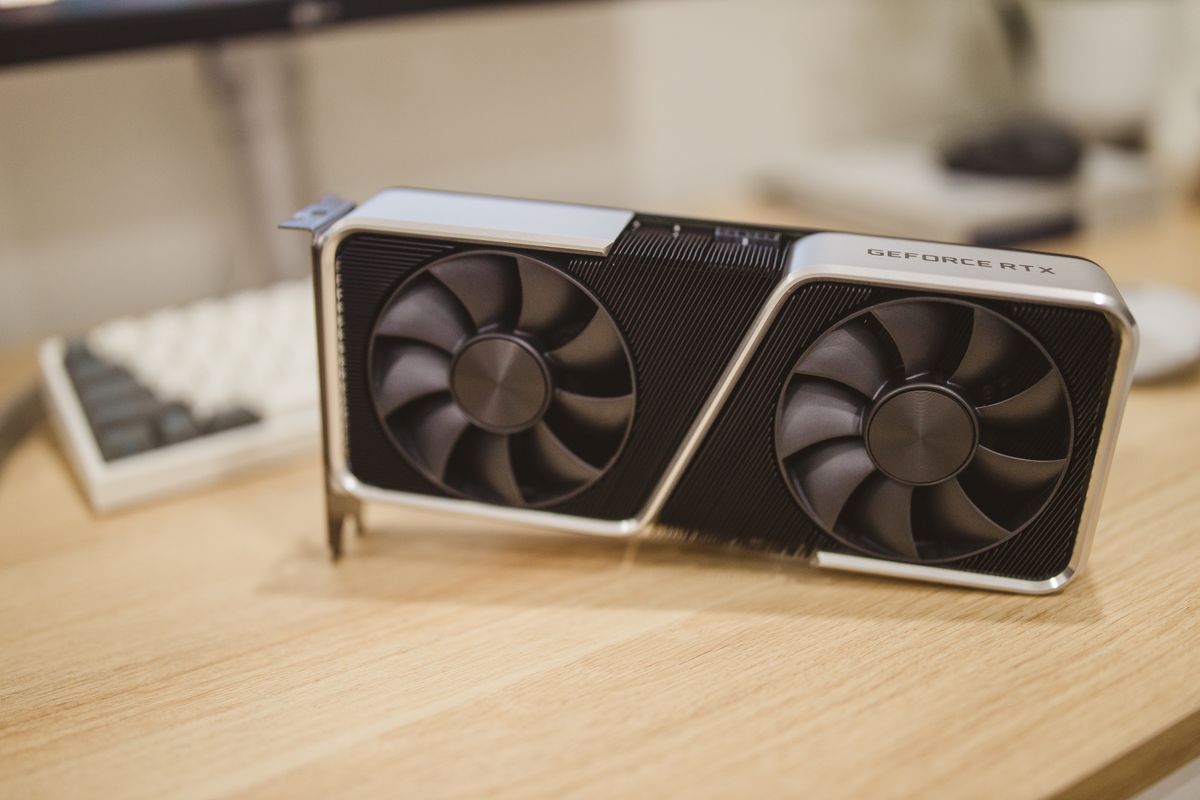
This is an architectural and design philosophy choice, not a flaw.
AMD's RDNA 2, 3, and 4 architectures have higher thermal limits than NVIDIA's Ada Lovelace and Blackwell architectures. AMD's power delivery is tuned to extract maximum performance right up to the thermal limit, while NVIDIA tends to throttle more conservatively earlier.
The practical result: AMD GPUs at the same objective thermal health level will show higher temperature numbers than NVIDIA GPUs. A Radeon at 90°C hotspot has the same remaining thermal headroom as an RTX 4080 at 78°C junction — because their limits are set differently (110°C vs 83°C respectively).
Neither approach is objectively better. AMD's approach squeezes more performance from the thermal budget. NVIDIA's approach provides more thermal headroom as a safety buffer.
Temperature Limits by Model (RX 7000 Series)
| GPU Model | Hotspot Limit | Normal Idle Hotspot | Normal Load Hotspot | Concern Threshold |
|---|---|---|---|---|
| RX 7900 XTX | 110°C | 40-55°C | 85-100°C | Above 105°C |
| RX 7900 XT | 110°C | 40-55°C | 85-100°C | Above 105°C |
| RX 7900 GRE | 110°C | 38-50°C | 80-95°C | Above 105°C |
| RX 7800 XT | 110°C | 35-48°C | 75-90°C | Above 100°C |
| RX 7700 XT | 105°C | 35-48°C | 70-88°C | Above 100°C |
| RX 7600 | 105°C | 32-45°C | 65-85°C | Above 100°C |
| RX 7600 XT | 105°C | 32-45°C | 65-85°C | Above 100°C |
These hotspot limits come from AMD's official GPU specifications. The "concern threshold" is set at 5°C below the official limit to account for measurement variation and to provide warning before throttling engages.
Temperature Limits (RX 9000 Series)
The RX 9000 series (Radeon RX 9070 XT, RX 9070, launched early 2025) uses RDNA 4 architecture:
| GPU Model | Hotspot Limit | Normal Load Hotspot | Concern Threshold |
|---|---|---|---|
| RX 9070 XT | 110°C | 80-98°C | Above 105°C |
| RX 9070 | 110°C | 78-95°C | Above 105°C |
RDNA 4 GPUs run similarly to RX 7000 series in terms of thermal behavior. The improved performance-per-watt of RDNA 4 means they tend to run cooler than equivalent RX 7000 cards at the same performance level, but the thermal limits are the same.
Note: RX 9070 series cards ship with improved default fan curves compared to RX 7000 series. AMD addressed community feedback about fan noise/thermal tradeoffs on the 7900 XTX with tuned defaults on the 9000 series.
The RX 7900 XTX Hotspot Controversy
At launch, the RX 7900 XTX hotspot controversy is worth understanding because it still influences how people interpret AMD temperatures.
When the RX 7900 XTX launched in late 2022, some units showed hotspot temperatures of 100-110°C under load while edge temperatures were 75-80°C. Reviews debated whether this was normal or a defect. AMD confirmed it was within specification for hotspot temperature, but acknowledged that some units had a thermal pad placement issue on the memory junction that increased hotspot temperatures by 5-10°C above expected ranges.
For current RX 7900 XTX owners: hotspot at 85-95°C under sustained load is normal. Hotspot consistently hitting 108-110°C under moderate load (not just peak gaming) warrants investigation — check thermal pad contact between cooler and memory junction.
What Edge Temperature Tells You (and Doesn't)
Edge temperature is useful for:
- Monitoring general coolant loop health in water-cooled systems
- Detecting case airflow problems (edge temperature rising faster than expected)
- Establishing a baseline for comparison over time
Edge temperature is not useful for:
- Determining whether throttling is imminent (hotspot controls throttling)
- Comparing thermal performance between AMD and NVIDIA cards
- Setting alert thresholds in monitoring software
When setting monitoring alerts on AMD GPUs, always use hotspot temperature. Set warnings at 95°C hotspot and critical alerts at 105°C hotspot for RX 7000/9000 series cards.
Signs Your AMD GPU Is Actually Running Too Hot
Normal AMD temperatures won't cause these symptoms. If you're seeing them alongside high temperatures, investigate:
Performance that drops mid-session: If frame rates are smooth for the first 30 minutes of gaming and then drop 15-20%, throttling is likely. The GPU hit sustained hotspot limits and reduced clock speeds to maintain temperature. Check whether hotspot temperature stabilizes at 110°C when this happens.
Artifacts at high temperatures: Graphical glitches, pixel noise, or visual corruption during gameplay that correlates with high GPU temperatures indicates the GPU die or VRAM is being pushed past stable operating conditions. This is different from normal AMD high temperatures — artifacts at 100°C hotspot is not normal behavior. See our guide to GPU overheating signs for the full list of thermal vs. hardware failure symptoms.
Fan speed at 100% continuously: AMD's fan curve is aggressive by design, but fans shouldn't run at maximum speed at idle or light desktop use. If fans are maxing out during a YouTube video, something is wrong with either the thermal solution or the sensor.
Throttling at temperatures below the limit: If you see performance drops at 90°C hotspot on a card with a 110°C limit, the card may be power-throttling rather than thermally throttling. Check GPU power consumption alongside temperatures — if the card is hitting its TDP limit before hitting thermal limits, adding cooling doesn't help.
Monitoring Tools for AMD GPUs
HWiNFO64 — Shows both edge and hotspot temperatures correctly, fan RPM, power consumption, and clock speeds. Essential for AMD GPU monitoring. Free.
AMD Software: Adrenalin Edition — AMD's driver suite includes a performance overlay that shows GPU temperature and utilization. Edge temperature only in the overlay, but the full metrics panel shows hotspot.
MSI Afterburner — Widely used for overclocking and monitoring. Shows GPU temperature (edge by default). Can be configured to display hotspot temperature as a secondary overlay value.
GPU-Z — Shows both temperatures and is particularly useful for reading AMD-specific data like bus interface speed and VRAM temperatures. Static readings rather than real-time graphs.
For fleet monitoring where manual tool checks don't scale, GGFix reads AMD GPU temperatures via hardware sensor APIs and reports both edge and hotspot temperatures with configurable alert thresholds. This matters for AMD cards specifically because setting alerts on edge temperature alone misses the actual thermal safety indicators.
Improving AMD GPU Cooling
If hotspot temperatures are consistently near the concern threshold:
Improve case airflow first: AMD's reference coolers and many AIB cooler designs rely heavily on case airflow to exhaust heat from the back of the card. A case with poor exhaust raises ambient temperature inside the case, and AMD's open-air cooler designs recirculate this warm air. Add or improve rear and top exhaust fans.
Repaste the GPU: AMD's reference RX 7900 XTX used a vapor chamber with thermal paste on the GPU die junction. After 2-3 years, repasting reduces hotspot temperatures by 5-10°C. AIB cards (ASUS, Gigabyte, Sapphire, XFX, PowerColor) use similar thermal interfaces. GPU repasting requires disassembling the card and is warranty-voiding on most models.
If you are in Copenhagen and would rather not void a warranty or risk the teardown yourself, GGFix offers graphics-card repair and repasting at a fixed price, including reapplying fresh paste and thermal pads on the memory junction.
Custom fan curve: AMD Software and MSI Afterburner allow custom GPU fan curves. AMD's default curves are tuned for noise vs. temperature balance. A more aggressive fan curve (fans spin up earlier and higher) reduces temperatures by 5-15°C at the cost of increased fan noise. For workstations where noise isn't a concern, this is the fastest improvement.
Undervolt the GPU: AMD RX 7000 and 9000 series GPUs respond very well to undervolting. Reducing voltage by 50-100mV often maintains identical performance while reducing power consumption by 20-30W — which directly reduces heat output. Hotspot temperatures drop 10-20°C with a quality undervolt profile. AMD Software's "Tuning" section includes manual and automatic undervolting options.
Frequently Asked Questions
Q: My RX 7900 XTX is hitting 105°C hotspot. Should I panic?
Not immediately. 105°C hotspot is within AMD's official specification limit of 110°C. However, consistently hitting 105°C under moderate workloads (not just peak stress tests) indicates your thermal solution is working near its limit. Check that your case has adequate exhaust airflow, verify the cooler fans are spinning correctly, and consider a custom fan curve to reduce temperatures by 5-10°C. If it only hits 105°C during 3DMark Time Spy or similar maximum-load benchmarks, that's normal behavior.
Q: Why does my RX 7800 XT run so much cooler than a 7900 XTX?
Two factors: die area and power consumption. The RX 7900 XTX has a much larger GPU die (335mm² for Navi 31 vs 200mm² for Navi 32) and higher TDP (355W vs 263W). More die area producing more heat in the same chassis requires more aggressive thermal management, which AMD achieves partly by running higher hotspot temperatures rather than larger coolers.
Q: Is AMD or NVIDIA better for a workstation that runs 24/7?
For 24/7 sustained workloads, NVIDIA has historically been the safer choice because of lower sustained operating temperatures. AMD's higher hotspot limits are within specification, but components running closer to their design limits have accelerated long-term wear. For workloads running 8-12 hours per day, both are fine with proper cooling. For truly 24/7 compute loads, NVIDIA's professional Quadro/RTX Pro series or AMD's Radeon Pro series are specifically designed and validated for continuous operation.
Q: Can I use the same temperature monitoring alert thresholds for AMD and NVIDIA cards in a mixed fleet?
No. You need separate alert profiles. For NVIDIA RTX 40/50 series: alert at 78°C junction, critical at 83°C. For AMD RX 7000/9000 series: alert at 95°C hotspot, critical at 105°C. Using NVIDIA thresholds on AMD cards generates constant false alarms. Using AMD thresholds on NVIDIA cards misses real thermal events. GGFix detects GPU vendor automatically and applies appropriate thresholds.
Is your PC throttling under load without telling you?
GGFix watches every temperature sensor — including the GPU hotspot most tools hide — and catches thermal problems before components degrade. AI alerts name which workload caused the spike.
- 3-day free trial — no credit card, 1 machine included
- Installs silently as a Windows Service (2 minutes)
- 50+ sensors + top 25 processes monitored every minute
- Auto-decodes BSODs and Event IDs 41 / 1001 / 219 / WHEA
- AI names the exact app that caused any crash or spike
- Telegram or email alerts in under 10 seconds
| Scenario | Typical cost (USD) |
|---|---|
| CPU/GPU replacement after thermal failure | $400 – $2,500 |
| Emergency technician callout | $120 – $350 |
| Lost workday (thermal throttling undetected) | $200 – $600 |
| Thermal paste + cleaning (early warning) | $30 – $100 |
| GGFix monitoring (per machine / month) | $20 |
| GGFix monitoring (per machine / year — 2 months free) | $200 |
Early warning is the cheapest insurance you can buy. GGFix catches problems when the fix is still cheap — and names the exact app, sensor, or BSOD code responsible.
On-site PC & laptop repair · Copenhagen
In Copenhagen with this exact problem? GGFix fixes it hands-on — often cheaper than replacing the machine.
Fixed prices from 399 DKK for graphics card repair, all brands, on-site or drop-off in Ishøj — with an honest diagnosis before you commit to anything.
See graphics card repair pricesGGFix Technical Team
Writing about hardware monitoring, fleet management, and keeping machines alive. Powered by GGFix.
Related Articles
GPU Artifacts: What They Look Like and What Causes Them
GPU artifacts range from fixable driver issues to signs of permanent VRAM damage. Here is how to identify which type you have, what temperatures trigger them, and whether your graphics card is recoverable.
PC Maintenance Schedule: The Complete Checklist (Daily to Annual)
The complete PC maintenance schedule for businesses — weekly, monthly, quarterly, and annual tasks with time estimates, environment adjustments, and the real cost of skipping it.
NVIDIA RTX 4060–5090: Temperature Limits by Model
RTX 4090 and RTX 5090 have different temperature limits. The hotspot temperature runs 15-25°C above the core temperature every card reports. Most monitoring setups only watch the core — which means most monitoring misses the actual failure threshold. Here are the exact numbers for every RTX card.
[ free 3-day trial · no credit card ]
Know before it breaks.
GGFix installs in 2 minutes and starts watching your hardware immediately — CPU temps, GPU load, disk health, fan speeds, and 50+ sensors. AI tells you what's wrong before it causes damage.