Blue Screen of Death: Hardware Causes and How to Fix Them
Your next BSOD will hide its real cause in a hex code most users can't read.
Windows logs the crash. It does not tell you which component failed, which Event ID matters, or whether your RAM is failing weeks before the final blue screen. GGFix decodes Event IDs 41 / 1001 / 219 / WHEA into plain English and pushes the diagnosis to your phone in under 10 seconds.
Start 3-Day Free TrialNo card requiredMost BSODs are hardware problems in disguise. Overheating, failing RAM, dying SSDs, and unstable VRMs all trigger blue screens that Windows blames on drivers or system files. If you've reinstalled Windows to fix a blue screen and the problem came back within a week, you fixed nothing — the hardware is still failing.
This guide covers the six most common hardware causes of BSODs, how to identify which one you're dealing with, what to do about each, and what an auto-decoded BSOD investigation looks like when continuous monitoring has already captured the crash for you. For a broader diagnostic framework, the PC troubleshooting guide covers the full range of crash behaviors under load.
The Most Common Hardware BSOD Stop Codes
Windows stop codes are a starting point, not a diagnosis. The same stop code can come from multiple hardware failures. But some codes are strong indicators of specific components:
| Stop Code | Most Likely Hardware Cause |
|---|---|
| WHEA_UNCORRECTABLE_ERROR | CPU instability (overheating, overvolt), RAM |
| MEMORY_MANAGEMENT | Failing RAM module |
| IRQL_NOT_LESS_OR_EQUAL | RAM, SSD, or GPU driver conflicts from hardware failure |
| CRITICAL_PROCESS_DIED | Often SSD read errors corrupting system files |
| SYSTEM_THREAD_EXCEPTION_NOT_HANDLED | GPU failure or driver crash from hardware fault |
| PAGE_FAULT_IN_NONPAGED_AREA | RAM or SSD failure |
| KERNEL_SECURITY_CHECK_FAILURE | RAM corruption or SSD data errors |
| VIDEO_TDR_FAILURE | GPU failure, overheating, or VRAM issue |
Note that WHEA_UNCORRECTABLE_ERROR is Windows' way of saying "a hardware component reported an uncorrectable hardware error." It's not a software error at all, despite appearing in a software crash report. When you see this code, start with CPU and RAM.
Windows Event Viewer's WHEA-Logger captures these machine check exceptions directly from hardware registers. Our Windows Event Viewer hardware diagnostics guide explains how to find and interpret WHEA Event IDs — including the difference between corrected errors (ID 17/19) and fatal errors (ID 1/18) that require immediate action.
Cause 1: Overheating (Thermal BSODs)
This is the most underdiagnosed BSOD cause because Windows reports the crash as a generic system failure, not a thermal event. The hardware protection circuit triggers a shutdown before temperatures reach catastrophic levels — Windows interprets this as a crash and writes a generic stop code.
The pattern that reveals a thermal BSOD:
- Crashes happen under load (gaming, rendering, compiling) but not at idle
- Crashes happen after the PC has been running for 20-60 minutes, not immediately
- Stop codes vary between crashes (random codes = hardware instability, not a single software fault)
- The machine is fine after a cool-down period
How to check: Run HWiNFO64 during a load test and watch CPU and GPU temperatures. If either hits the thermal throttling threshold before the crash, you have your answer. Common thermal limits: Intel 13th/14th gen CPUs throttle at 100°C, AMD Ryzen 7000/9000 at 95°C, NVIDIA RTX 40/50 series GPUs at 83°C junction temperature.
Fix: Clean the heatsink and fans of dust, replace thermal paste (which dries out after 2-4 years), verify fan operation, improve case airflow. See the complete CPU temperature guide for normal temperature ranges and troubleshooting by CPU family.
Cause 2: Failing RAM
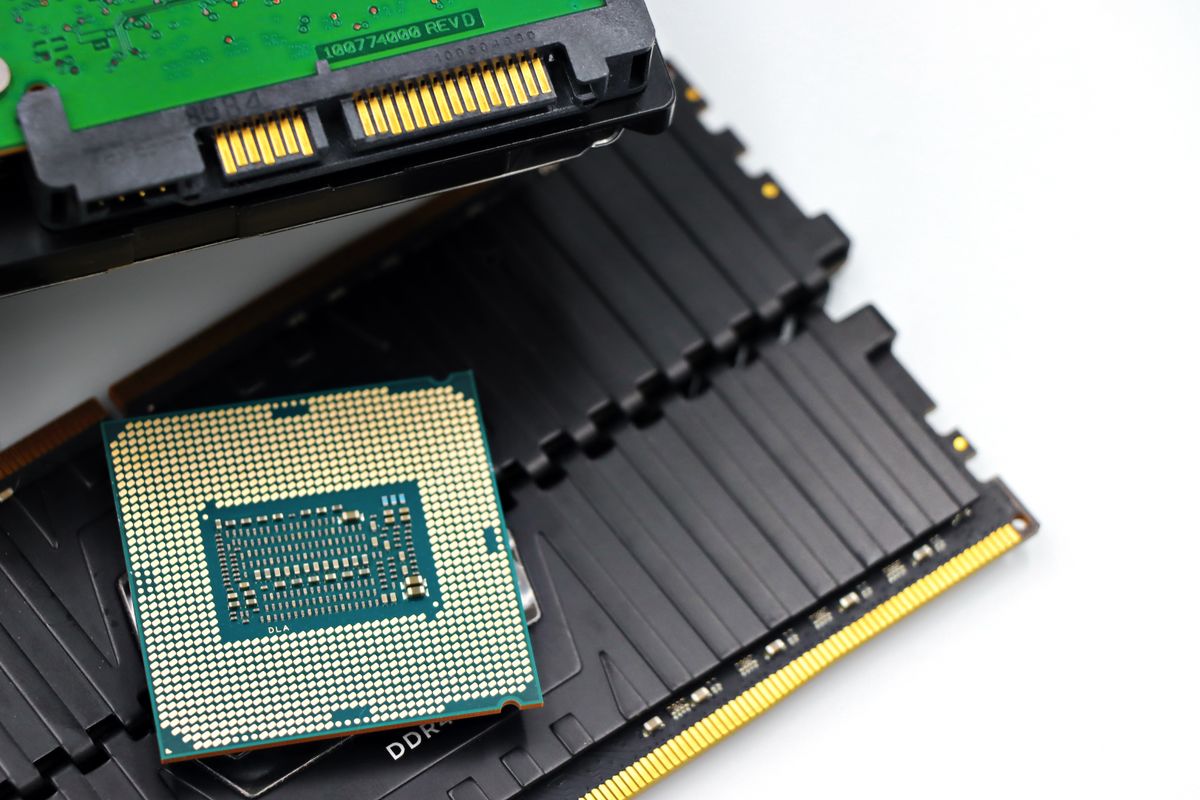
RAM failure produces some of the most misleading BSODs because the errors manifest as data corruption — Windows crashes on corrupted system data, not on the RAM hardware itself. MEMORY_MANAGEMENT, IRQL_NOT_LESS_OR_EQUAL, and KERNEL_SECURITY_CHECK_FAILURE are the most common RAM-related stop codes.
RAM failure can be:
- A bad module — one stick is faulty from the start or has developed a fault
- Incompatible XMP/EXPO profile — RAM running at rated speed but at the edge of stability
- Slot failure — the motherboard memory slot is damaged
How to check: Windows Memory Diagnostic (built-in, accessible from the Start menu, runs on reboot) or MemTest86 (bootable USB, more thorough). MemTest86 run overnight is the gold standard — one pass isn't enough, run at least 2 full passes.
If you have multiple RAM sticks, test them one at a time. If the BSODs stop with one stick removed, that stick is bad. If they stop only in a specific slot, the slot is failing.
Fix: Replace the faulty module. If XMP/EXPO instability is the cause, reduce RAM frequency slightly below rated speed or increase DRAM voltage by 0.025-0.05V in BIOS.
Cause 3: SSD/NVMe Drive Failure
A failing SSD causes BSODs in a specific pattern: crashes during Windows startup or when loading specific applications, stop codes like CRITICAL_PROCESS_DIED or INACCESSIBLE_BOOT_DEVICE, and visible disk activity (loading spinner) just before the crash. The SSD is failing to serve read requests, causing system files to become inaccessible.
SSD failure has warning signs that appear weeks before the catastrophic failure:
- Increased read/write errors in SMART data
- Reallocated sector count rising (for NAND-based SSDs)
- SMART health percentage declining below 90%
- Write speed dropping significantly (a 3,000 MB/s NVMe slowing to 500 MB/s is a red flag)
How to check: CrystalDiskInfo (free, reads SMART data), or check SMART data in Windows via wmic diskdrive get model,status. A "Caution" or "Bad" status in CrystalDiskInfo means the drive is failing and data is at risk.
Fix: Back up immediately, replace the drive. If the drive is an NVMe M.2, also check thermal — NVMe drives that overheat consistently develop NAND endurance issues faster. The SSD thermal throttling guide covers NVMe temperature management in detail.
Cause 4: GPU Failure or Instability
GPU-related BSODs are usually VIDEO_TDR_FAILURE or SYSTEM_THREAD_EXCEPTION_NOT_HANDLED. TDR (Timeout Detection and Recovery) is Windows' mechanism for resetting a hung GPU — when the GPU doesn't respond within 2 seconds, Windows attempts a reset, and if that fails, it BSODs.
GPU instability can stem from:
- Overheating — GPU junction temperature exceeding limits causing core shutdown
- VRAM errors — failing video memory causing data corruption during render operations
- Power delivery — PCIe power connectors loose or PCIe slot not delivering stable power
- Overclocking — even factory overclocked cards can be unstable under sustained load
How to check: Furmark or OCCT GPU stress test. If the BSOD occurs within minutes of sustained GPU load, and GPU temperature was within normal range, suspect VRAM or power delivery. If it occurs as temperature rises, it's thermal.
Fix: Reseat the GPU, check PCIe power connectors, verify temperatures under load. If the card is overclocked (including factory OC), try running at stock clocks. For cards showing VRAM errors on stress tests, the GPU hardware is failing — RMA if under warranty, replace if not.
Cause 5: VRM Instability (Often Overlooked)
The Voltage Regulator Module on the motherboard converts power for the CPU. Under sustained heavy loads — long video renders, compilation jobs, scientific computing — VRMs heat up. On budget motherboards running high-TDP CPUs, VRM temperatures can reach 100-120°C, at which point the VRM throttles power delivery. Unstable CPU voltage = WHEA_UNCORRECTABLE_ERROR BSODs.
This is almost never caught because consumer monitoring tools rarely display VRM temperatures, and most users don't know VRM temperatures exist as a category. HWiNFO64 shows VRM temperature as "CPU VRM" or "VCCIN VRM" depending on motherboard.
The VRM temperature guide covers this in detail — the short version: VRM temperatures above 90°C under sustained load on a mid-range or budget board are a BSOD waiting to happen.
Fix: Add airflow over the VRM area (a small 120mm fan aimed at the motherboard VRM heatsinks dramatically lowers temperatures), reduce CPU power limits in BIOS, or upgrade to a motherboard with better VRM hardware for high-TDP CPUs.
Cause 6: PSU Instability Under Load
A failing or undersized power supply can't deliver stable voltage under peak draw. The result: components see voltage fluctuations, interpret them as hardware errors, and crash. This is extremely difficult to diagnose without a PSU tester or oscilloscope because Windows just sees the resulting hardware instability, not the PSU cause.
Indicators that PSU may be the cause:
- BSODs occur only when multiple high-power components are at simultaneous peak draw (CPU rendering + GPU gaming = both maxed at once)
- System runs fine for light tasks but crashes with a heavy gaming or render workload
- Other causes have been ruled out (RAM tested, temps normal, disk healthy, GPU stable)
- PSU is more than 5 years old or cheaply rated for the actual hardware load
Fix: Use an online PSU calculator (NVIDIA and AMD both publish power consumption data) to verify your PSU rating covers actual peak draw with 20-30% headroom. If the PSU is aging or undersized, replace it.
How to Prevent BSODs Before They Happen
The pattern across every hardware BSOD cause: the hardware degrades for weeks before the crash occurs. SMART values decline. Temperatures rise. VRM readings increase. These are all measurable, monitorable trends.
Continuous hardware monitoring catches every one of these trends before they cause a crash. GGFix monitors CPU, GPU, VRM, SSD (SMART data), RAM usage, and fan speeds on Windows machines 24/7, correlates anomalies against historical baselines, and fires alerts when any metric starts trending toward failure thresholds. The alert fires weeks before the BSOD would.
For IT professionals and MSPs managing fleets, this is the difference between reactive troubleshooting (diagnosing crashes after they happen, with clients angry and machines down) and proactive prevention (replacing a disk at 83% SMART health before it reaches 0%). The hardware monitoring alert thresholds guide covers where to set those thresholds for each component.
If you are in Copenhagen and would rather not chase the failing component yourself, GGFix also offers fixed-price blue-screen and crash repair — hardware diagnosis, the part swap, and a stress test to confirm the fix held.
What an Auto-Decoded BSOD Looks Like in Practice
The manual workflow for any BSOD investigation is the same: open Event Viewer, find the Kernel-Power Event ID 41, convert the BugcheckCode from decimal to hexadecimal in Calculator, look up the stop code, then either pull the minidump into WinDbg or start crossing components off the list one stress test at a time. For a single user with a single BSOD, that takes thirty minutes if you know what you're doing. For a fleet — or for a non-technical user who just wants to know whether they need to back up their data — it's not realistic.
With continuous monitoring already running, the same investigation collapses into a single push notification. Here's what one of our monitored workstations sent its owner after a real BSOD last month, with the data the agent had captured at the moment of the crash:
Sensor + event snapshot at 22:14:03:
- CPU package: 67°C (normal)
- GPU edge: 78°C, hotspot: 92°C (normal)
- CPU 12V rail: 11.94V (normal)
- VRM: 71°C (normal)
- Top process by RAM:
Outlook.exe4.8 GB (climbed 2.1 GB in last 4 hours) - WHEA-Logger corrected errors in last 7 days: 187, up from baseline of 3-4 per week
22:14 — BSOD captured. Auto-decoded:
- Event ID 41, BugcheckCode 0x1A (decimal 26) →
MEMORY_MANAGEMENT - Faulting module path:
nt!MmAccessFault - Plain-language decode: "memory subsystem fault — RAM, memory controller, or kernel pool exhaustion"
- Cross-reference with WHEA trend: corrected memory errors have been climbing for 9 days
22:14 — Telegram alert delivered:
⚠️ GGFix: WORKSTATION-07 just blue-screened with MEMORY_MANAGEMENT (0x1A). Temperatures and PSU were normal at the moment of the crash, ruling out thermal and power. WHEA corrected errors have been climbing for 9 days (3/week → 187/week) — this is failing RAM, not a software bug. Recommended action: run MemTest86 overnight, then replace the failing DIMM. Open the dashboard for the full sensor history.
The owner had MemTest86 running by midnight, identified the bad stick on slot DIMM_A2 by morning, and ordered a replacement during their lunch break. No reinstall of Windows. No "let's try a different driver." No second crash. The investigation that would have taken a technician an hour with full access to the machine took the user ninety seconds with the alert in their pocket.
This is the layer GGFix adds on top of stop-code lookup: it captures the context around every BSOD (sensor history, WHEA trend, top processes, faulting module, recent driver changes), decodes the cryptic hex codes into plain language, and routes the explanation directly to the user. At $20 per machine per month — less than a single emergency callout for a BSOD diagnosis — the math is straightforward for anyone who's ever spent an evening guessing why their PC keeps blue-screening.
Frequently Asked Questions
Q: If my PC only BSODs during gaming or rendering, is that definitely hardware?
Almost always, yes. Software faults typically cause crashes regardless of load level — a corrupted driver crashes in Windows Explorer the same as in a game. Load-dependent crashes indicate hardware that's failing under stress: thermal, power delivery, RAM instability at speed, or GPU/VRAM issues under full utilization. Investigate hardware first.
Q: How do I read the minidump file from a BSOD?
Windows saves crash data to C:\Windows\Minidump\. Open the most recent .dmp file in WinDbg (free download from Microsoft). Run !analyze -v to get a detailed crash analysis. Look for "FAILED_INSTRUCTION_ADDRESS" and "MODULE_NAME" — if the module is a hardware driver or shows memory addresses, it's hardware-related. If it's a specific application, it may be software.
Q: How can I tell which component caused a BSOD without using WinDbg?
The most reliable shortcut is to capture the sensor and event context at the moment of the crash and read it backwards. A BSOD with normal temperatures and normal voltages but rising WHEA corrected errors over the prior weeks is RAM. A BSOD with GPU hotspot above 100°C is thermal, regardless of stop code. A BSOD with the 12V rail dropping below 11.5V at the moment of crash is the PSU. Continuous monitoring agents like GGFix do this correlation automatically and tell you which component to test first — without WinDbg, without minidump analysis, without guesswork.
Q: Can I run MemTest86 and a temperature monitor simultaneously?
No — MemTest86 runs before Windows boots, so you can't run them simultaneously. Run MemTest86 first to test RAM (minimum 2 full passes). Then boot into Windows and use HWiNFO64 + a stress test (Prime95 for CPU, Furmark for GPU) while watching temperatures. Separate tests catch separate failure modes.
Q: My BSOD stop codes are always different. What does that mean?
Random, changing stop codes are a strong indicator of hardware instability rather than a single software fault. A software bug causes a consistent, reproducible crash. Hardware instability — especially RAM or thermal issues — corrupts different data each time, producing different stop codes. If your codes vary, prioritize hardware testing: RAM first, then temperatures, then disk.
Q: After replacing the hardware, how do I know it's actually fixed?
Stress test for 2-4 hours with the same workload that previously caused crashes. If you replaced RAM, run MemTest86 again on the new modules. If you fixed a thermal issue, monitor temperatures during a sustained load run to confirm they stay below threshold. A fix isn't confirmed until you've run the failure scenario successfully several times.
Stop decoding BSODs by hand. Get the diagnosis pushed to your phone.
GGFix reads the Windows Event Log on every tick, decodes Event IDs 41 / 1001 / 219 / WHEA into plain English, correlates them with sensor and process history, and tells you which component to test first — in under 10 seconds.
- 3-day free trial — no credit card, 1 machine included
- Installs silently as a Windows Service (2 minutes)
- 50+ sensors + top 25 processes monitored every minute
- Auto-decodes BSODs and Event IDs 41 / 1001 / 219 / WHEA
- AI names the exact app that caused any crash or spike
- Telegram or email alerts in under 10 seconds
| Scenario | Typical cost (USD) |
|---|---|
| Technician hour to decode a BSOD by hand | $80 – $250 |
| Wrong-component swap before correct diagnosis | $100 – $800 |
| Windows reinstall when RAM was the real cause | $300 – $1,000 |
| Failed RAM caught early via WHEA trend | $50 – $200 |
| GGFix monitoring (per machine / month) | $20 |
| GGFix monitoring (per machine / year — 2 months free) | $200 |
Early warning is the cheapest insurance you can buy. GGFix catches problems when the fix is still cheap — and names the exact app, sensor, or BSOD code responsible.
On-site PC & laptop repair · Copenhagen
In Copenhagen with this exact problem? GGFix fixes it hands-on — often cheaper than replacing the machine.
Fixed prices from 399 DKK for crash and blue-screen repair, all brands, on-site or drop-off in Ishøj — with an honest diagnosis before you commit to anything.
See crash and blue-screen repair pricesGGFix Technical Team
Writing about hardware monitoring, fleet management, and keeping machines alive. Powered by GGFix.
Related Articles
GPU Artifacts: What They Look Like and What Causes Them
GPU artifacts range from fixable driver issues to signs of permanent VRAM damage. Here is how to identify which type you have, what temperatures trigger them, and whether your graphics card is recoverable.
PC Maintenance Schedule: The Complete Checklist (Daily to Annual)
The complete PC maintenance schedule for businesses — weekly, monthly, quarterly, and annual tasks with time estimates, environment adjustments, and the real cost of skipping it.
NVIDIA RTX 4060–5090: Temperature Limits by Model
RTX 4090 and RTX 5090 have different temperature limits. The hotspot temperature runs 15-25°C above the core temperature every card reports. Most monitoring setups only watch the core — which means most monitoring misses the actual failure threshold. Here are the exact numbers for every RTX card.
[ free 3-day trial · no credit card ]
Know before it breaks.
GGFix installs in 2 minutes and starts watching your hardware immediately — CPU temps, GPU load, disk health, fan speeds, and 50+ sensors. AI tells you what's wrong before it causes damage.