10 Reasons Your PC Is Slow (And How to Fix Each One)
Your CPU might be throttling right now and you'd never know.
Sustained temperatures above 85°C shorten CPU lifespan and tank performance — silently. GGFix watches every sensor (including the hotspot most tools hide) and alerts you the moment a reading drifts above its 30-day baseline, not just when it crosses a static threshold.
Start 3-Day Free TrialNo card requiredA slow PC costs the average employee 40 minutes per day in lost productivity — roughly 145 hours per year. Most troubleshooting guides point to the same surface-level causes: too many browser tabs, startup programs, malware. Those are real, but they are the easy answers. The harder truth is that many slow PCs are suffering from hardware problems that standard diagnostic tools never surface.
After 8 years of repairing PCs in Copenhagen and monitoring over 500 workstations, we see the same pattern: the user complains about slowness, IT checks Task Manager, finds nothing obvious, and tells them to restart. The real culprit — a CPU silently throttling at 95°C, an SSD with 2% health remaining, a VRM cooking at 110°C, or a single browser tab leaking 4 GB of RAM since this morning — stays hidden because nobody checked the sensors or the per-process history. This guide covers all 10 causes, from the obvious to the invisible, shows you how to actually diagnose each one, and ends with the question most guides never answer: which exact application is slowing you down right now? For a broader look at diagnosing common hardware problems, start with our full troubleshooting pillar guide.
The 10 Causes at a Glance
| # | Cause | Category | How to detect |
|---|---|---|---|
| 1 | Thermal throttling (CPU/GPU) | Hardware | Sensor monitoring — core temp under load |
| 2 | Failing or degrading SSD/HDD | Hardware | S.M.A.R.T. data, read/write latency |
| 3 | Insufficient or failing RAM | Hardware | Memory pressure, page fault rate |
| 4 | Dust buildup restricting airflow | Hardware | Temperature delta over time |
| 5 | Too many startup programs | Software | Boot time, CPU usage at login |
| 6 | Malware or cryptominers | Software | Abnormal CPU/GPU baseline load |
| 7 | Windows Update background processes | Software | Disk I/O spikes, TiWorker.exe |
| 8 | Outdated or corrupted drivers | Software | Device Manager warnings, GPU render errors |
| 9 | CPU silicon degradation | Hardware | Instability under load, voltage anomalies |
| 10 | The 3-4 year compounding effect | Both | All of the above, trending over months |
Hardware Causes Your PC Cannot Tell You About
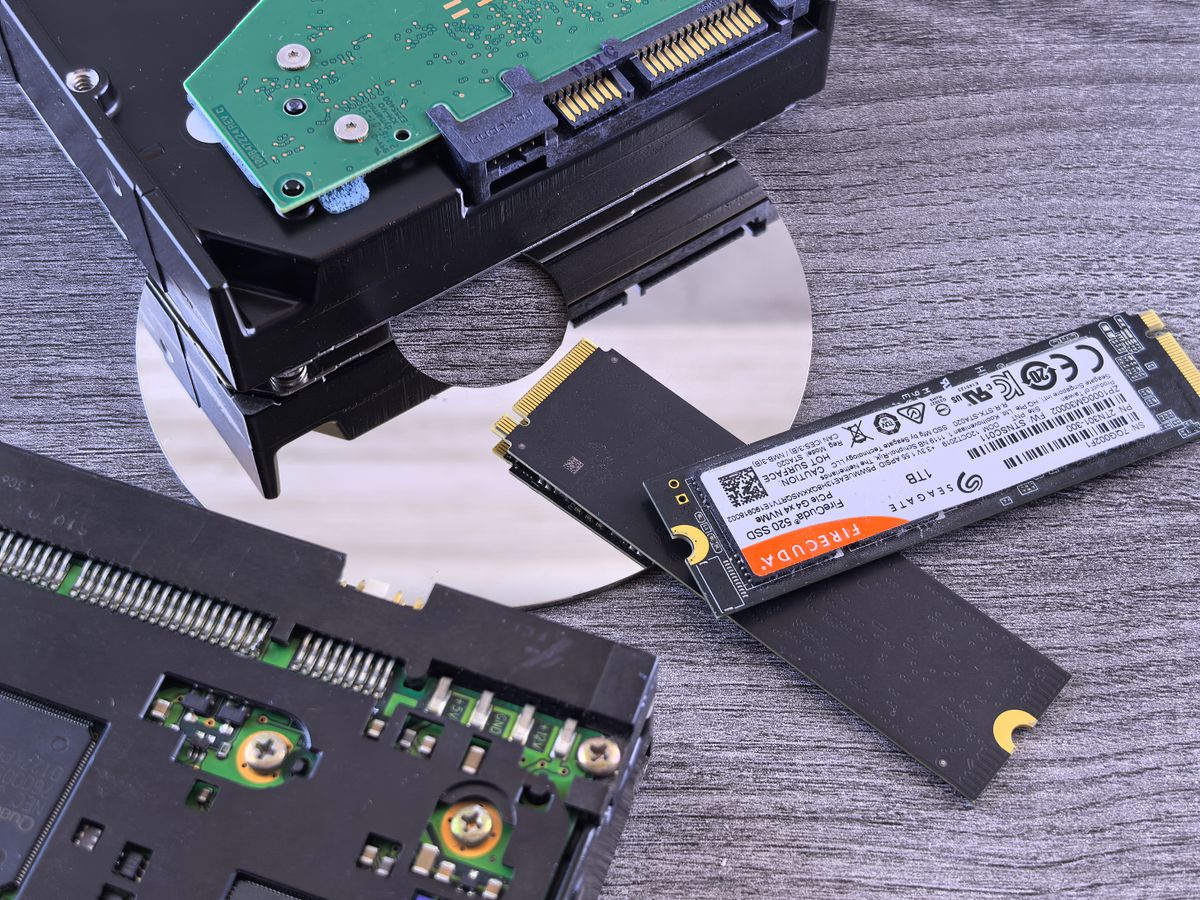
These are the causes that Task Manager will never show you. They require sensor-level access to diagnose.
1. Thermal Throttling — The Silent Performance Killer
Thermal throttling is the single most underdiagnosed cause of slow PCs. When a CPU reaches its maximum safe temperature — 100°C for most Intel processors, 95°C for AMD Ryzen 7000 series — it automatically reduces its clock speed to prevent physical damage. A processor rated for 5.0 GHz may drop to 800 MHz under sustained heat, delivering a performance reduction of 60-80% with zero warning to the user.
The throttling is invisible in Task Manager. CPU usage may show 100%, but the actual work per clock cycle has collapsed. The user experiences this as "everything is laggy" with no apparent cause.
Common triggers we see in our monitoring data:
- Dried thermal paste (CPUs over 2-3 years old)
- Blocked intake fans or clogged heatsink fins
- Compact cases with poor airflow design
- Ambient room temperature above 30°C in summer
How to diagnose: Check CPU package temperature under sustained load. If it reaches 90°C+ and clock speeds drop simultaneously, thermal throttling is your culprit. Our complete CPU temperature guide covers normal ranges for every generation.
2. Failing or Degrading SSD/HDD
A drive does not go from "working perfectly" to "dead" overnight. The decline is gradual — and the first symptom is almost always slowness, not data loss.
For SSDs, every drive has a finite number of write cycles. A Samsung 870 EVO 1TB is rated for 600 TBW (terabytes written). As the drive approaches its endurance limit, the controller reallocates bad cells, garbage collection runs more aggressively, and write speeds drop from 3,000 MB/s to under 500 MB/s. According to Kingston's endurance documentation, monitoring TBW remaining and reallocated sector count is the most reliable way to predict SSD health.
For HDDs, Backblaze's 2024 annual report shows an average annual failure rate of 1.57% across 301,120 drives — but some models hit 4.5%+. Read latency rises months before total failure.
How to diagnose: Check S.M.A.R.T. attributes — reallocated sector count, wear leveling count, and power-on hours. NVMe drives also throttle when they overheat, adding a thermal dimension most people miss entirely.
3. Insufficient or Failing RAM
When your system runs out of physical RAM, Windows falls back to the pagefile — a section of your SSD or HDD used as overflow memory. Disk storage is 10-100x slower than RAM. A system with 8 GB of RAM running Chrome, Outlook, Teams, and a line-of-business app will hit this wall regularly.
Failing RAM is harder to spot. A stick developing bit errors causes intermittent slowdowns, application crashes, and blue screens that seem random. In our fleet monitoring data, about 4% of workstations over 3 years old show correctable memory errors that degrade performance without triggering a visible failure.
How to diagnose: Monitor memory pressure and hard page faults per second. If the pagefile is consistently in use during normal work, you need more RAM. For hardware failures, run Windows Memory Diagnostic or MemTest86 — both test for physical defects.
4. Dust Buildup Restricting Airflow
Dust is slow-motion thermal throttling. According to a Computerworld lab test, removing dust from a heavily clogged PC reduced CPU temperatures by 9-17°C. That is the difference between a CPU running at full speed and one silently throttling.
In our experience servicing office PCs, machines that sit on the floor in carpeted rooms hit critical dust levels within 6-8 months. Tower PCs under desks are the worst — they ingest dust at carpet level with restricted exhaust. After monitoring 500+ workstations, we see a clear seasonal pattern: temperatures rise 5-10°C across fleets during summer even with air conditioning, and dust-clogged machines tip over the throttling threshold first.
How to diagnose: If CPU idle temperatures have risen 10°C+ compared to the machine's baseline from 6 months ago, dust is the likely cause. Compressed air cleaning every 6-12 months prevents this entirely.
Software Causes — The Usual Suspects
These causes are well-documented elsewhere, but they are real. We include them for completeness, with the diagnostic angle most guides skip.
5. Too Many Startup Programs
Every program that loads at boot competes for CPU, disk I/O, and RAM during the first 2-3 minutes of use. A clean Windows 11 install boots in about 12 seconds on an NVMe SSD. Add 15-20 startup programs — Teams, Slack, OneDrive, antivirus, printer utilities, cloud sync — and that stretches to 45-90 seconds, with the system remaining sluggish for another 1-2 minutes.
How to diagnose: Open Task Manager → Startup tab. Sort by "Startup impact." Disable anything that is not essential for your first minute of work.
6. Malware or Cryptominers
Cryptomining malware is particularly insidious because it targets your GPU or CPU at 80-100% load continuously, but only when you are not looking at the screen. Modern strains detect user activity and pause mining to avoid detection in Task Manager.
How to diagnose: Check baseline CPU and GPU load when the machine has been idle for 30+ minutes. If GPU utilization is above 5% with no applications running, investigate. Continuous hardware monitoring catches this pattern because it records sensor data around the clock — including at 3 AM when the cryptominer runs uninterrupted.
7. Windows Update Background Processes
The Windows Modules Installer Worker (TiWorker.exe) is responsible for more "my PC is suddenly slow" complaints than almost any other single process. After a feature update, this process can consume 80-100% of disk I/O and significant CPU for hours — sometimes days on older hardware.
How to diagnose: Check disk I/O in Resource Monitor during slowdowns. If TiWorker.exe or Windows Update is consuming most of the I/O budget, let it finish. Interrupting it makes it worse. On fleet machines, schedule updates during off-hours and monitor for machines that get stuck in update loops.
8. Outdated or Corrupted Drivers
A GPU running on a generic Microsoft display driver instead of the proper NVIDIA or AMD driver will render the desktop at a fraction of its capacity. Corrupted audio drivers cause DPC latency spikes that freeze the entire system for milliseconds — felt as micro-stutters.
How to diagnose: Open Device Manager and look for yellow warning icons. For GPU specifically, check that the driver version matches the latest from the manufacturer — not the Windows Update version, which is often months behind.
The Hidden Culprits
9. CPU Silicon Degradation (The Intel 13th/14th Gen Problem)
In 2024, Intel confirmed that a microcode bug in 13th and 14th generation Core processors caused elevated voltages that permanently degraded CPU silicon over time. The damage is irreversible — even after the microcode fix, affected CPUs continue to degrade. Symptoms start as occasional crashes under load and progress to persistent slowness and instability.
This primarily affects i7 and i9 K/KF/KS desktop processors. Intel extended the warranty to 5 years for affected SKUs, but many users do not realize their CPU has degraded because the decline is gradual.
How to diagnose: If you have a 13th or 14th gen Intel i7 or i9, update your BIOS to the latest microcode (0x12B+). Monitor for instability under sustained all-core loads. If the CPU was running without the microcode fix for months, the degradation may already be permanent. According to Tom's Hardware, this issue contributed to the first measurable decline in average desktop CPU performance in 20 years.
10. The 3-4 Year Compounding Effect
No single cause kills a PC's performance at the 3-4 year mark. It is the compounding of all of them simultaneously: thermal paste has dried (adding 10-15°C), dust has accumulated (adding another 5-10°C), the SSD has consumed 40% of its write endurance, RAM is under pressure from heavier software, and drivers have accumulated quirks across two Windows feature updates.
According to a Microsoft study cited by ScalePad, PCs over 4 years old are 2.7x more likely to need maintenance and cost their users approximately 112 hours of lost productivity per year. That is nearly three full work weeks spent waiting.
How to diagnose: This requires trending data over months, not a snapshot. A single temperature check might look fine. But if CPU idle temperatures have risen from 35°C to 55°C over 18 months while clock speeds under load have dropped from 4.8 GHz to 3.2 GHz, the compounding effect is visible — and a full service (thermal paste, dust cleaning, SSD health check) will restore most of the lost performance.
Which App Is Actually Slowing You Down?
Once you suspect something is wrong, the next question is always which process. Task Manager sorts by CPU and RAM right now — but that snapshot misses the spikes. A Chrome tab that briefly hits 80% CPU every 30 seconds, or an Outlook plugin that leaks 200 MB of RAM per hour, will not show as the top consumer when you happen to look. By the time you check, the process has eased off, and the slowness feels random.
This is the gap that continuous, per-process monitoring fills. Instead of relying on you to open Task Manager at the right moment, an agent that records the top 25 processes by memory and CPU every minute can tell you, after the fact, exactly which application caused the spike at 14 yesterday — process name, memory consumed, window title, run duration. That data turns a vague "PC felt slow this morning" into a concrete "OBS Studio held 6 GB of RAM for 4 hours after the stream ended."
In our memory leak detection on Windows guide, we walk through how this works in practice, including the per-process working-set tracking that catches leaks before they trigger a crash or a forced restart. Three patterns recur across the workstations we monitor:
- Browser tab leaks — a single misbehaving site or extension grows the browser process from 200 MB to 4+ GB across an 8-hour workday. The browser is the suspect; the actual culprit is one tab you never closed.
- Plugin-driven Office leaks — Outlook, Excel, or Teams with third-party add-ins (CRM connectors, security tooling, accessibility plugins) that allocate memory and never release it.
- Background sync runaways — OneDrive, Dropbox, or Google Drive entering a re-sync loop after a brief connectivity blip and pegging CPU + disk indefinitely.
If your PC slowdown follows a pattern — same time of day, after the same workflow, on the same machines in a fleet — process-level history is what surfaces it. Spot-checking will not, because the worst offenders are the ones that hide.
How to Actually Diagnose a Slow PC
Most troubleshooting guides end with "open Task Manager." That covers causes 5-8 on our list. It misses causes 1-4 and 9-10 entirely — the hardware layer that requires sensor access — and it misses the which app question above, because Task Manager has no memory of yesterday.
Here is the diagnostic stack that actually works:
- Check Task Manager for obvious CPU, memory, and disk consumers — rules out the easy software causes
- Check Resource Monitor for disk I/O patterns — identifies Windows Update loops and driver issues
- Check CPU and GPU temperatures under load — reveals thermal throttling (use HWiNFO64 for a one-time check, or continuous monitoring for fleet machines)
- Check S.M.A.R.T. data on all drives — reveals SSD/HDD degradation before failure
- Check memory pressure and page fault rate — reveals RAM insufficiency
- Compare current sensor baselines to historical data — the only way to catch the compounding effect
- Look at per-process history, not just live process list — surfaces the leaking app, the cryptominer that paused when you opened Task Manager, the plugin that pegged CPU at 03
- Deploy continuous monitoring for machines you cannot check manually — tools like GGFix track all of these sensors and a top-25 process snapshot every minute, then use AI to name the exact application responsible when something crosses a threshold. It is the difference between "the GPU spiked" and "Chrome tab #14 caused the GPU spike at 14"
Steps 1-2 are free and immediate. Steps 3-5 require sensor access software. Steps 6-8 require a monitoring system — which is the difference between reactive IT ("it is slow, fix it") and proactive IT ("this machine will be slow in 3 weeks, schedule maintenance").
The Business Cost of Slow PCs
For a single home user, a slow PC is annoying. For a business, it is a measurable financial loss.
| Metric | Value | Source |
|---|---|---|
| Productivity lost per employee per day | ~40 minutes | Manx Technology Group |
| Annual hours lost per employee | ~145 hours | Manx Technology Group |
| Annual cost per employee (at $50k salary) | ~$3,500 | Calculated |
| PCs over 4 years old: maintenance likelihood | 2.7x higher | Microsoft |
| Annual hours lost on PCs over 4 years | ~112 hours | Microsoft / ScalePad |
| Boot time improvement: HDD → NVMe SSD | 60-80% faster | Industry benchmarks |
| CPU temp drop from dust cleaning | 9-17°C | Computerworld |
For a 20-person office with aging PCs, those 145 lost hours per employee multiply to 2,900 hours per year — the equivalent of 1.4 full-time employees doing nothing but waiting. At an average salary of $50,000, that is $70,000 in annual waste. A combination of proactive maintenance and continuous hardware monitoring costs a fraction of that and catches hardware degradation — and the leaking-app patterns above — before they reach the "everything is slow" stage.
For the single highest-impact hardware fix — swapping an aging or full drive for a fast NVMe — GGFix offers a fixed-price SSD upgrade and migration service in Copenhagen that clones your existing Windows install across, so the machine boots and loads faster without a reinstall.
Frequently Asked Questions
Q: Why is my PC slow even though I have good specs?
Good specs mean nothing if the hardware is thermally throttled. A Core i9-14900K rated for 5.8 GHz runs at under 1 GHz when it hits 100°C. The most common cause of "fast hardware, slow PC" is inadequate cooling — dried thermal paste, dust-clogged heatsinks, or a case with poor airflow. Check CPU temperature under sustained load before blaming software.
Q: Why did my PC suddenly get slow overnight?
A sudden slowdown usually has one of three causes: a Windows Update running TiWorker.exe in the background (consuming all disk I/O), a thermal event (fan failure or thermal paste reaching end of life), or cryptomining malware that activated after an infection. Check disk I/O in Resource Monitor first, then CPU temperatures. If both are normal, run a malware scan and check per-process history for anything that woke up overnight.
Q: How do I find out which app is slowing my PC down?
Task Manager shows you the live snapshot, which is useful but limited — it can't tell you what the worst offender was an hour ago, or which process caused the freeze you noticed yesterday. To answer "which app slowed my PC down," you need per-process history: a recording of the top processes by CPU and RAM every minute. Continuous monitoring agents like GGFix store this and use AI to name the exact application responsible for any spike or leak after the fact, so you can see that Chrome tab #14, an Outlook plugin, or OneDrive's resync loop was the real cause.
Q: Can overheating really make my PC run slower?
Yes — measurably. Thermal throttling reduces CPU clock speed by 60-80% to prevent heat damage. A processor running at 95°C may deliver the same performance as a budget chip from 5 years ago. This is the #1 hardware cause of slow PCs in our fleet monitoring data. The throttling is completely invisible to the user without temperature monitoring software.
Q: Is my SSD making my PC slow?
It can be, especially if the drive is over 80% full, has exceeded half its rated TBW endurance, or is overheating (NVMe drives throttle at ~70°C). Check S.M.A.R.T. health data for reallocated sectors and wear level. An SSD approaching end of life drops from 3,000+ MB/s writes to under 500 MB/s — a 6x slowdown that affects every save, load, and background operation.
Q: How do I find out what is slowing down my PC?
Start with Task Manager to check for obvious CPU, RAM, or disk hogs. If nothing stands out, you have either a hardware problem that software tools cannot see, or a process pattern that Task Manager's live view cannot capture. Check CPU and GPU temperatures under load using HWiNFO64. Check drive health using CrystalDiskInfo. Check RAM with Windows Memory Diagnostic. For fleet environments, GGFix automates all of these checks 24/7 across every machine, records per-process history, and alerts you the moment a sensor or a process crosses a dangerous threshold — telling you which exact app caused it.
Q: Why is my work PC slow but my home PC is fine?
Work PCs accumulate more software overhead (antivirus, VPN, endpoint security, management agents, cloud sync, Group Policy), receive updates on corporate schedules (often delayed, causing large batch updates), and are typically maintained less frequently. Corporate machines under desks also accumulate dust faster than home setups. The combination of heavier software load and less frequent physical maintenance is why office PCs degrade faster.
Is your PC throttling under load without telling you?
GGFix watches every temperature sensor — including the GPU hotspot most tools hide — and catches thermal problems before components degrade. AI alerts name which workload caused the spike.
- 3-day free trial — no credit card, 1 machine included
- Installs silently as a Windows Service (2 minutes)
- 50+ sensors + top 25 processes monitored every minute
- Auto-decodes BSODs and Event IDs 41 / 1001 / 219 / WHEA
- AI names the exact app that caused any crash or spike
- Telegram or email alerts in under 10 seconds
| Scenario | Typical cost (USD) |
|---|---|
| CPU/GPU replacement after thermal failure | $400 – $2,500 |
| Emergency technician callout | $120 – $350 |
| Lost workday (thermal throttling undetected) | $200 – $600 |
| Thermal paste + cleaning (early warning) | $30 – $100 |
| GGFix monitoring (per machine / month) | $20 |
| GGFix monitoring (per machine / year — 2 months free) | $200 |
Early warning is the cheapest insurance you can buy. GGFix catches problems when the fix is still cheap — and names the exact app, sensor, or BSOD code responsible.
On-site PC & laptop repair · Copenhagen
In Copenhagen with this exact problem? GGFix fixes it hands-on — often cheaper than replacing the machine.
Fixed prices from 399 DKK for PC cleaning and thermal-paste service, all brands, on-site or drop-off in Ishøj — with an honest diagnosis before you commit to anything.
See PC cleaning and thermal-paste service pricesGGFix Technical Team
Writing about hardware monitoring, fleet management, and keeping machines alive. Powered by GGFix.
Related Articles
Telegram Hardware Alerts: Setup, Sample Workflows, and What Good Notifications Actually Look Like
Why Telegram has quietly become the best channel for PC hardware alerts, what a useful alert message actually contains, and a step-by-step setup walkthrough you can copy.
How to Detect a Memory Leak on Windows (And Find Which App Is Leaking)
Windows does not warn you about memory leaks until they crash your PC. Here is how leaks behave, why Task Manager misses them, and how to find which exact application is leaking RAM in real time.
SSD Thermal Throttling: The Silent Speed Killer
NVMe SSDs throttle at 70°C, killing read/write speeds by up to 80%. Most users never check disk temperatures. Here's why you should — and what to do about it.
[ free 3-day trial · no credit card ]
Know before it breaks.
GGFix installs in 2 minutes and starts watching your hardware immediately — CPU temps, GPU load, disk health, fan speeds, and 50+ sensors. AI tells you what's wrong before it causes damage.