Monitoring During Summer: Preparing Your PC Fleet for Heat Season

Your CPU might be throttling right now and you'd never know.
Sustained temperatures above 85°C shorten CPU lifespan and tank performance — silently. GGFix watches every sensor (including the hotspot most tools hide) and alerts you the moment a reading drifts above its 30-day baseline, not just when it crosses a static threshold.
Start 3-Day Free TrialNo card requiredHardware monitoring data shows a consistent annual pattern: thermal alerts increase by 40–70% between May and August compared to winter months. The cause is simple physics — higher ambient temperatures reduce thermal headroom for every machine in the fleet. A machine that runs at 68°C CPU in a 20°C January office runs at 76°C in a 28°C July office under the same workload. That 8°C increase can be the difference between a machine operating within spec and a machine thermal throttling all afternoon.
For remote hardware specifically, the summer risk is even higher: residential apartments in Northern Europe without air conditioning routinely reach 28–32°C ambient in July and August. Laptops in these environments see sustained thermal conditions that exceed what they encounter in any other season.
This guide covers the seasonal preparation steps that reduce summer hardware failures and the monitoring configuration that catches heat-related issues before they cause machine downtime.
For the general thermal management framework, see our thermal throttling explained guide and our PC temperature guide.
Why Summer Is the Highest-Risk Season
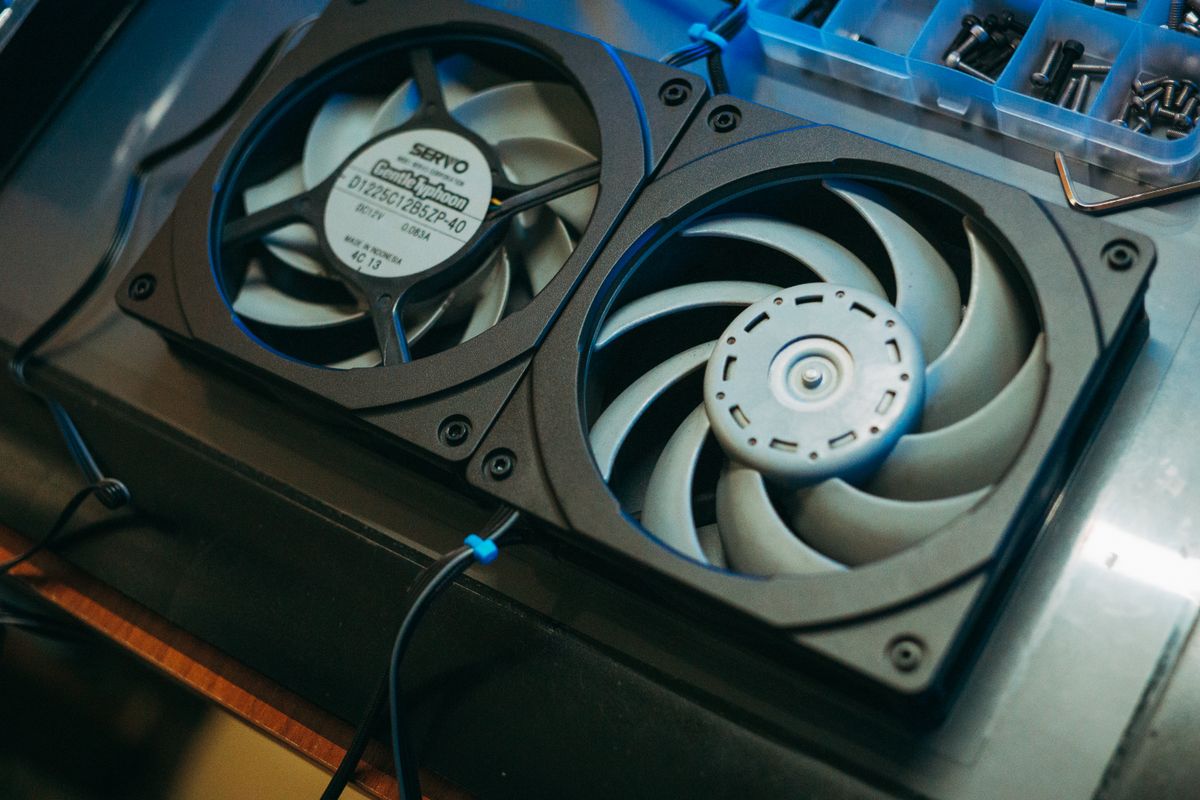
Several factors converge between June and September to create elevated hardware risk:
Higher ambient temperatures: Every °C increase in ambient air temperature adds approximately 1°C to all component temperatures at the same load level. A 6°C ambient increase (20°C to 26°C) adds roughly 6°C to CPU and GPU temperatures. For machines already running close to their thermal limits in winter, this seasonal increase pushes them over.
AC failures: HVAC systems that have been idle through winter often reveal failures on the first hot day of summer. A server room AC unit that stops working on a June afternoon can take 20–30 minutes to reach dangerous temperatures. Office cooling that fails during a heat wave runs hardware at 30–35°C ambient for hours or days while repair is arranged.
Accumulated winter dust: Machines that were not cleaned in the previous autumn have accumulated a full winter and spring of dust in their heatsink fins. This dust insulates the heatsink, reducing its ability to dissipate heat. In winter, this may not cause problems. In summer, the same dust creates critical throttling conditions.
Remote worker home environments: For fleets with remote workers, summer is when home-office ambient temperatures become a fleet-level concern. Monitoring shows summer temperature spikes across remote machines that are not visible in any other season.
Increased workload in some sectors: For creative studios, summer may bring deadline-heavy project cycles. For schools, summer means intensive use of computer labs for exam periods before the long holiday. These workload increases compound the thermal challenge.
The Pre-Summer Fleet Audit (May–June)
Run a fleet-wide health audit before temperatures peak:
Step 1: Identify at-risk machines
Pull GGFix fleet health data and filter for:
- Machines where CPU or GPU temperature is already within 8°C of alert threshold under normal spring workloads
- Machines that have shown temperature increases of 5°C+ over the past 60 days (indicating dust accumulation)
- Machines with fan RPM anomalies in the past 30 days
- Laptops with battery wear above 25% (heat accelerates battery degradation)
These machines need maintenance before summer, not during it.
Step 2: Schedule preventive cleaning
For all at-risk machines identified in Step 1, schedule dust cleaning before peak summer temperatures (target completion: late May or early June). In the Copenhagen area, our PC cleaning and thermal-paste service can handle this pre-summer dust removal and paste refresh. For machines over 18 months old in high-load environments, add thermal paste assessment to the cleaning visit.
Step 3: Check office HVAC
Test cooling systems before the first hot day. Verify server room AC is operational. Identify offices or rooms with historically poor cooling that will need additional portable cooling units during heat waves.
Step 4: Remote worker check-in
For fleets with remote workers, send a proactive communication before summer: remind employees of proper laptop placement (hard surface, clear vents), offer guidance on home office cooling, and note that IT will be monitoring for thermal anomalies during summer.
Summer Monitoring Configuration Adjustments
For the summer period (June–September), consider temporarily adjusting alert thresholds to reflect the changed ambient conditions:
Option A: Tighten thresholds Reduce alert thresholds by 3–5°C from winter settings to catch machines approaching thermal limits earlier, giving more response time before throttling begins.
Option B: Keep thresholds, increase alert review frequency Increase monitoring digest frequency from weekly to twice-weekly during peak summer months. More frequent review catches developing trends before they become acute.
Option C: AI-baseline adjustment GGFix's AI baselines adapt automatically to seasonal temperature changes over time. A machine's "normal" temperatures in July will be higher than in January, and GGFix learns this seasonal pattern. Anomaly detection remains relative to the seasonal baseline rather than the absolute winter baseline — reducing false positives from normal seasonal variation while still catching genuine anomalies.
Responding to Summer Thermal Events
When a GGFix alert fires during a heat wave:
First question: Is this a seasonal ambient increase or a hardware problem?
- If multiple machines in the same physical location all show elevated temperatures simultaneously, it is likely an ambient cooling issue (AC failure, inadequate office cooling). Investigate the room temperature first.
- If a single machine shows anomalous temperatures while others in the same room are normal, it is a machine-specific issue (dust, fan failure, thermal compound).
For ambient cooling issues:
- Notify facilities/management of the cooling problem
- Move the most critical machines temporarily to cooler locations if possible
- Add portable cooling (portable AC units, directed fans) to hot spots as an interim measure
- Reduce workloads on at-risk machines until ambient temperatures normalize
For machine-specific issues:
- Check monitoring data for fan RPM anomalies (failing fan)
- Check temperature trend over past 60 days (dust accumulation if gradual)
- Schedule immediate maintenance for machines showing critical thermal readings
- Temporarily reduce machine load (close background applications, defer intensive jobs) as an interim measure
Summer Monitoring for Remote Fleets
For remote workers in climates without residential AC (common in Northern Europe), summer creates a predictable monitoring spike. Preparation:
Before summer: Send remote workers guidance on laptop thermal management for warm weather: laptop stands to improve airflow, keeping laptops away from direct sunlight, ensuring intake vents are clear, using the laptop's power saving mode during non-intensive tasks.
During summer: GGFix monitoring shows which remote laptops are running hot. For machines consistently above alert thresholds, proactive outreach to the employee with specific cooling advice often resolves the issue without technician intervention.
For persistent issues: If a remote employee's laptop cannot maintain acceptable temperatures in their home environment, consider whether a docking station configuration change, a laptop stand with integrated USB fan, or temporary in-office use is appropriate.
For the complete remote monitoring strategy, see our hardware monitoring for remote and hybrid teams guide.
Post-Summer Debrief
In September, review the summer season's monitoring data:
- How many thermal alerts were generated vs. previous summer?
- Which machines required emergency intervention during peak heat?
- Were there any hardware failures that monitoring caught (or missed)?
- Which pre-summer maintenance actions proved most effective?
This debrief informs next year's pre-summer preparation, making the seasonal cycle progressively more effective at preventing summer hardware failures.
Frequently Asked Questions
What ambient temperature is too hot for a typical office PC?
ASHRAE's recommended inlet temperature for commercial-grade servers is up to 27°C (A1 class) or 35°C (A2 class). Consumer desktop PCs are not ASHRAE-rated but are generally specified for 0–40°C ambient. In practice, office PCs in environments above 30°C ambient will see CPU temperatures 8–10°C higher than in a 22°C environment at the same workload, which can push machines into throttling territory.
Does GGFix automatically adjust alert thresholds for seasonal temperature changes?
GGFix's AI baseline learning adapts to seasonal changes over time, learning that a machine's "normal" temperature in summer is higher than in winter. This reduces false positives from seasonal variation. However, this also means a genuine hardware problem (dust accumulation) that develops during summer may be partially masked by the higher summer baseline. The trend detection — which looks for temperature increases relative to the recent rolling average — still catches machine-specific degradation even within the summer baseline.
Should I clean machines more frequently in summer?
The cleaning trigger should be temperature-based, not calendar-based. If monitoring shows machines accumulating heat faster in summer (which they often do due to higher ambient temperatures making small amounts of dust more impactful), clean more frequently. For high-dust environments (gaming cafes, workshops, school labs), summer cleaning every 45–60 days may be appropriate. For typical office environments, the pre-summer cleaning plus any monitoring-triggered cleaning should suffice.
How do I protect a server room if the AC fails in summer?
Have a response plan before AC failure occurs: (1) Temperature alert on the room (separate environmental sensor) set to trigger at 27°C. (2) Emergency contact for HVAC vendor with 24/7 availability. (3) Portable AC unit available for emergency use (stored on-premises or with a nearby rental supplier). (4) Graceful shutdown sequence documented so servers can be powered down before temperatures reach hardware-damaging levels. Hardware monitoring on servers provides CPU temperature trends that supplement the room-level sensor during a cooling emergency.
What is the most common summer hardware failure?
From monitoring data across summer deployments: fan bearing failure is the most common, with rates increasing 20–30% in summer compared to winter. The combination of higher ambient temperatures causing fans to run at higher RPM for longer periods accelerates bearing wear. Thermal paste degradation is the second most common — heat cycling is more severe in summer, accelerating the breakdown of thermal interface materials.
Is your PC throttling under load without telling you?
GGFix watches every temperature sensor — including the GPU hotspot most tools hide — and catches thermal problems before components degrade. AI alerts name which workload caused the spike.
- 3-day free trial — no credit card, 1 machine included
- Installs silently as a Windows Service (2 minutes)
- 50+ sensors + top 25 processes monitored every minute
- Auto-decodes BSODs and Event IDs 41 / 1001 / 219 / WHEA
- AI names the exact app that caused any crash or spike
- Telegram or email alerts in under 10 seconds
| Scenario | Typical cost (USD) |
|---|---|
| CPU/GPU replacement after thermal failure | $400 – $2,500 |
| Emergency technician callout | $120 – $350 |
| Lost workday (thermal throttling undetected) | $200 – $600 |
| Thermal paste + cleaning (early warning) | $30 – $100 |
| GGFix monitoring (per machine / month) | $20 |
| GGFix monitoring (per machine / year — 2 months free) | $200 |
Early warning is the cheapest insurance you can buy. GGFix catches problems when the fix is still cheap — and names the exact app, sensor, or BSOD code responsible.
On-site PC & laptop repair · Copenhagen
In Copenhagen with this exact problem? GGFix fixes it hands-on — often cheaper than replacing the machine.
Fixed prices from 399 DKK for PC cleaning and thermal-paste service, all brands, on-site or drop-off in Ishøj — with an honest diagnosis before you commit to anything.
See PC cleaning and thermal-paste service pricesWriting about hardware monitoring, fleet management, and keeping machines alive. Powered by GGFix.
Related Articles
GPU Artifacts: What They Look Like and What Causes Them
GPU artifacts range from fixable driver issues to signs of permanent VRAM damage. Here is how to identify which type you have, what temperatures trigger them, and whether your graphics card is recoverable.
PC Maintenance Schedule: The Complete Checklist (Daily to Annual)
The complete PC maintenance schedule for businesses — weekly, monthly, quarterly, and annual tasks with time estimates, environment adjustments, and the real cost of skipping it.
NVIDIA RTX 4060–5090: Temperature Limits by Model
RTX 4090 and RTX 5090 have different temperature limits. The hotspot temperature runs 15-25°C above the core temperature every card reports. Most monitoring setups only watch the core — which means most monitoring misses the actual failure threshold. Here are the exact numbers for every RTX card.
[ free 3-day trial · no credit card ]
Know before it breaks.
GGFix installs in 2 minutes and starts watching your hardware immediately — CPU temps, GPU load, disk health, fan speeds, and 50+ sensors. AI tells you what's wrong before it causes damage.